Moving from another system, or catching up on paper? Import assessments brings existing OASIS records into AveeCare as drafts, matched to your patients, so you can finish and export them here.
Quick answer
On the OASIS page press Import assessments. Choose Files from another system, Spreadsheet (CSV / Excel) or Scanned paper form, check the patient match for each record, and import. Every import arrives as a Draft.
1. Open Import assessments and choose a source
Press Import assessments above the assessments table.
The window has three tabs, one for each kind of source.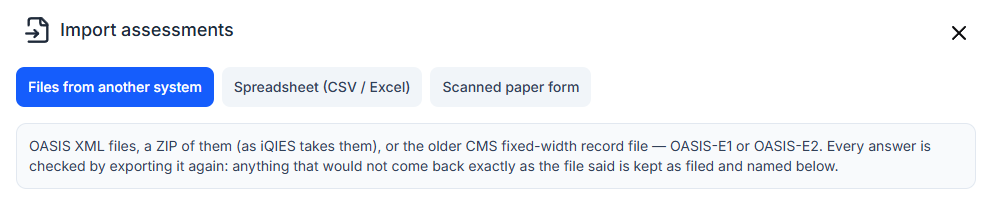
2. Import files from your old system
On Files from another system, choose your files.
Pick OASIS XML files, a ZIP of them (as iQIES takes them), or the older CMS fixed-width record file, OASIS-E2 or OASIS-E1. Every answer is checked by exporting it again; anything that would not come back exactly as the file said is kept as filed and named in the list.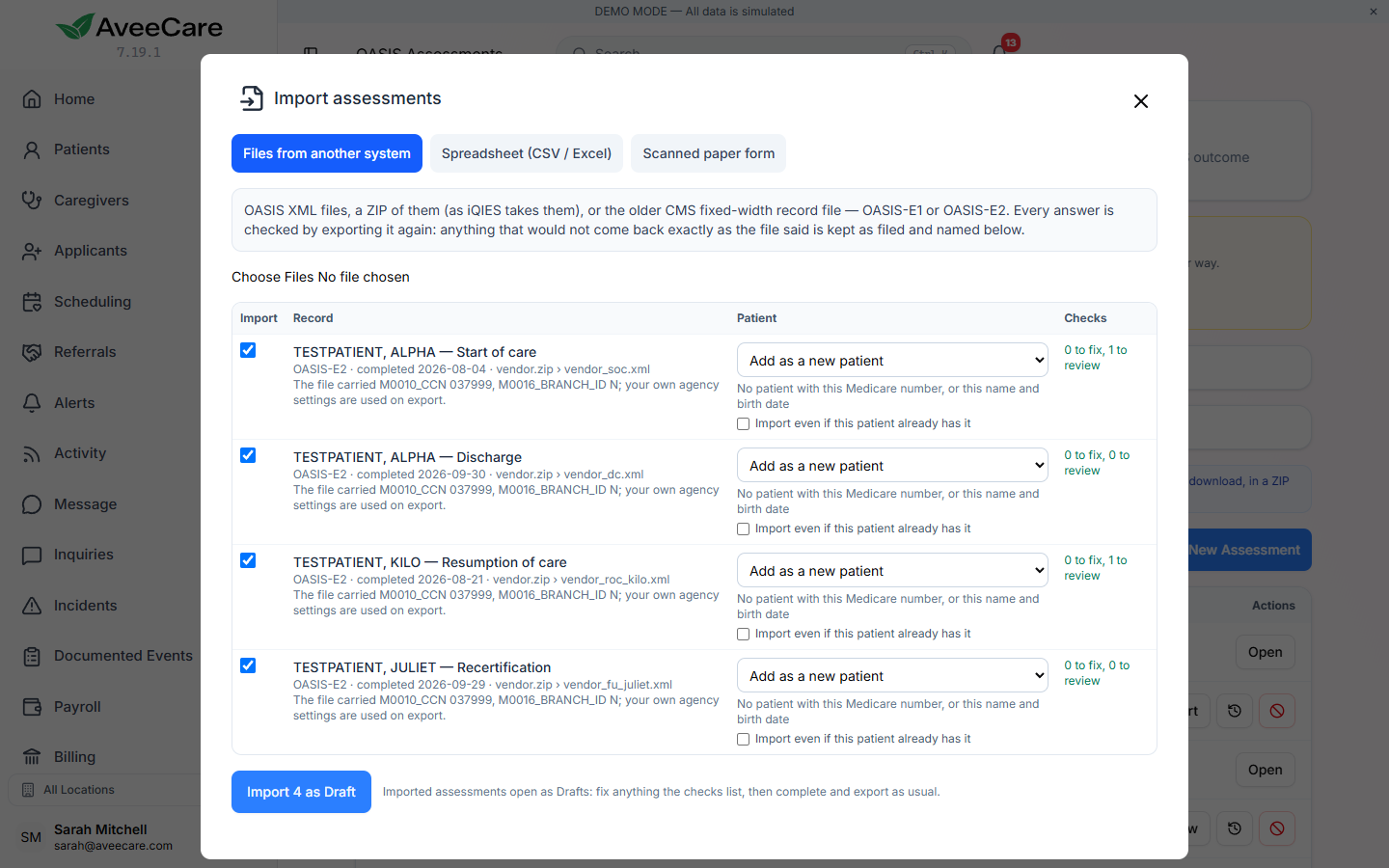
3. Check each patient match and import as Draft
Check the Patient column for each record.
AveeCare matches by Medicare number, then by name and birth date. If more than one patient could match, you pick. If none does, choose Add as a new patient. The Checks column counts answers to fix and answers to review.
Press Import N as Draft.
The records become drafts on the OASIS page. Agency items such as the CCN and branch always come from your own settings, whatever the old file carried. AveeCare also records who imported each one and from which file.
4. Use the spreadsheet template
On Spreadsheet (CSV / Excel), download the template.
There is a template for OASIS-E2 and one for OASIS-E1. Each row is one assessment and the column headers are the CMS element names.Fill it in and choose the file.
The rows are matched to patients and imported as drafts, the same way as files.
5. Scan a paper form
On Scanned paper form, pick the patient, the assessment type and the M0090 date.
Avee reads the filled paper form. The patient's consent to AI processing must be recorded on their page, and AI must be on for your agency.Confirm each page.
You see each page beside what Avee read from it, and confirm page by page. Anything Avee could not read is left for you. Identity items come from the patient's record, not the scan, and the paper form is saved to the patient's Files.
Common pitfalls
- Importing a duplicate by mistake. Leave Import even if this patient already has it unticked unless you really mean to bring in a second copy.
- Assessments from before 2025. Only assessments dated January 1, 2025 or later can be imported.
- Skipping the review count. Open each draft and look at the answers the Checks column flagged before you complete it.
- Expecting a scan to fill identity details. Name, birth date and IDs come from the patient record. Fix them there.
Related
- Complete an OASIS assessment: finish the imported drafts.
- Set up AveeCare for OASIS submission
- Import patient records: bring the patient list over first.
- OASIS feature overview