This is the clinician's part of OASIS: answering the items, fixing anything iQIES would reject, and signing. It works the same at every timepoint, on OASIS-E2 and OASIS-E1.
Quick answer
Open the assessment from the OASIS page and work through the section tabs. Clear every issue the CMS edits flag, then press Complete (or Send for review if your agency uses review) and sign.
1. Answer each item
Open the assessment and pick a section tab.
The tabs across the top are the OASIS sections. Answers save as you go. Identity details such as name, birth date and Medicare number already come from the patient's record, and the agency details come from your settings when the file is built.Answer from the keyboard.
Click or Tab to an item and type its answer code to answer it and move on. Enter goes to the next item, Alt+N jumps to the next unanswered one, and Alt+Left and Alt+Right change section. The Next unanswered button does the same as Alt+N.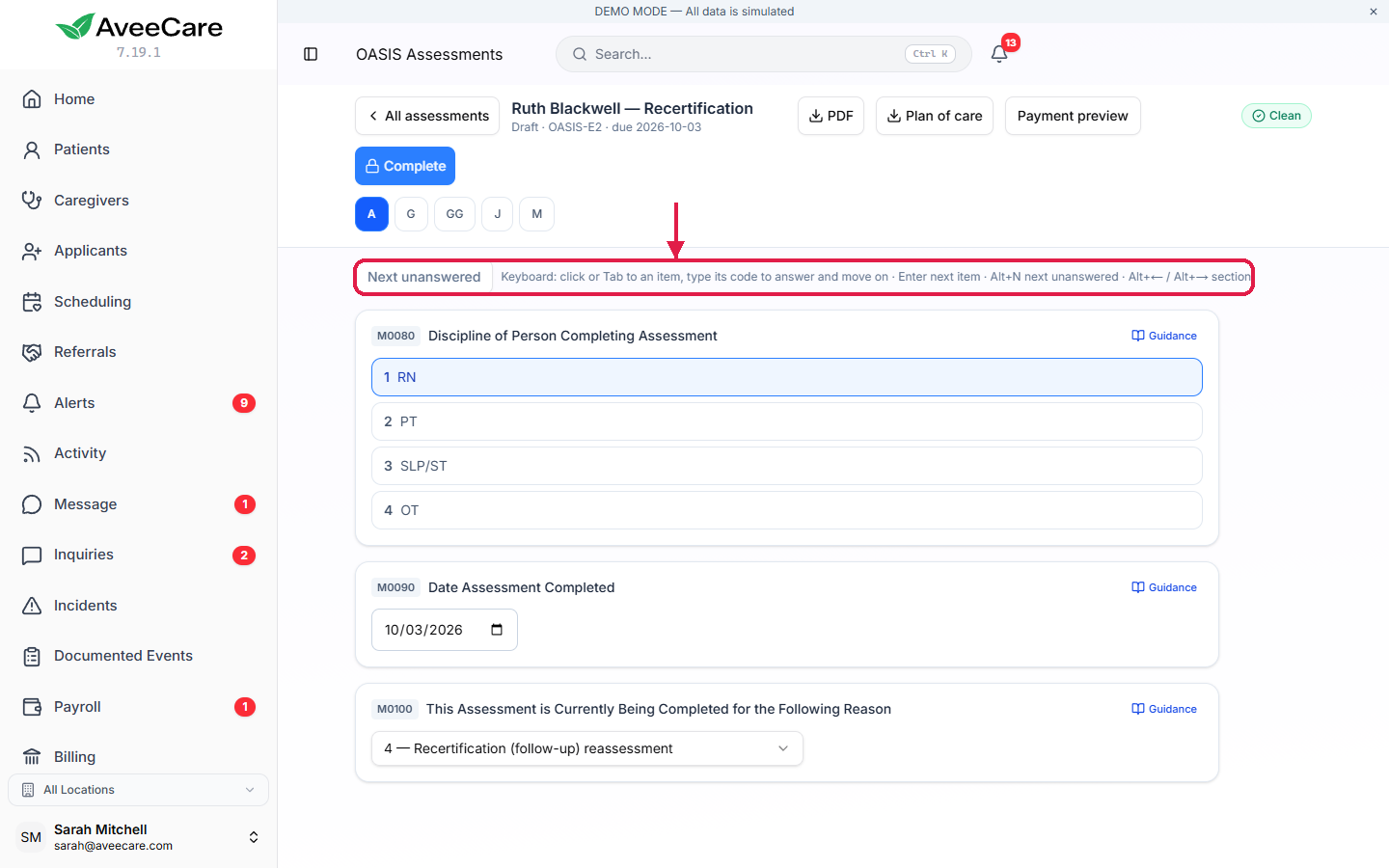
2. Use last time's answer and the CMS guidance
Read the Last time line under an item.
It shows the answer from the patient's previous completed assessment and when it was given. Click same as last time to copy that one answer. Nothing is filled in unless you click it.Press Guidance on an item to open CMS guidance.
The drawer shows CMS's guidance for that item: the item intent, response-specific instructions and coding instructions, and the timepoints it is collected at.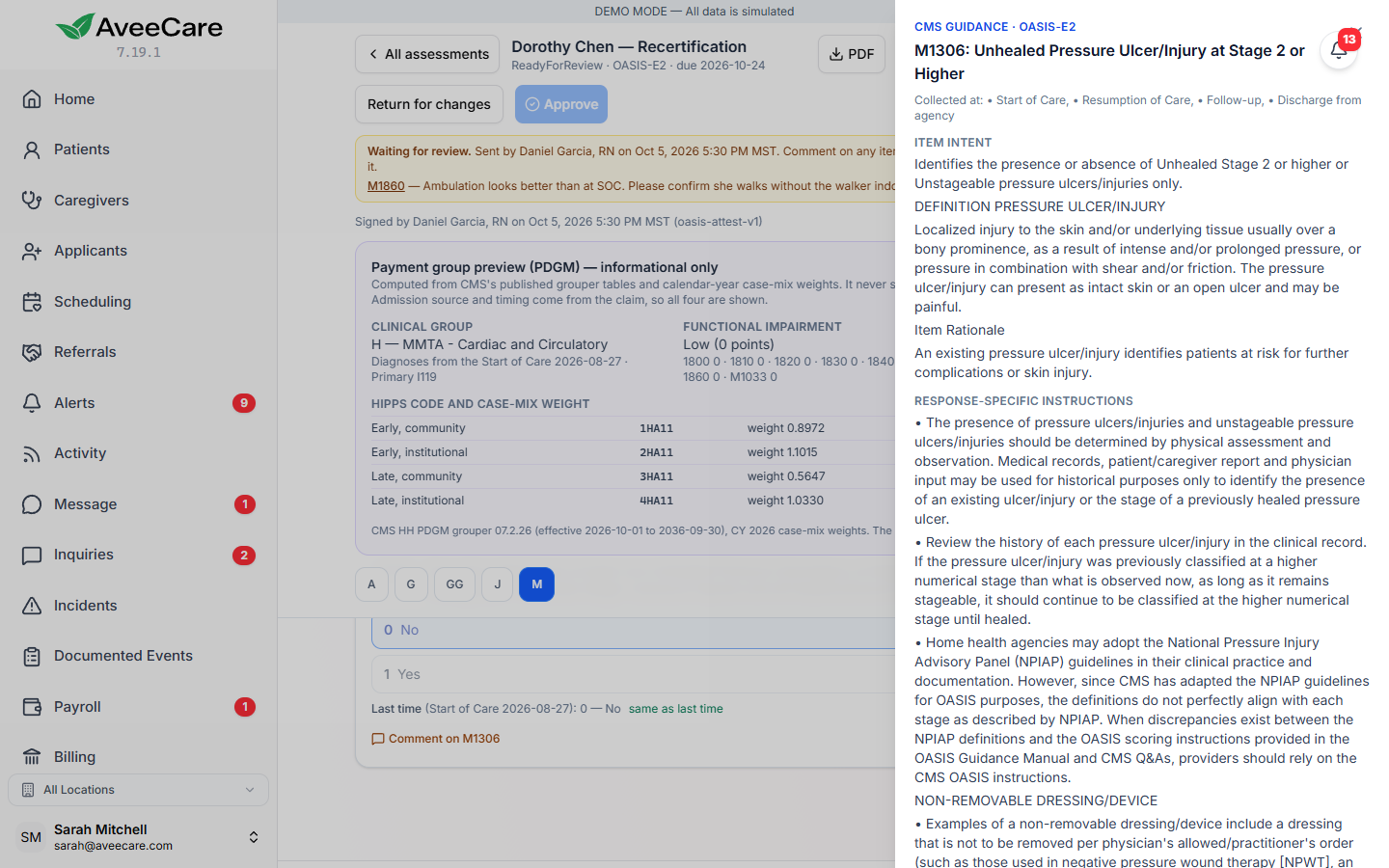
3. Clear the CMS edits
Work the issues list until nothing fatal is left.
AveeCare runs the CMS edits as you answer. Each issue names its CMS edit number with CMS's wording and a plain explanation, and has a link that jumps to the item. The section tabs count what is left in each section.Check the M0090 date before you finish.
The date decides the form. Moving it across April 1, 2026 switches the assessment between OASIS-E2 and OASIS-E1. iQIES accepts OASIS-E1 files only through December 31, 2026, and the form shows a reminder.
4. Sign and complete, or send for review
Press Complete and sign.
Read the attestation, then draw or type your signature and press Sign and complete. The signature, the time and the exact attestation text are kept with the assessment, and it locks.If your agency uses review, press Send for review instead.
The account owner turns on Require a second clinician to review each assessment in Settings. You sign with Sign and send for review. The reviewer comments on any item and presses Return for changes, or presses Approve to complete and lock it. You resolve each comment, sign again and resend.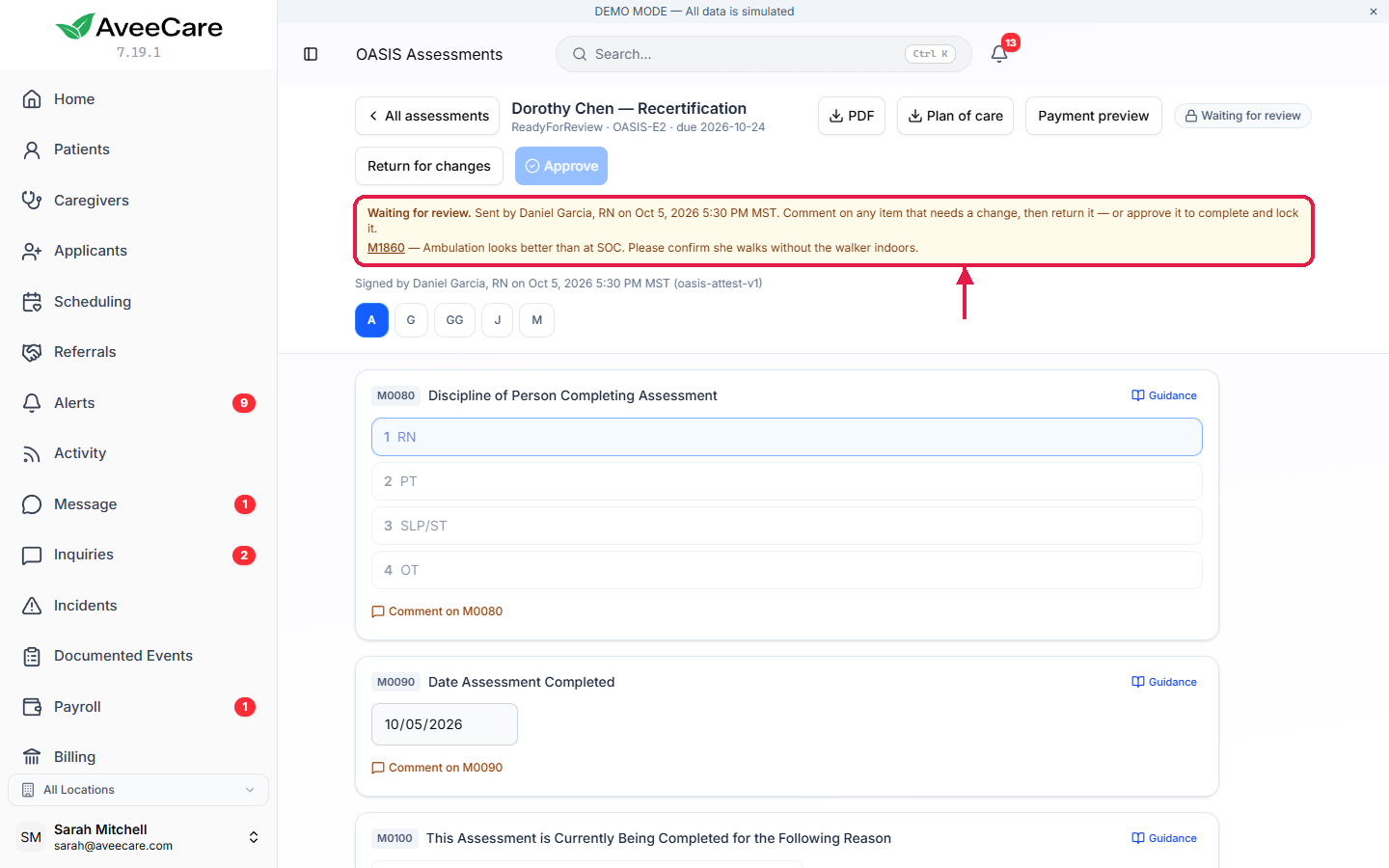
5. Keep working through a dropped connection
Keep charting if the connection drops.
Answers that have not been sent are kept on the device, encrypted, and sent when the connection returns.Choose which answer wins if someone else changed it.
If another person changed the same answer while yours were waiting, AveeCare lists each one with the saved value and yours. Press Use my answers or Keep the saved answers.
Common pitfalls
- Editing a completed assessment. It is locked. Create a correction from the assessment list instead; it starts as a new draft linked to the original.
- Reviewing your own assessment. AveeCare will not let the clinician who wrote it, or the person who sent it, approve it. Ask a colleague.
- Returning without a comment. Return for changes needs at least one open comment, so the clinician knows what to fix.
- Closing the browser while offline. Name, birth date, sex and ID numbers are not stored on the device. Check them again if the browser closed before the connection came back.
- Treating the payment preview as a target. It is an estimate shown for information. Answer every item from your assessment.
Related
- Export OASIS to iQIES: what happens after Complete.
- OASIS deadlines, episodes and estimates: due dates, payment preview and plan of care.
- Set up AveeCare for OASIS submission
- OASIS feature overview