Once assessments are completed, AveeCare builds the files your agency uploads to iQIES and then reads iQIES's answer back, so each assessment shows whether it was accepted.
Quick answer
Tick the completed assessments on the OASIS page, press Export N selected and download the ZIP. Upload it to iQIES yourself. When iQIES has processed it, press Import iQIES report with the Final Validation Report to mark each assessment Accepted or Rejected.
1. Select completed assessments and export
Tick each completed assessment, then press Export N selected.
Every completed row has a select box. Before anything downloads, AveeCare builds each file, checks it, and records the export. A record iQIES would reject is held back and named with its reasons and an Open link, and the rest still export. One completed row can also be exported with its own Export button.Press Download ZIP.
The window lists each ZIP and the records in it. Each patient's records stay in one ZIP, and the batch is split into several ZIPs if it would go over iQIES's 5 MB limit. Exporting needs the setup checklist to be complete.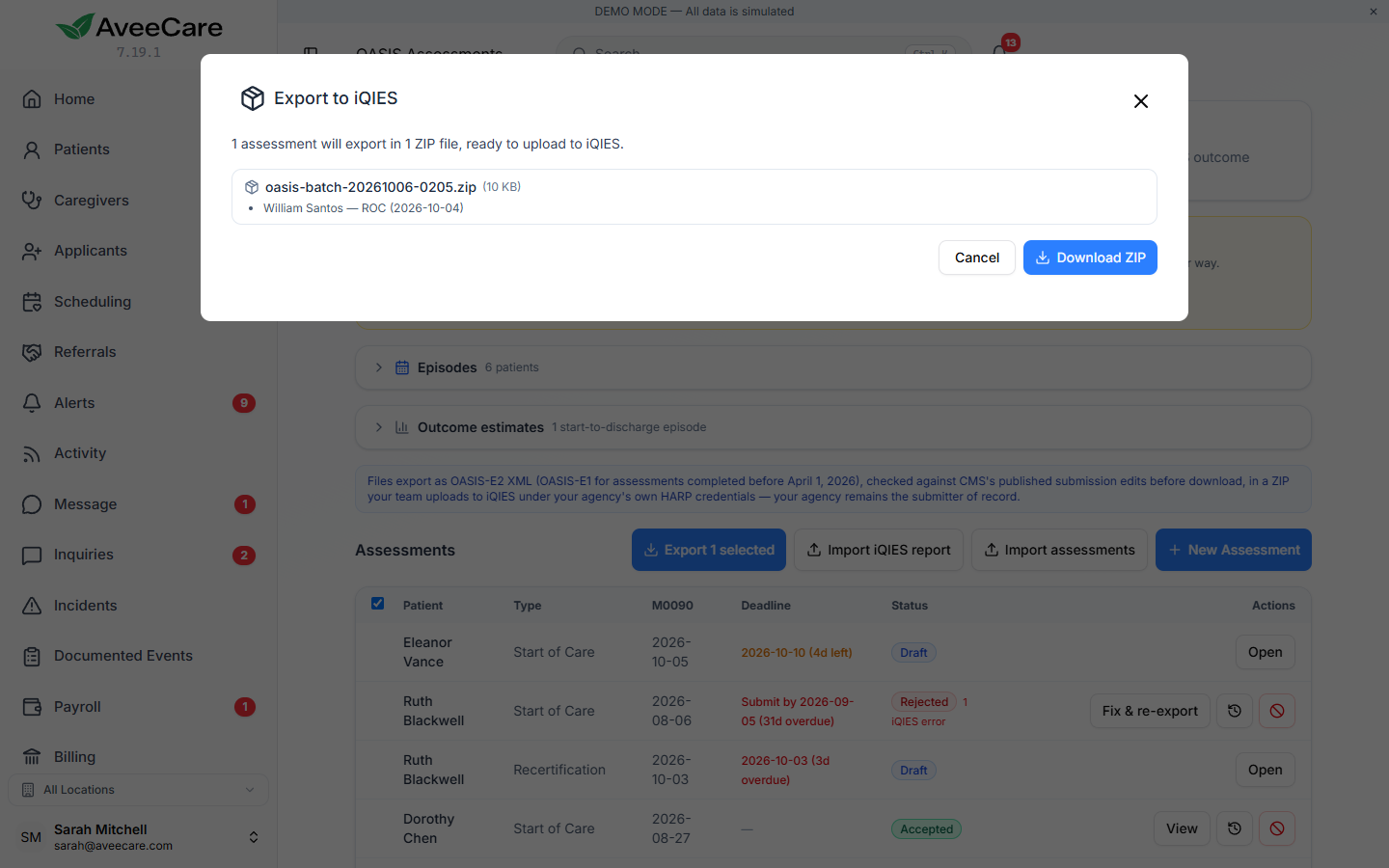
2. Upload the ZIP to iQIES
Sign in to iQIES with your agency’s own login and upload the ZIP.
AveeCare does not upload for you; your agency remains the submitter of record. Upload each ZIP the export window listed.Find the export under Export history.
Below the assessments table, Export history lists every export: when, who made it, the files, how many assessments, and the iQIES outcome once you record it. An exported assessment shows Download again in case the first download did not save.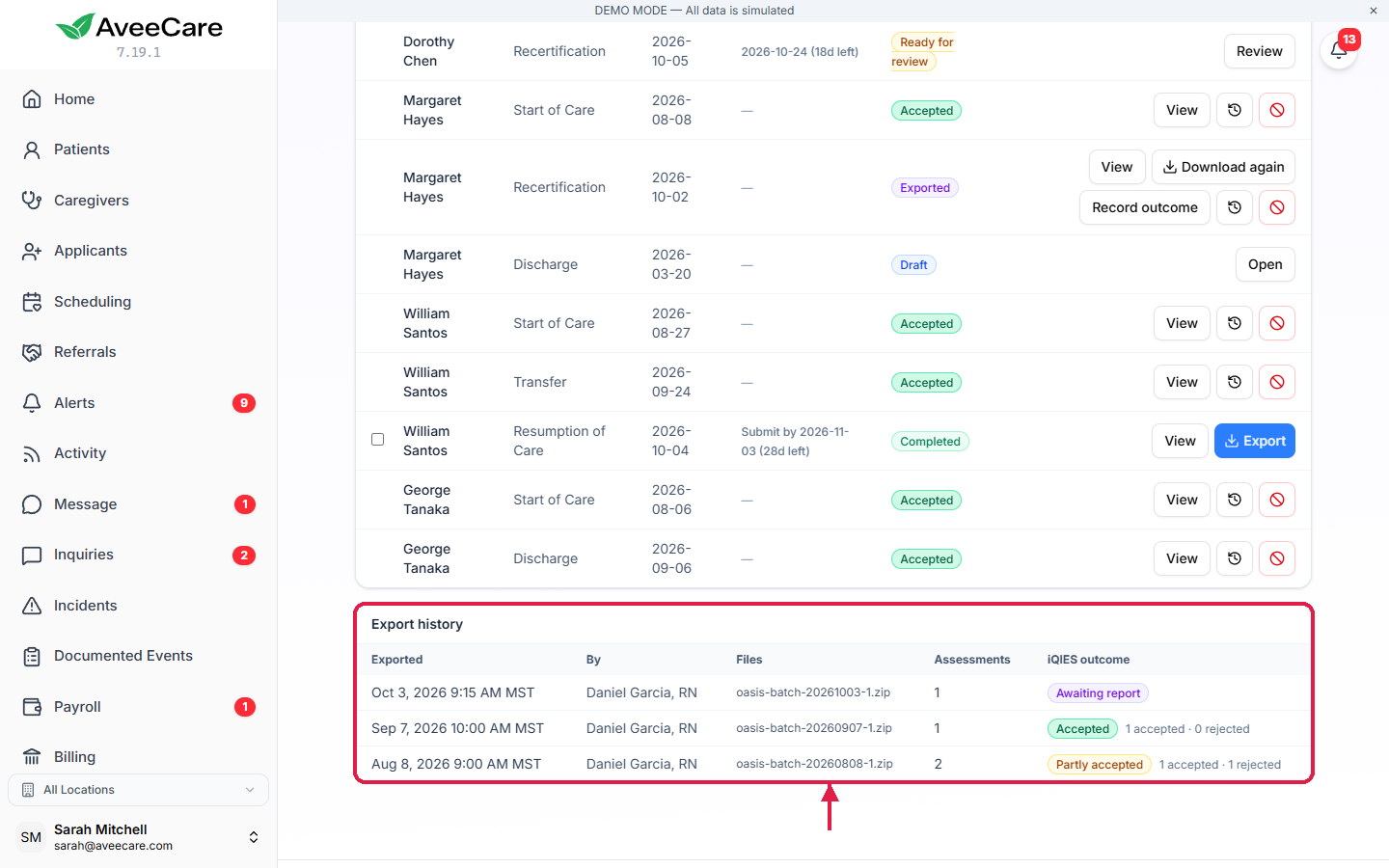
3. Import the Final Validation Report
Save the Final Validation Report from iQIES.
Open the report in iQIES and save it as CSV, or copy its text.Press Import iQIES report and check each match.
AveeCare matches each record in the report to an assessment, by file name first and then by name, date and reason for assessment. A record it cannot match for sure is left for you to pick. Nothing is saved until you press Record N outcome.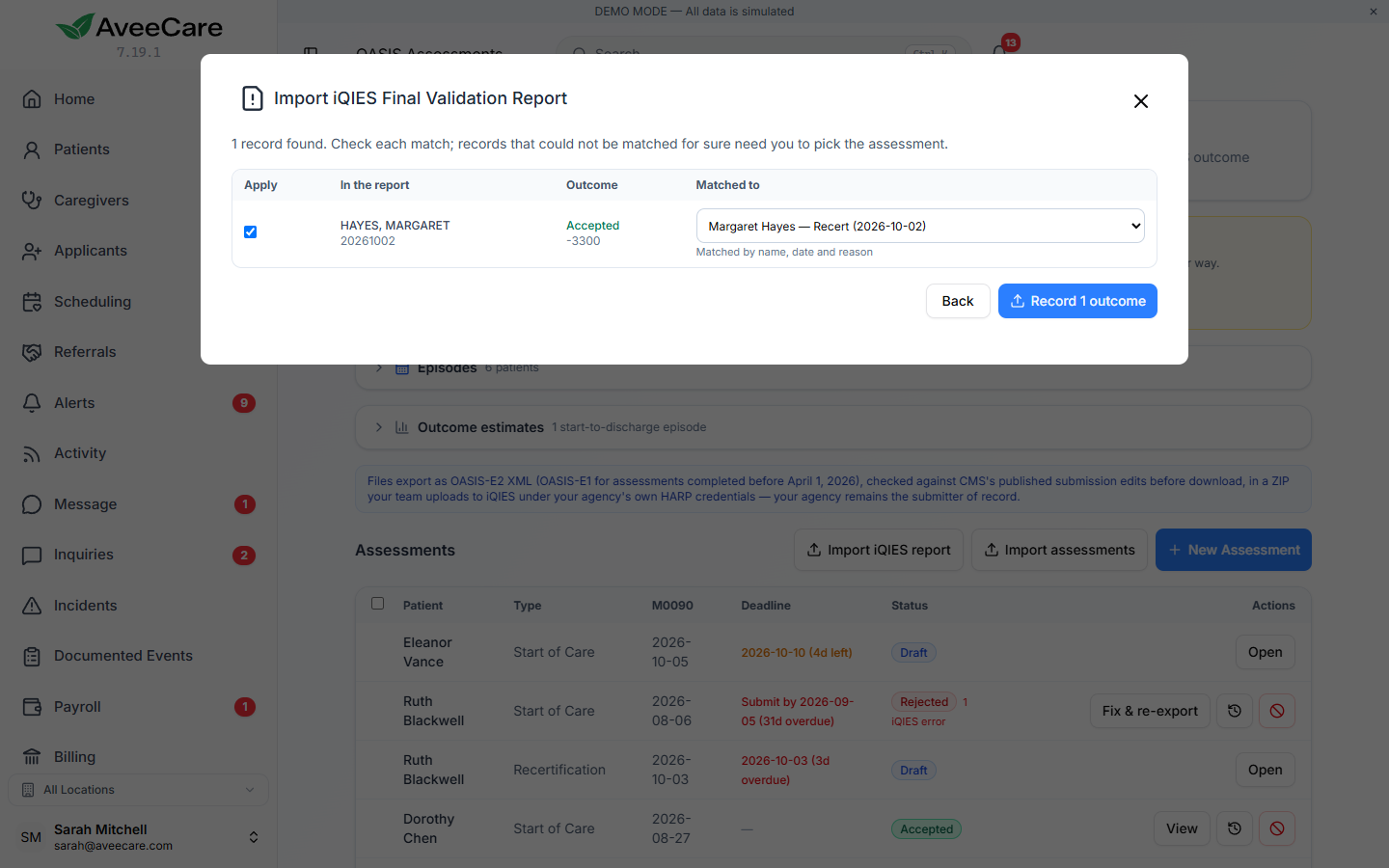
Or record one outcome by hand.
An exported assessment also has Record outcome, for when you only need to enter one result. The report reader was built from CMS's published column list; if your agency's report does not read correctly, record the outcome this way and tell us.
4. Fix rejected records and export again
Press Fix & re-export on a rejected assessment.
The form opens with the CMS edits iQIES reported and links to each item. Fix the answers, complete the assessment again, and export it.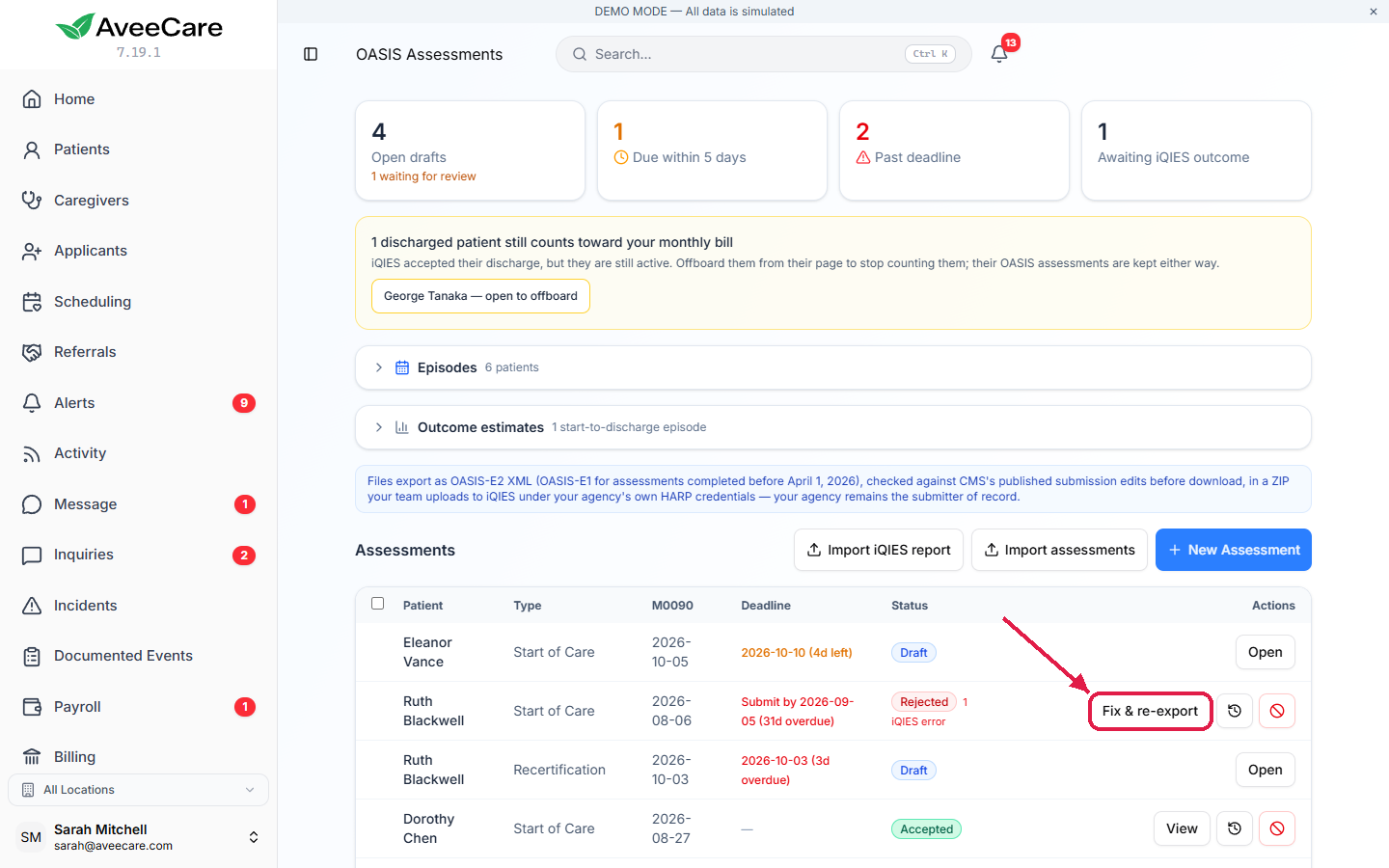
5. Correct or inactivate an accepted record
To change an accepted record, create a correction.
Use the correction button on its row. The correction starts as a new draft with the next correction number, linked to the original. Complete it and export it like any other assessment.To withdraw a record from iQIES, inactivate it.
Use the inactivate button on its row and give a reason. AveeCare creates an inactivation record that is ready to export, carrying the details the original file had so iQIES can match it. Export and upload it the same way.
Common pitfalls
- Treating Exported as done. A ZIP in your Downloads folder proves nothing about iQIES. Import the Final Validation Report so each assessment shows its real outcome.
- Missing the submission deadline. A completed assessment must be submitted within 30 days of M0090. The Deadline column shows the submit-by date.
- Exporting before the setup checklist is done. Every file needs your iQIES agency ID, CCN, NPI and state. Fill them in on the OASIS page first.
- Editing an accepted record. Completed and accepted assessments are never edited in place. Create a correction instead.
Related
- Complete an OASIS assessment: before export.
- OASIS deadlines, episodes and estimates: complete-by and submit-by dates.
- Set up AveeCare for OASIS submission: the IDs every file needs.
- OASIS feature overview