Compliance export gives you a single CSV of every caregiver and every credential on their record, with status and expiration columns the Compliance Dashboard already tracks. Use it to hand a state surveyor, a Medicaid auditor, or an accreditor a flat record of who has what and when each credential expires.
Quick answer
Open Compliance in the left nav. Click Export CSV in the top right of the page header, next to Refresh. Your browser downloads a file named compliance-report-YYYY-MM-DD.csv with one row per caregiver and one pair of columns (Status and Expires) per credential type on your roster.
What is in the file
The CSV has a two-line header (the report title and the generation timestamp), a blank spacer row, then one column header row, then one data row per caregiver. Per-caregiver columns are:
- Caregiver Name (Last, First).
- Status: Compliant, At Risk, Non-Compliant, or Non-Compliant (No Credentials).
- Total Credentials, Valid, Expiring, Expired: the same counts on the Caregiver Compliance table row.
- Compliance Rate: percent of credentials that are not expiring or expired.
- For each credential name that exists anywhere on your roster, two columns: <name> - Status (Current, Expiring Soon, Expired, or Missing) and <name> - Expires (the expiration date or blank).
Credential columns are alphabetized and built from the union of credentials across all caregivers, so every row has the same columns. Caregivers who do not have a given credential show Missing in the Status column and an empty Expires cell.
1. Open Compliance and click Export CSV
Click Compliance in the left nav.
The page header reads Compliance Dashboard with the subtitle Caregiver credential tracking and compliance monitoring. Refresh and Export CSV sit at the top right of the header, side by side.Click Export CSV.
One click. There is no scope modal, no date range picker, and no requirement selector. The export always covers every caregiver currently on your Caregiver Compliance table, with every credential name on your roster.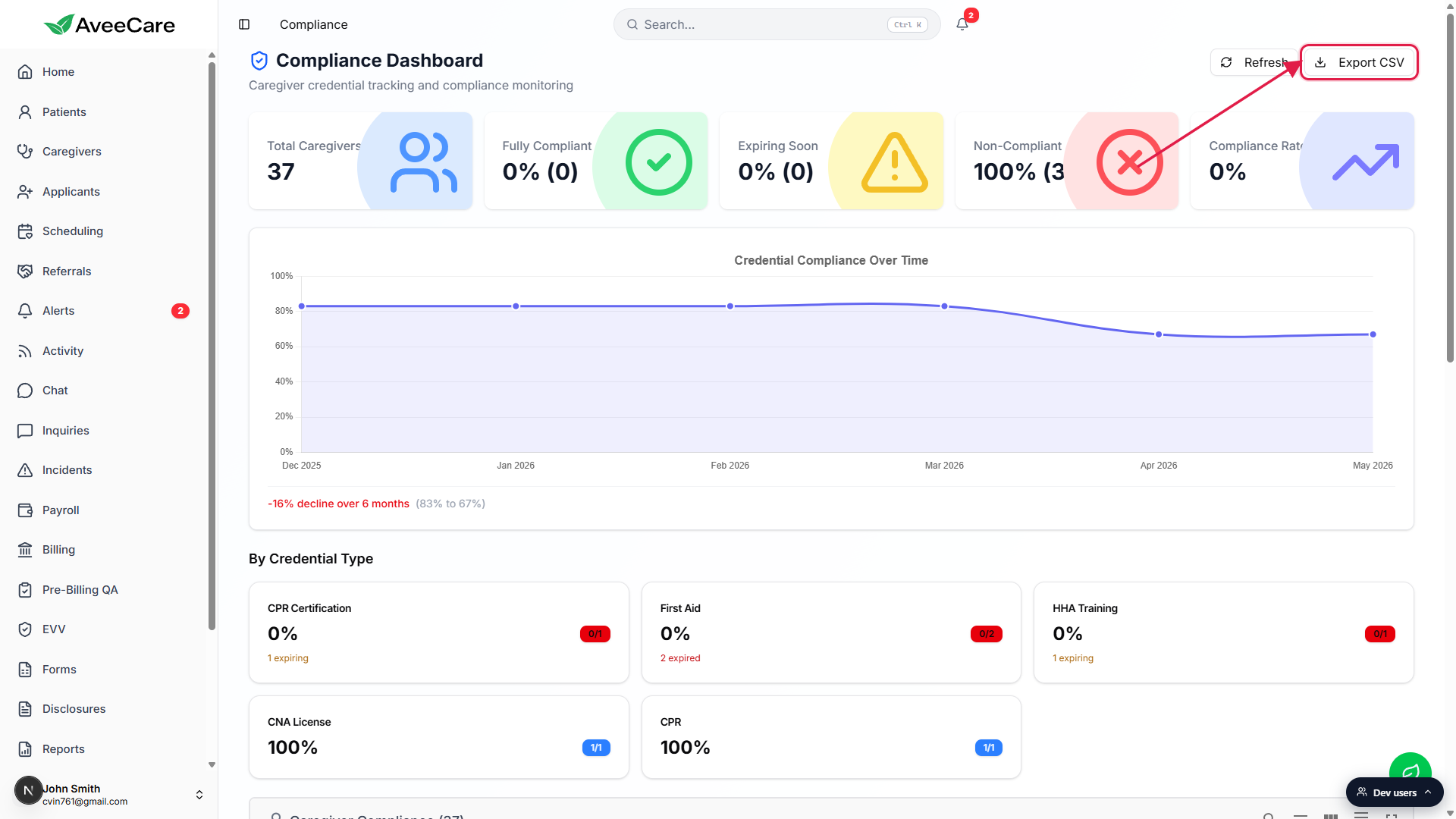
2. Save the file from your browser downloads
The browser downloads compliance-report-YYYY-MM-DD.csv.
The file lands in whatever folder your browser is set to use for downloads. A green toast confirms the export with Exported N caregivers to CSV where N is the row count on your Caregiver Compliance table at the moment you clicked.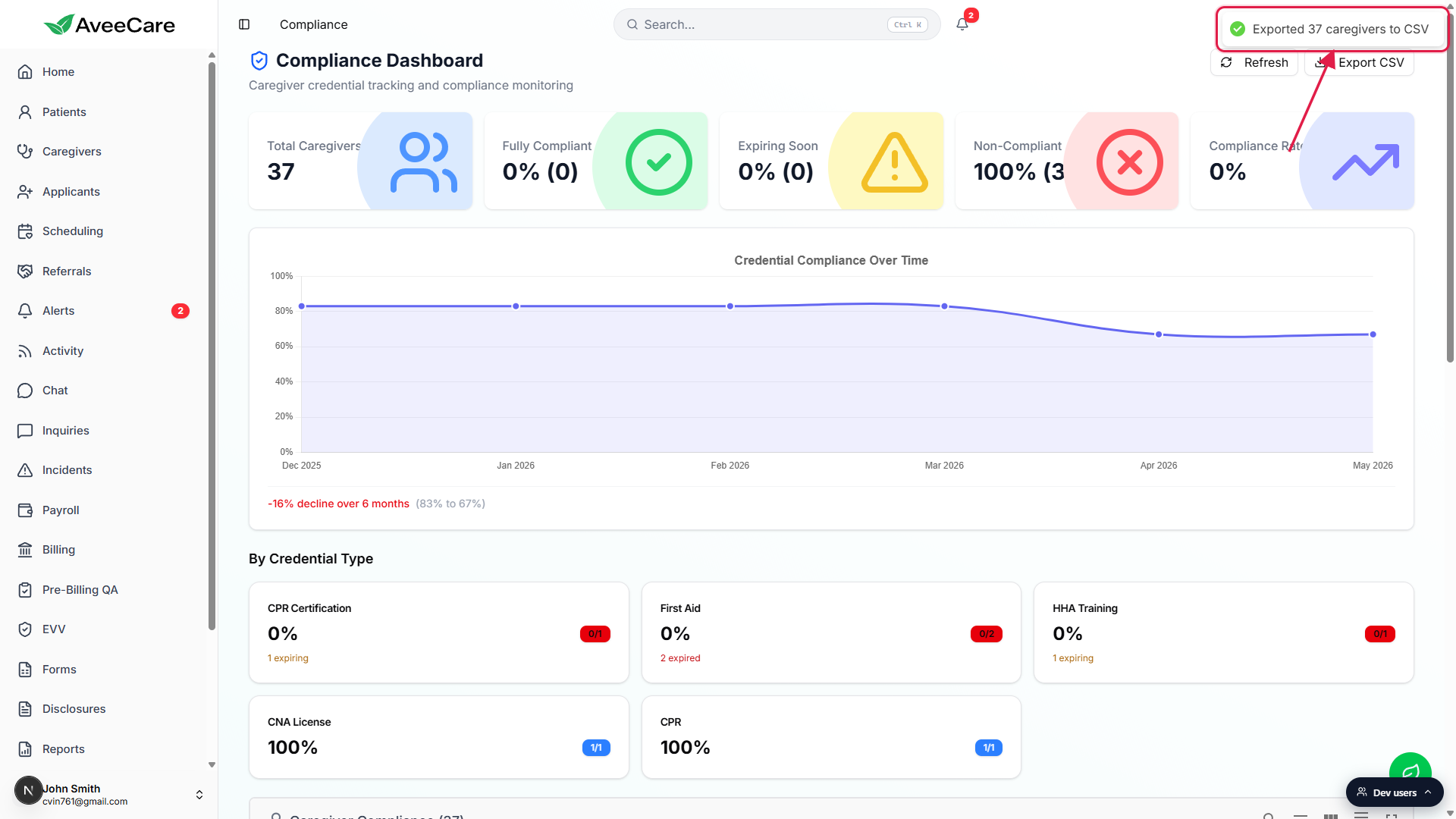
Open the CSV in Excel, Google Sheets, or Numbers.
Skip the first two lines (the report title and the Generated timestamp) plus the blank row, and the third line is the column header row. Most spreadsheets infer this automatically. If you set up a filter, anchor it on the header row, not the title.
3. Hand the CSV to your auditor or surveyor
Sanity-check the row count against the Caregiver Compliance table.
The number in the green toast (and the row count in the file) should match the count on the Caregiver Compliance (N) header. If a caregiver is missing from the export, they are missing from the dashboard, which usually means they are inactive or were not loaded yet. Click Refresh and re-export.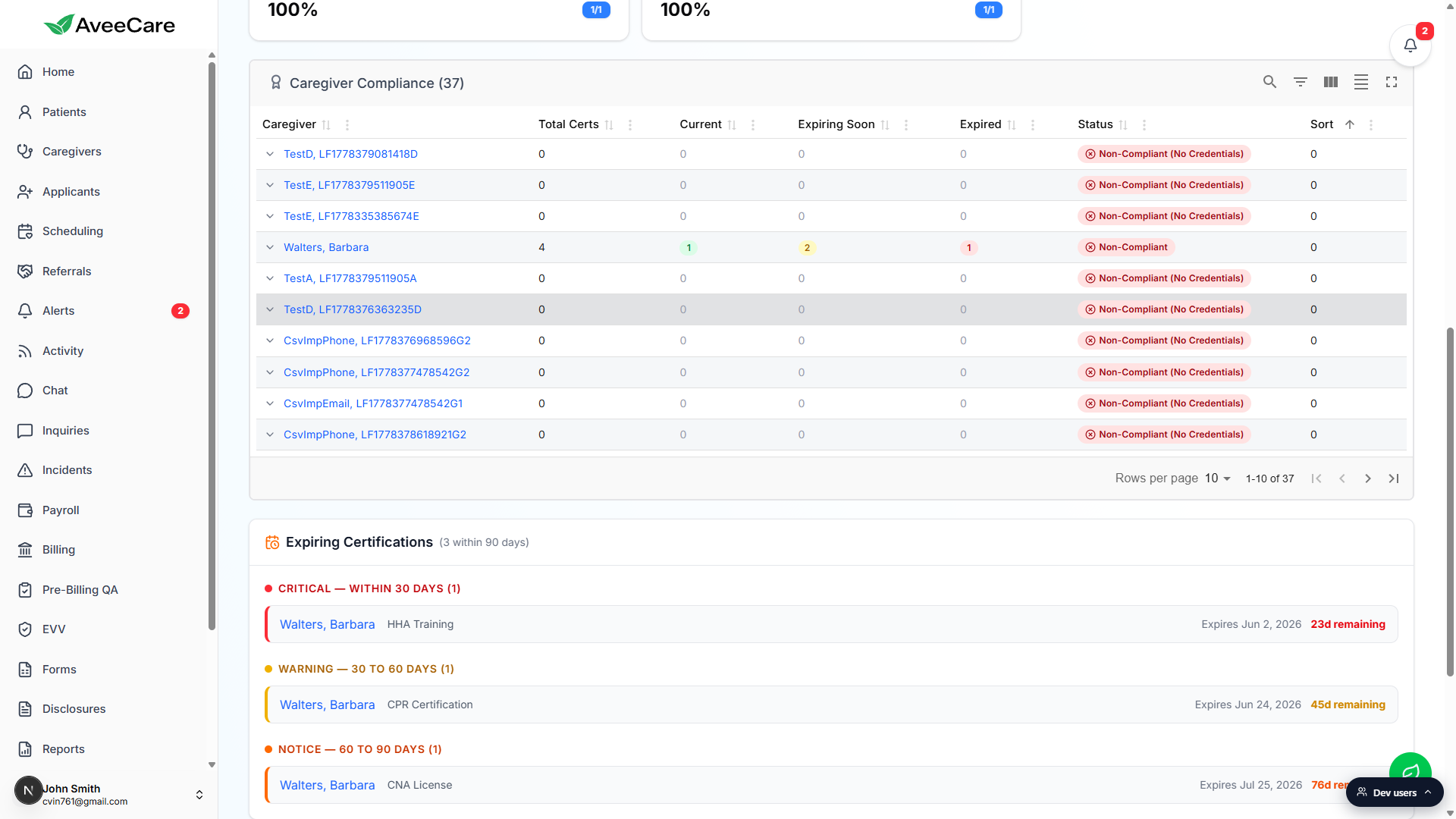
Encrypt the file before emailing it.
The CSV contains caregiver names and credential expirations. Most state Medicaid auditors require encrypted transfer for anything tied to a caregiver record. Use your agency's secure file transfer or zip the CSV with a password before forwarding.
Common pitfalls
- Two header lines, not one. Lines 1 and 2 are a report title and a Generated timestamp. The blank line 3 is a spacer. Line 4 is the column header row. Tell your auditor where the real columns start or they will read the title as column A and complain.
- Status is the worst credential, not an average. A caregiver with three Current credentials and one Expired credential shows Non-Compliant in the Status column. That is intentional. Compliance Rate is the average; if you need the per-credential picture, look at the individual name - Status columns.
- Naming drift creates extra columns. The dashboard groups credentials by exact name. If one caregiver has “CPR” and another has “CPR Certification” the export has four columns for the same card (CPR - Status, CPR - Expires, CPR Certification - Status, CPR Certification - Expires). Pick one wording on the Certifications tab and stick to it.
- Empty roster export. If the Caregiver Compliance table has zero rows (filtered or empty), the Export CSV button shows a No compliance data to export error toast instead of downloading. Clear any filters and click Refresh first.
- Stale snapshot. The CSV is a snapshot of the dashboard at the moment you click. If you upload a new credential to a caregiver and re-export, click Refresh on the dashboard first; otherwise the new credential is not in the file yet.