In AveeCare, a compliance document means a caregiver credential like a CPR card, First Aid card, HHA training certificate, or CNA license. You upload one by adding a Certification entry on the caregiver, with the name, the date it was obtained, and the expiration date. The Compliance Dashboard rolls those entries up into the Current, Expiring Soon, and Expired counts you see in the table.
Quick answer
Open Compliance to see which credentials each caregiver is missing or about to lose. Click the caregiver name to jump to the Certifications tab on their profile. Click Add Certification, type the name (CPR, First Aid, CNA License), pick the Date Obtained and Expiration Date, save. The Compliance Dashboard updates the caregiver row and the By Credential Type tiles on the next refresh.
Where compliance documents live
The Compliance Dashboard itself is read-only. It is a rollup of the certifications on each caregiver. Edits and new entries happen on the Certifications tab of the caregiver detail view. The credential name is free-form (e.g., CPR Certification, First Aid, HHA Training, CNA License) so you can match whatever your state, payer, or accreditor requires.
- Date Obtained is required.
- Expiration Date is optional. If you leave it blank, the credential never flips to Expiring Soon or Expired.
- The dashboard treats a credential as Current while expiration is more than 60 days out, Expiring Soon inside 60 days, and Expired after the date passes.
1. See which credentials each caregiver needs
Click Compliance in the left nav.
The page header reads Compliance Dashboard. Below the five summary tiles, the By Credential Type section lists every credential name on file across your caregivers, with a current compliance percentage for each type. This is the list of compliance documents your roster is being graded on right now.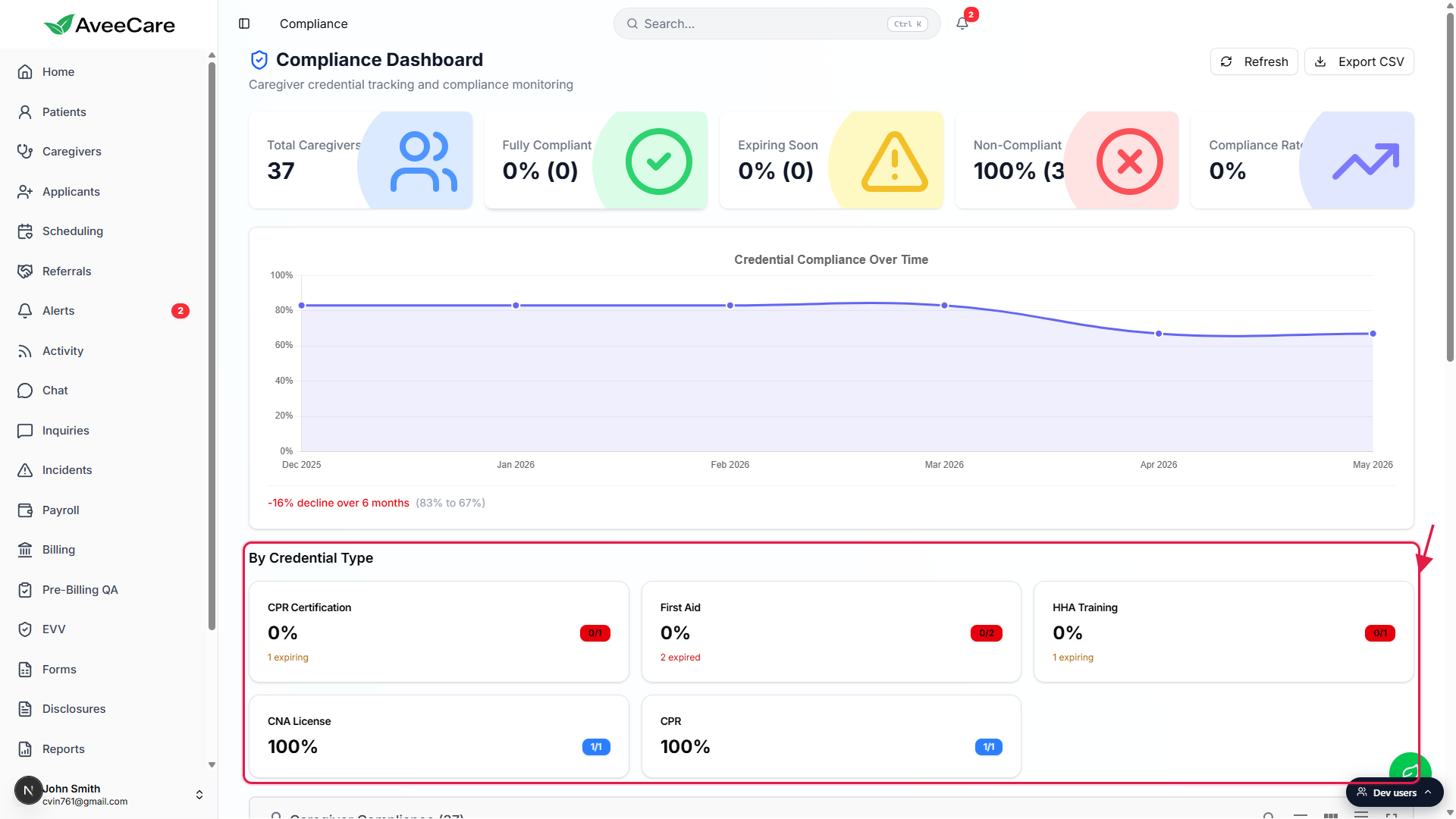
Scroll to the Caregiver Compliance table to see who is missing what.
Each row is one caregiver. The Total Certs, Current, Expiring Soon, and Expired columns tell you exactly which documents are due. A caregiver with no credentials at all shows the chip Non-Compliant (No Credentials), which is the dashboard saying you have not uploaded anything for them yet.
2. Open the caregiver and click Add Certification
Click the blue caregiver name in the table.
You land on the caregiver detail view. The header shows the caregiver name, photo, date of birth, email, and address. The tab bar below the header has Overview, Schedule, Payroll, Forms, Files, Disclosures, Activity, Certifications, Incidents, Notes, and Transfer History.Click the Certifications tab.
You see every credential already on file with columns for Name, Obtained, Expires, and Actions. Expired or Expiring Soon rows show in orange or red in the Expires column.Click Add Certification in the top right.
A modal opens with the Add Certification form.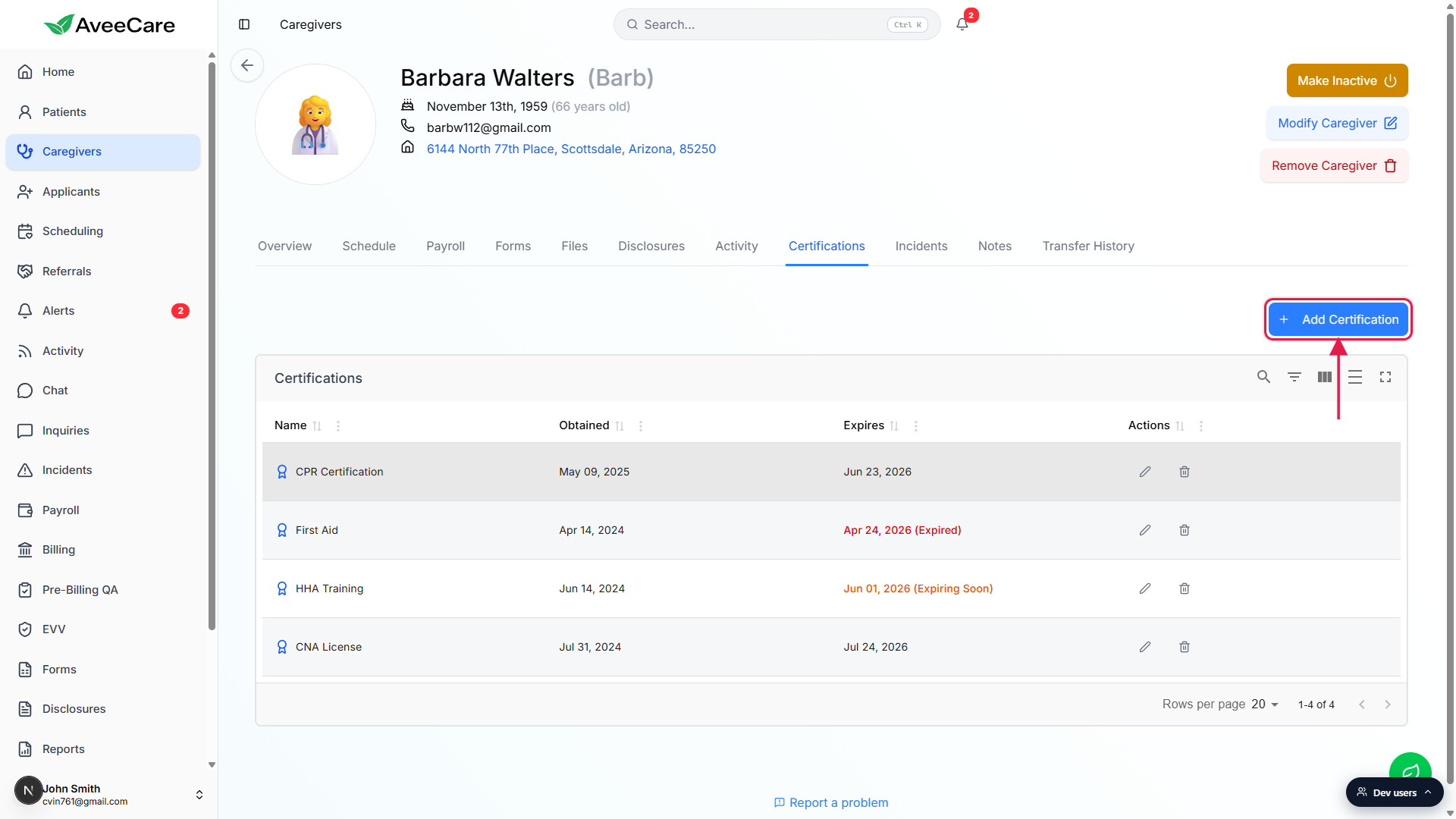
3. Record the credential name, obtained date, and expiration
Type the credential name in Certification Name.
The placeholder hints at the convention: e.g., CPR, First Aid, CNA License. Reuse the same wording you used for past caregivers so the By Credential Type tiles stay clean. AveeCare groups by the exact string, so “CPR” and “CPR Certification” show up as two different rows.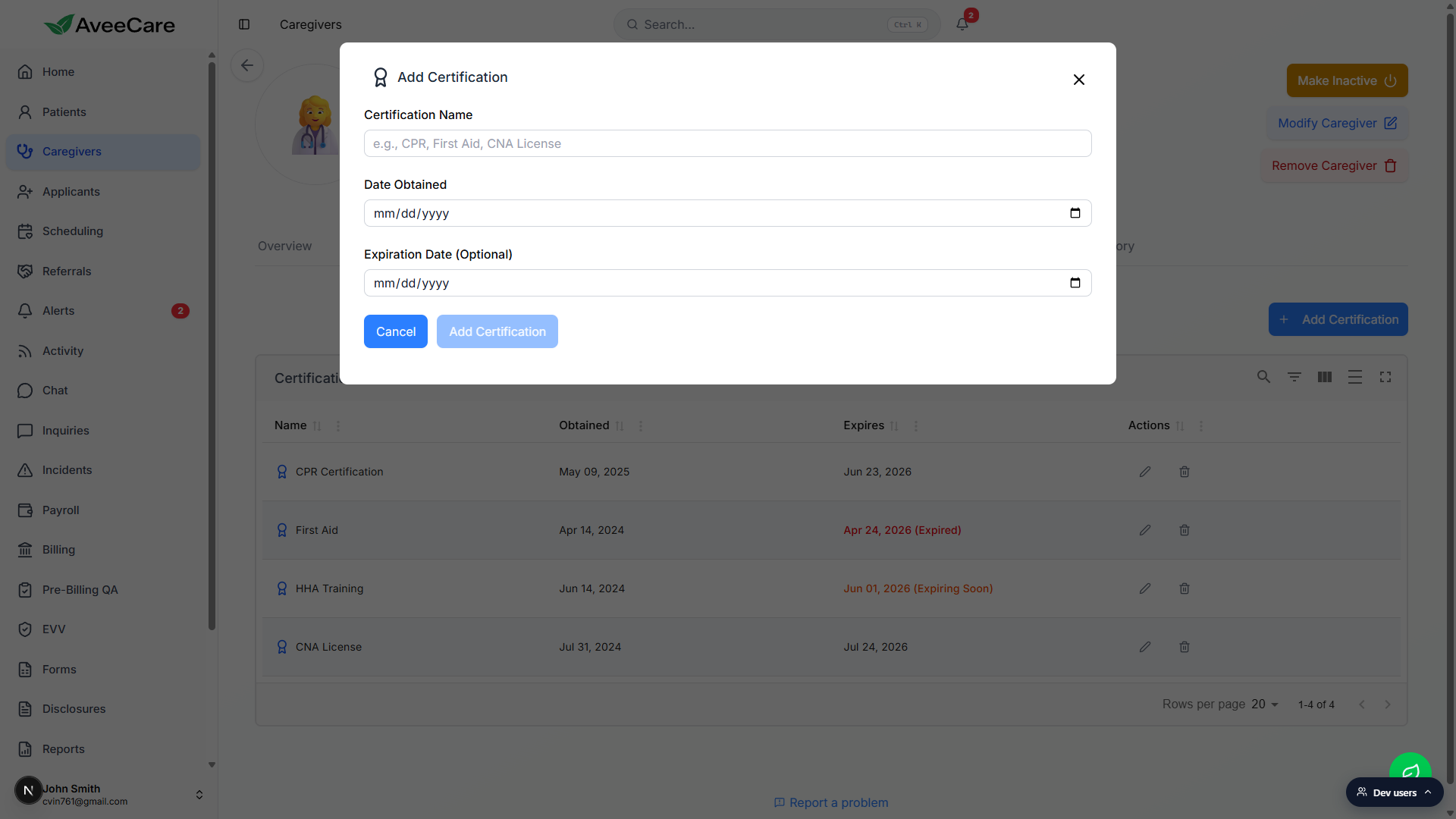
Pick the Date Obtained.
Required. This is the issue date on the card. The dashboard uses Obtained to compute the historical compliance trend on the Credential Compliance Over Time chart.Pick the Expiration Date (Optional).
Leave blank for credentials that never expire. If the document does have an expiration, capture it here so the row flips to Expiring Soon inside 60 days and Expired after the date.Click Add Certification to save.
The modal closes and the row appears in the Certifications table on the caregiver. To replace an existing credential with a renewed version, click the pencil icon on the row and update the dates. To remove a stale row entirely, use the trash icon.
4. Confirm the status updated on the Compliance Dashboard
Go back to Compliance and click Refresh in the top right.
The caregiver row recomputes. The Total Certs count goes up by one, the Current count goes up if the new credential is more than 60 days from expiry, and the Status chip lifts from Non-Compliant to At Risk or Compliant if the upload was what was holding the row back.Check the Expires column on the Certifications tab to confirm the credential is being tracked.
Each Expires cell shows the exact date plus a status suffix where it matters. A renewed credential shows just the date in black. An expiring one shows (Expiring Soon) in orange. An overdue one shows (Expired) in red.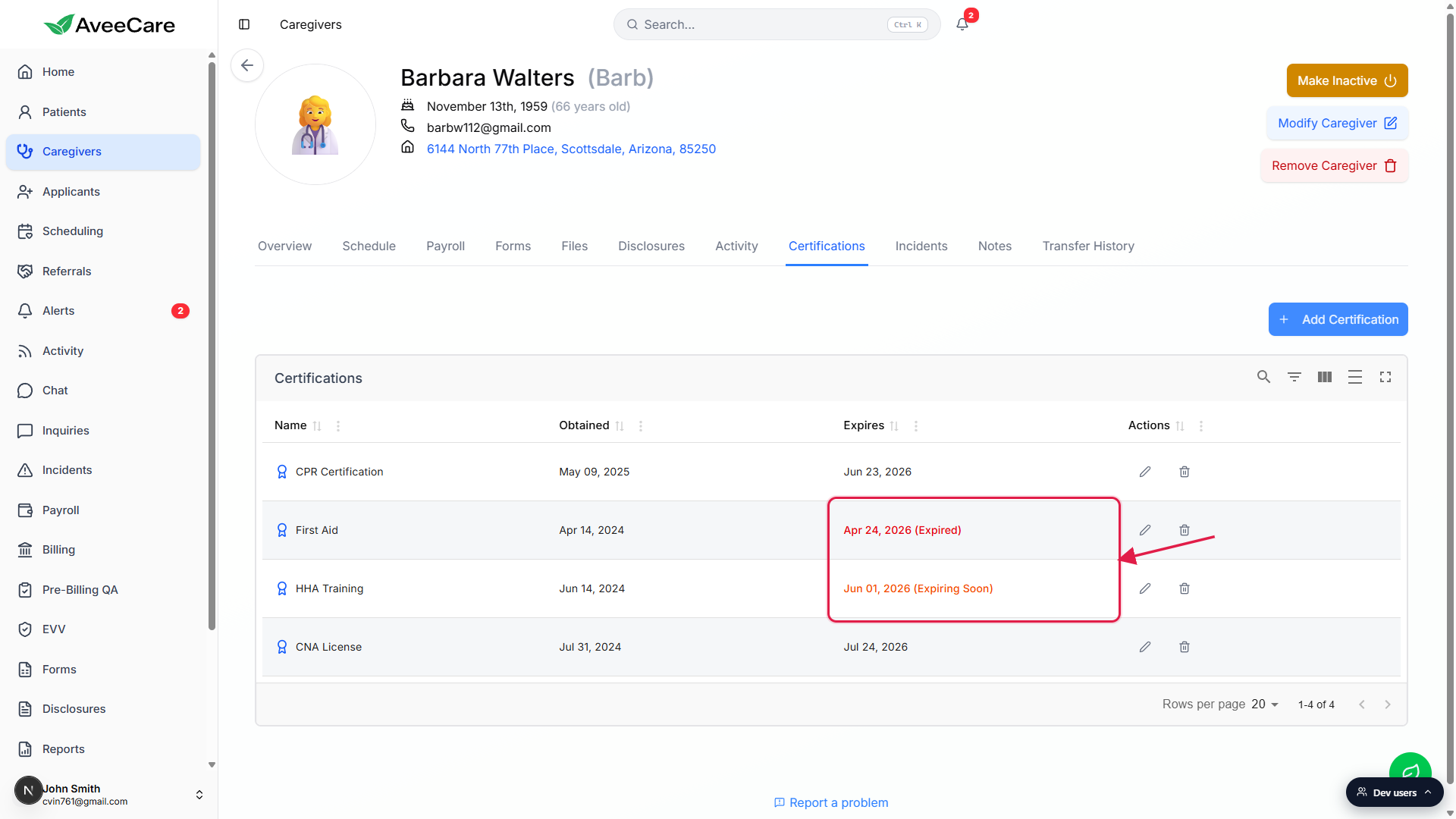
Common pitfalls
- Inconsistent credential names create duplicate tiles. The By Credential Type rollup groups by the exact name string. If one caregiver has “CPR” and another has “CPR Certification” the dashboard treats them as two different documents. Pick a convention and stick to it.
- Blank expiration means never expires. If you leave Expiration Date empty for a credential that should expire, the row will count as Current forever. Always capture the expiration when there is one.
- The dashboard is read-only. You cannot upload a credential from /compliance. The blue caregiver name in the table is a deep link to the Certifications tab where the Add Certification form lives.
- Editing one entry does not retitle it everywhere. Renaming a row on one caregiver only changes that caregiver. If the credential name was wrong across the whole agency, edit each entry. A bulk rename tool is not in the dashboard.
- Refresh, not auto-refresh. After uploading, click the Refresh button at the top of the Compliance Dashboard to recompute the table. The page does not poll on its own.