The Compliance Dashboard is your single page for caregiver credential compliance. Every active caregiver shows up as one row with a Status chip, and the page rolls them up into Total Caregivers, Fully Compliant, Expiring Soon, Non-Compliant, and Compliance Rate tiles. Open a row and you get the per-credential view: which certification, when it expires, and how many days you have to act.
Quick answer
Click Compliance in the left nav. The page lists every caregiver with one of three statuses: Compliant, At Risk, or Non-Compliant. Click the chevron on the left of any row to expand the caregiver and see each certification with its issue date, expiration, status, and days remaining.
What the three statuses mean
The Status column shows one chip per caregiver:
- Compliant. Every credential on file is current. No action needed.
- At Risk. The caregiver has at least one credential that is expiring soon (within the next 90 days) but nothing has expired yet. Use this as your early-warning band.
- Non-Compliant. At least one credential has expired, or the caregiver has no credentials on file at all (the chip then reads “Non-Compliant (No Credentials)”).
The table is sorted Non-Compliant first, then At Risk, then Compliant, so the people you need to fix are always at the top.
1. Open the Compliance Dashboard
Click Compliance in the left nav.
The page header reads Compliance Dashboard with the subtitle “Caregiver credential tracking and compliance monitoring.” You land on the full checklist for the currently selected office. Refresh and Export CSV live in the top-right.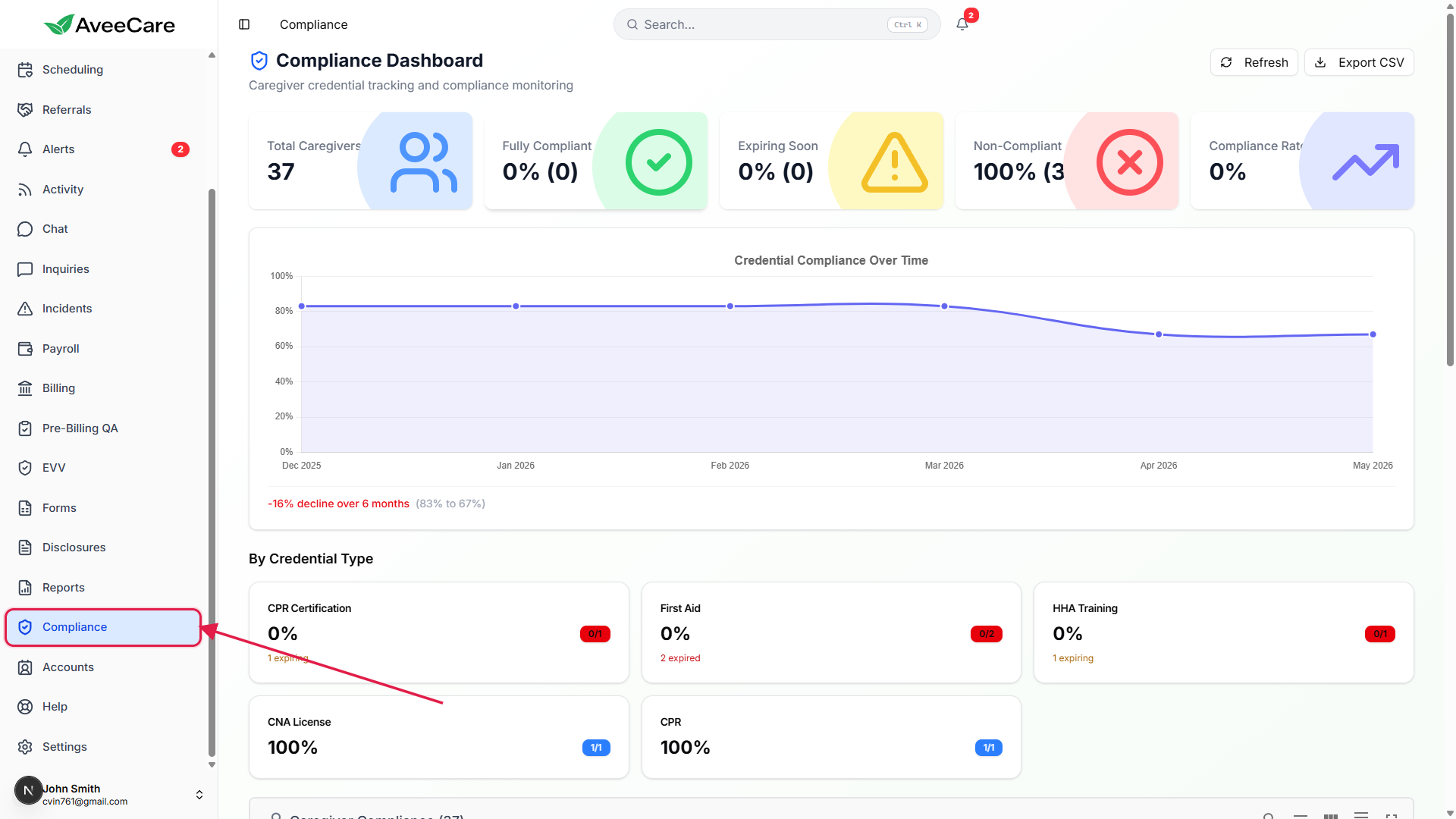
Read the five summary tiles at the top.
Total Caregivers is the raw headcount. Fully Compliant, Expiring Soon, and Non-Compliant each show a percentage and the raw count. Compliance Rate is the same percentage as Fully Compliant, broken out for at-a-glance reading. Below the tiles, the Credential Compliance Over Time chart shows the last six months of compliance rate so you can see whether you are trending up or down.
2. Read the per-caregiver Status chip
Scroll to the Caregiver Compliance table.
Each row is one caregiver. The columns are Caregiver, Total Certs, Current, Expiring Soon, Expired, and Status. The Current, Expiring Soon, and Expired columns are counts (color-coded green / yellow / red); the Status column rolls those counts into the three-state chip.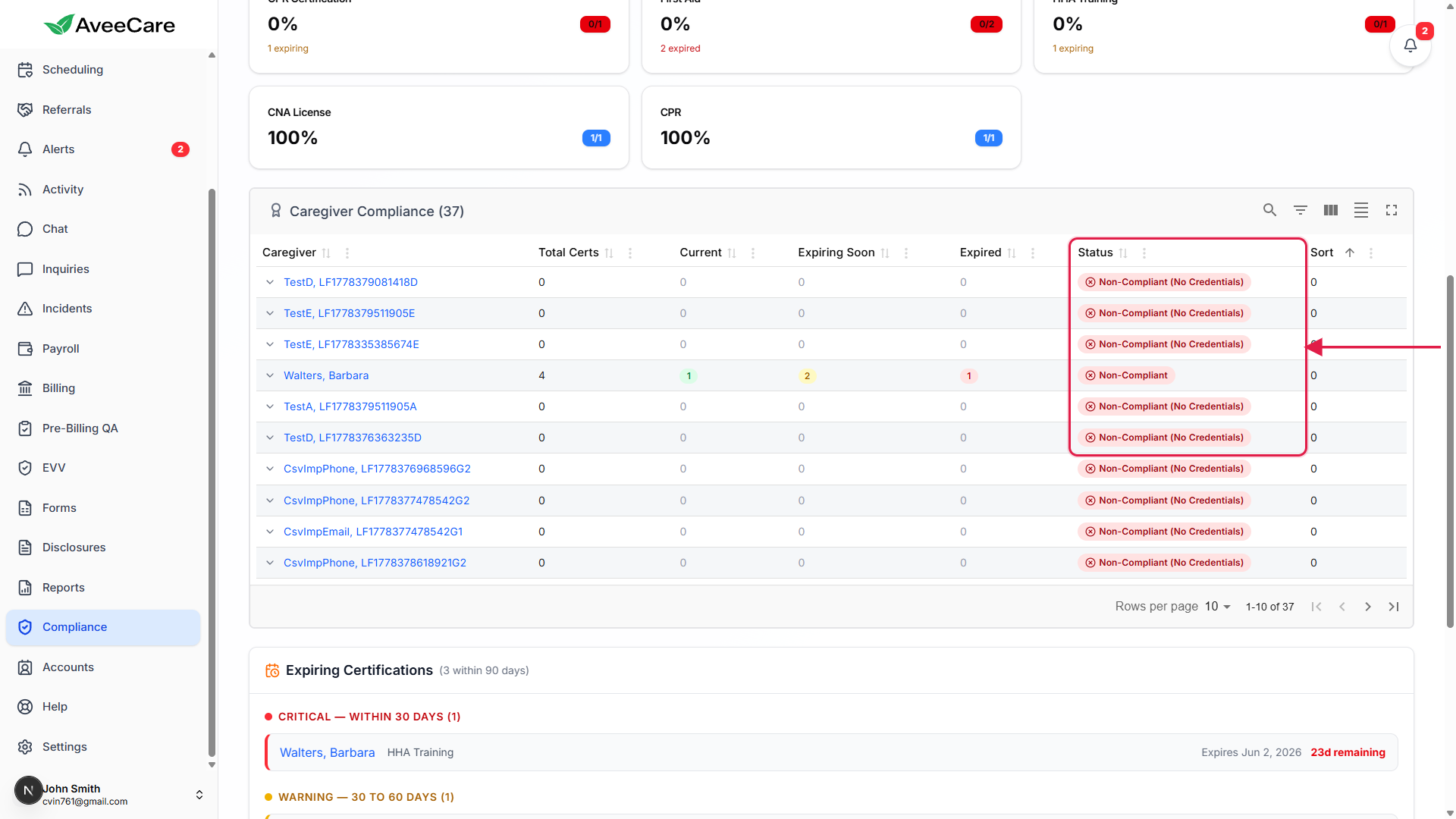
Use the toolbar to search, filter, hide columns, or go full screen.
The toolbar above the table on the right has icons for Show / Hide search, Show / Hide filters, Show / Hide columns, Toggle density, and Toggle full screen. The search is a global filter across the visible columns. Clicking a column header sorts on that column.
3. Expand a row to see the credentials behind the status
Click the chevron on the left of a caregiver row.
An inline panel opens directly under the row. It lists every certification on file with four columns: Certification, Issue Date, Expiration, Status, and Days Left. The Status chips on individual certs are Current, Expiring Soon, or Expired. Days Left is color-coded green when the credential is healthy, yellow when it is inside 30 days, and red when it is overdue.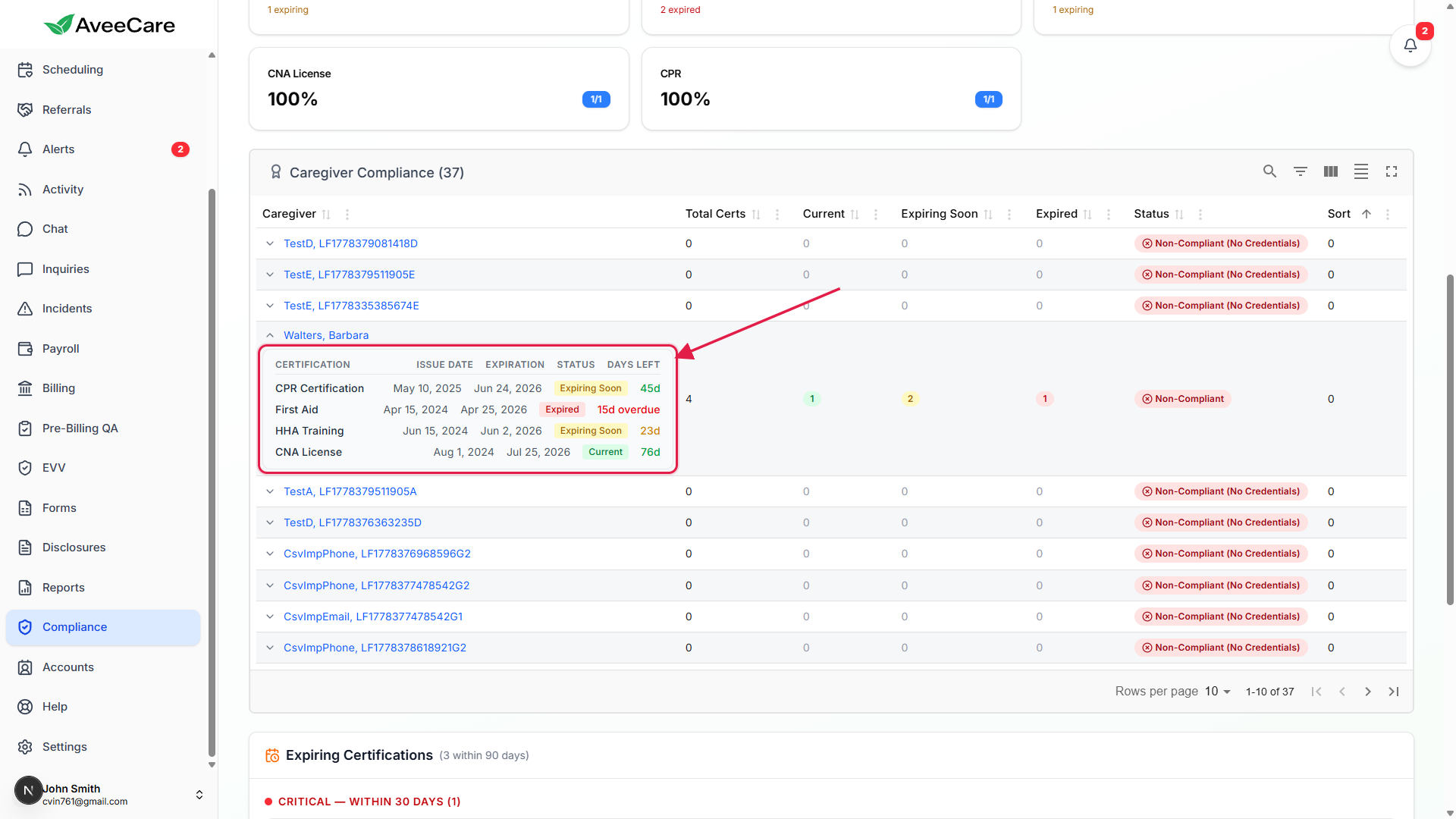
Click the caregiver name to jump to the Caregivers profile.
The blue caregiver name is a deep link to the Caregivers detail page, where you can open the Certifications tab to upload a new document, edit an expiration date, or replace a stale file.
4. Work the Expiring Certifications panel
Scroll past the table to the Expiring Certifications panel.
It splits the next 90 days into three buckets: Critical (within 30 days), Warning (30 to 60 days), and Notice (60 to 90 days). Each card lists the caregiver, the certification, the exact expiration date, and the days remaining.Resolve Critical first, then Warning, then Notice.
A credential in Critical is what flips a caregiver from Compliant to At Risk fastest, and from At Risk to Non-Compliant once it expires. Use the Critical card as your daily punch list.Use Export CSV to share the snapshot with HR or the auditor.
The Export CSV button at the top right exports every caregiver row plus one column per credential type, with the same Compliant / At Risk / Non-Compliant Status label as in the UI.
Common pitfalls
- Non-Compliant (No Credentials) is its own bucket. A brand-new caregiver with zero certifications uploaded shows up Non-Compliant with the “(No Credentials)” suffix on the chip. It is not a bug, it is the page telling you to upload at least one credential.
- At Risk means soon, not maybe. The yellow chip fires when a current credential is within 90 days of expiry, not when a document is missing. If you see At Risk, the caregiver still has everything on file, you just need to renew before the date.
- The page is office-scoped. If you have multiple offices selected in the office switcher, the dashboard only counts the office that is currently active. Switch offices and the numbers will change.
- Compliance Rate is a Fully Compliant percentage. It is not a weighted score across At Risk and Non-Compliant. A caregiver one day away from expiry still counts as 0 toward Compliance Rate, same as a caregiver with no credentials at all.
- Edits land on the Caregivers page, not here. The dashboard is read-only. To upload a renewed document or fix an expiration date, click the caregiver name to jump to their profile.