Falls, medication issues, behavioral incidents, equipment failures. Every home care agency files them, and every state surveyor will ask for them. AveeCare puts the form behind one button on the Incidents page, with the same fields whether you're an office coordinator or a caregiver in the field. This guide walks the whole loop from filing to resolution.
1. Open Incidents and click Create Incident Report
Open Incidents from the left sidebar.
The page loads with a stat strip (Total Incidents, High / Critical, Open, Resolved), a Filters card, an Incidents Over Time chart, and the Incident Reports table. Reference: Incidents overview.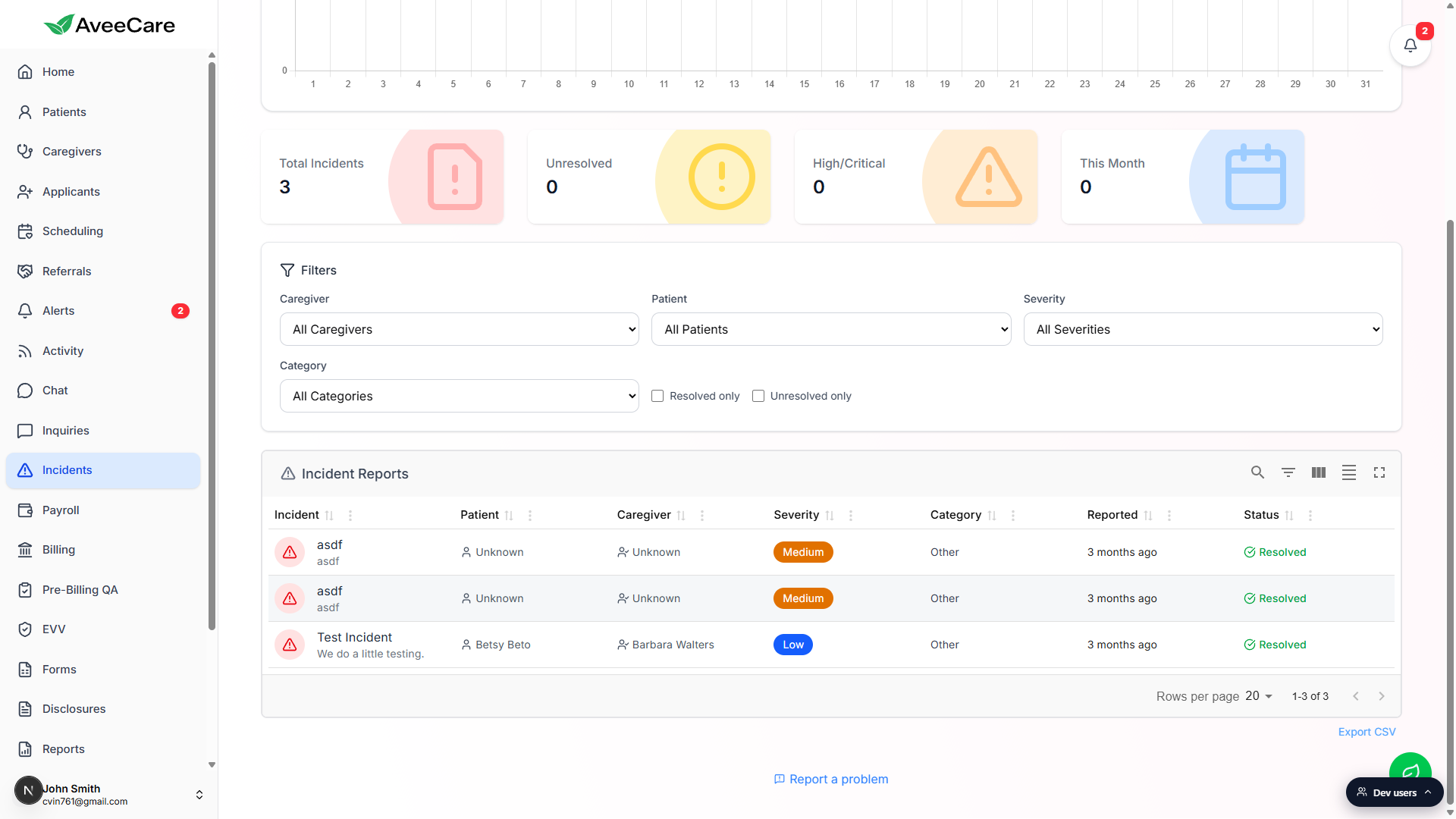
Click the blue Create Incident Report button at the top right.
The same modal opens from a patient's Incidents tab, a caregiver's Incidents tab, and the caregiver visit detail screen. The form fields are identical at every entry point.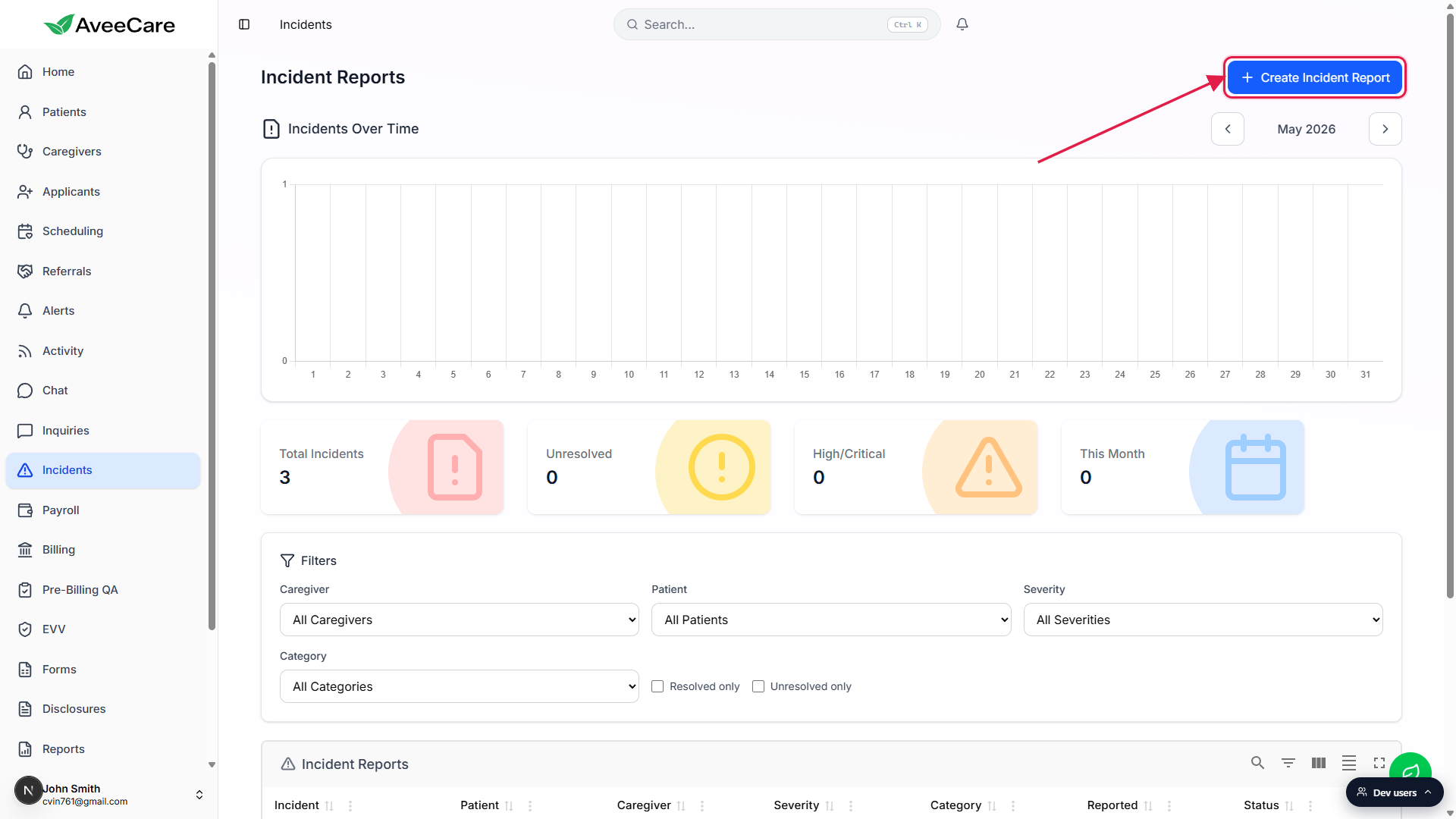
2. Pick a severity and category that match what happened
These two dropdowns drive how AveeCare routes the report. High and Critical reports fire an alert for office staff immediately. Fall and Injury categories surface an extra Injury Details panel for body-part tracking; Medication surfaces a Medication Details panel.
Type an Incident Title that a coordinator can scan in a list.
Headlines like “Patient fell in living room while transferring from chair” or “Wrong dose of metformin given at 2pm visit” tell the next person what happened in two seconds.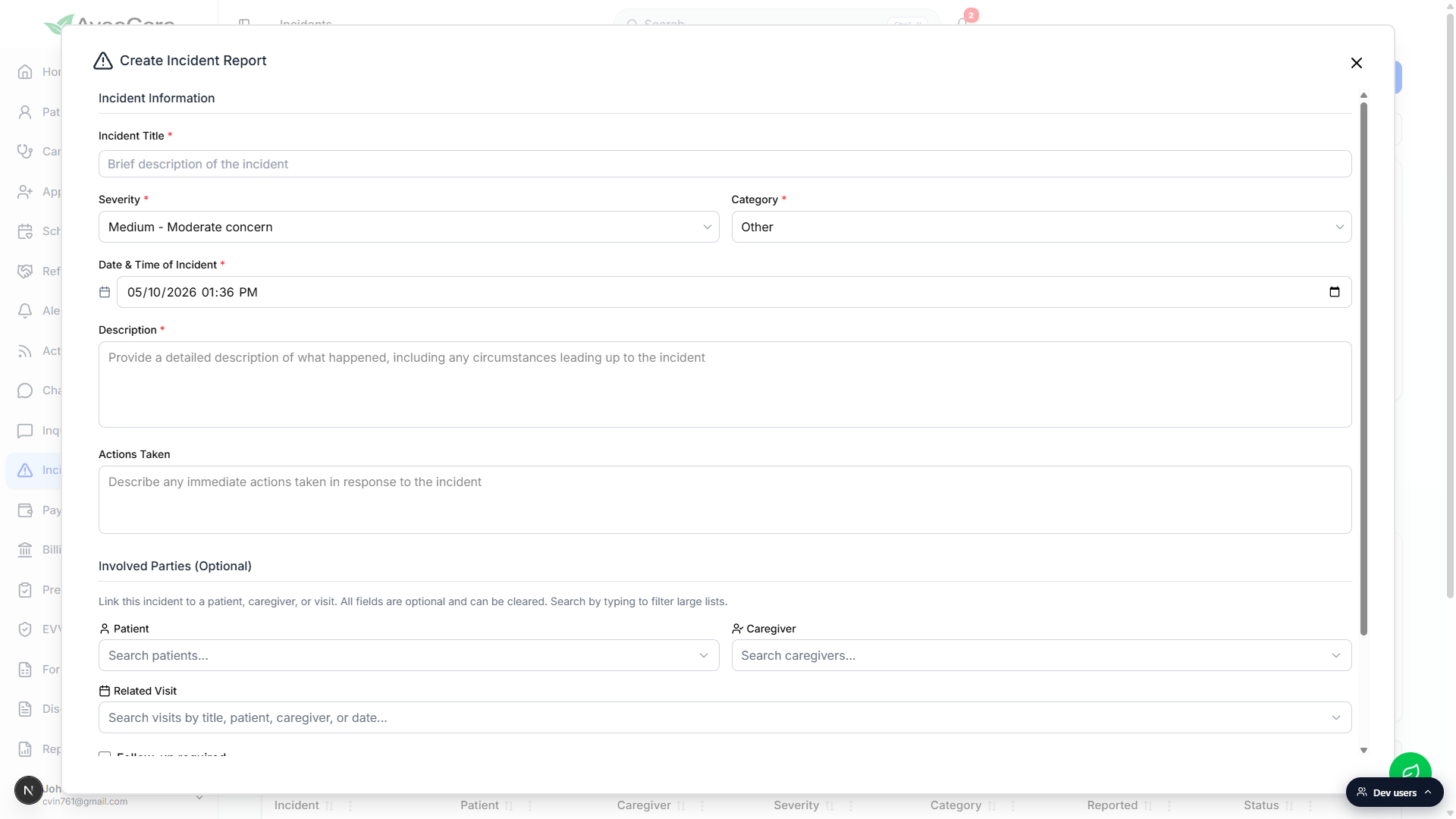
Pick Severity from the dropdown.
Low for minor, no harm. Medium (default) for moderate concern. High for significant risk or harm. Critical for immediate attention required. High and Critical fire alerts to office staff right away.Pick Category from the dropdown.
Six options: Fall, Medication Error/Issue, Behavioral, Injury (non-fall), Equipment Failure, Other. Fall and Injury reveal an Injury Details panel below for body-part tracking. Medication reveals a Medication Details textarea. The other categories don't add panels.Set Date and Time of Incident to when it actually happened.
Defaults to now, capped at now (you can't file an incident in the future). The actual incident is often earlier than when you're filing the paperwork, so adjust this back to the real moment.
3. Write a clear description and any actions taken
The Description and Actions Taken fields are what a surveyor or risk-management reviewer will read. Write for that audience.
Description: what happened, what led up to it.
Required field. Cover the basic facts: what was happening before, what occurred, who was present, where in the home or facility, and any objective details (vital signs, visible injury, environmental factors). Stick to facts; save interpretation for the resolution notes later.Actions Taken: immediate response.
Optional but important when the answer isn't “none.” First aid given, family notified, 911 called, emergency room visit, supervisor paged. These are the actions that happened in the first minutes after the incident, not the long-term follow-up.
4. Link the patient, caregiver, and related visit
Linking surfaces the report on the right records. The Patient and Caregiver Incidents tabs and the visit's record all show linked reports automatically.
Scroll to Involved Parties.
Three searchable selects: Patient, Caregiver, Related Visit. All three are optional, so you can file an incident without linking anything (for example, a piece of equipment failed and no patient was involved).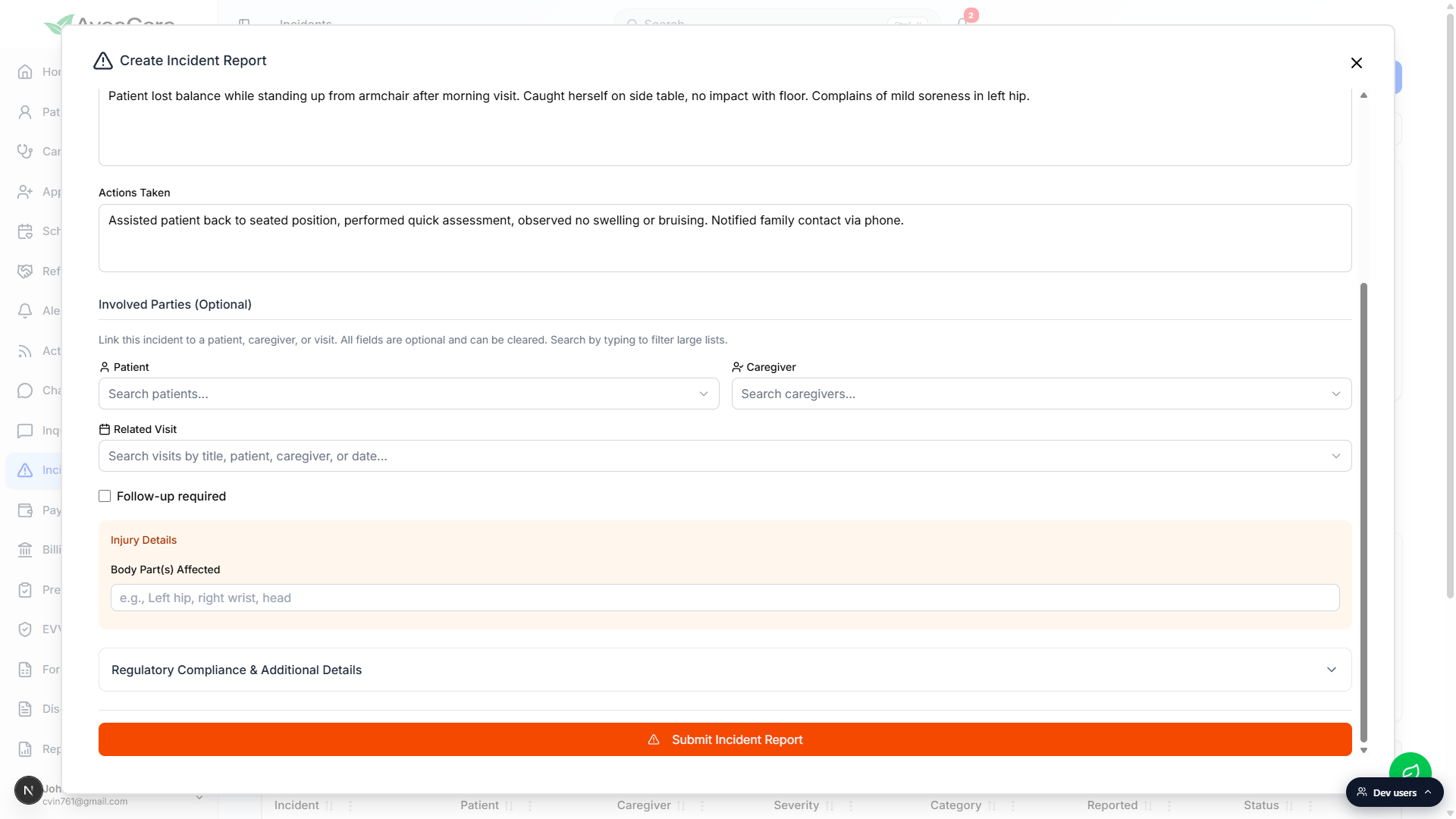
Pick the Related Visit if the incident happened during one.
The Related Visit picker shows visits with title, date / time, patient, and caregiver per row. Selecting a visit auto-fills Patient and Caregiver if they weren't already set. Reference: Create incident report.Flip Follow-up required if it needs more than a quick close.
The checkbox reveals a Follow-up Notes textarea. Anything you write shows on the resolution side of the incident detail so whoever closes the case has context.
5. Submit and track the report through to resolution
Click the orange Submit Incident Report button at the bottom of the modal.
A confirmation toast appears and the row lands in the Incident Reports table immediately. High or Critical incidents also fire an alert to office staff (visible in the Notification Center and on the dashboard Recent Alerts panel).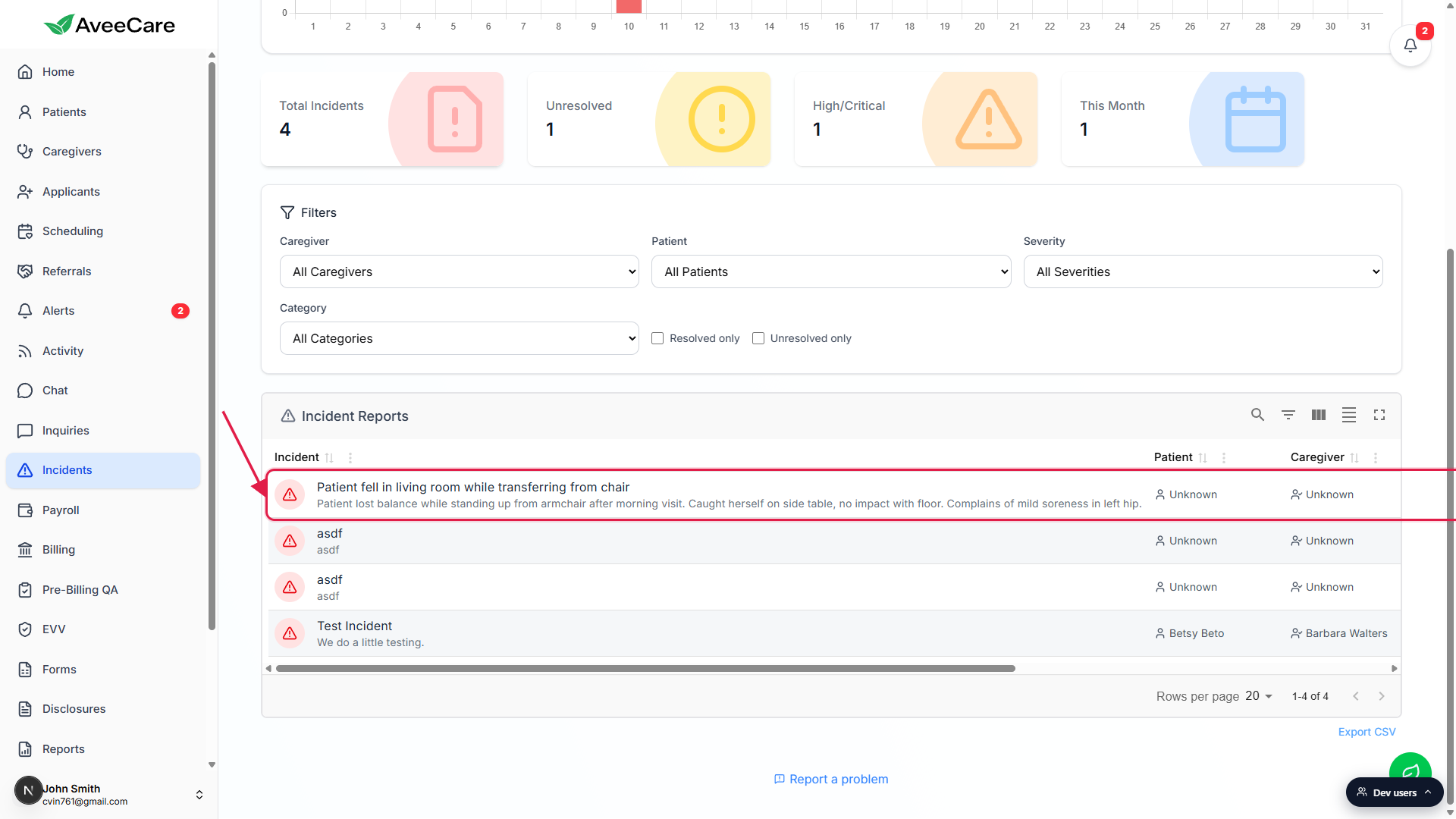
Open the new row to take resolution actions.
The detail page shows the original report on the left and a resolution panel on the right. Add resolution notes, set who's responsible, close the incident when handled. Reference: Resolve incident with notes.Use the stat cards and chart to spot patterns.
The stat strip at the top of /incidents counts Open and Resolved across the date range. The Incidents Over Time chart shows whether you're trending up. Surveyors love to see that you're tracking trends, not just filing one-offs.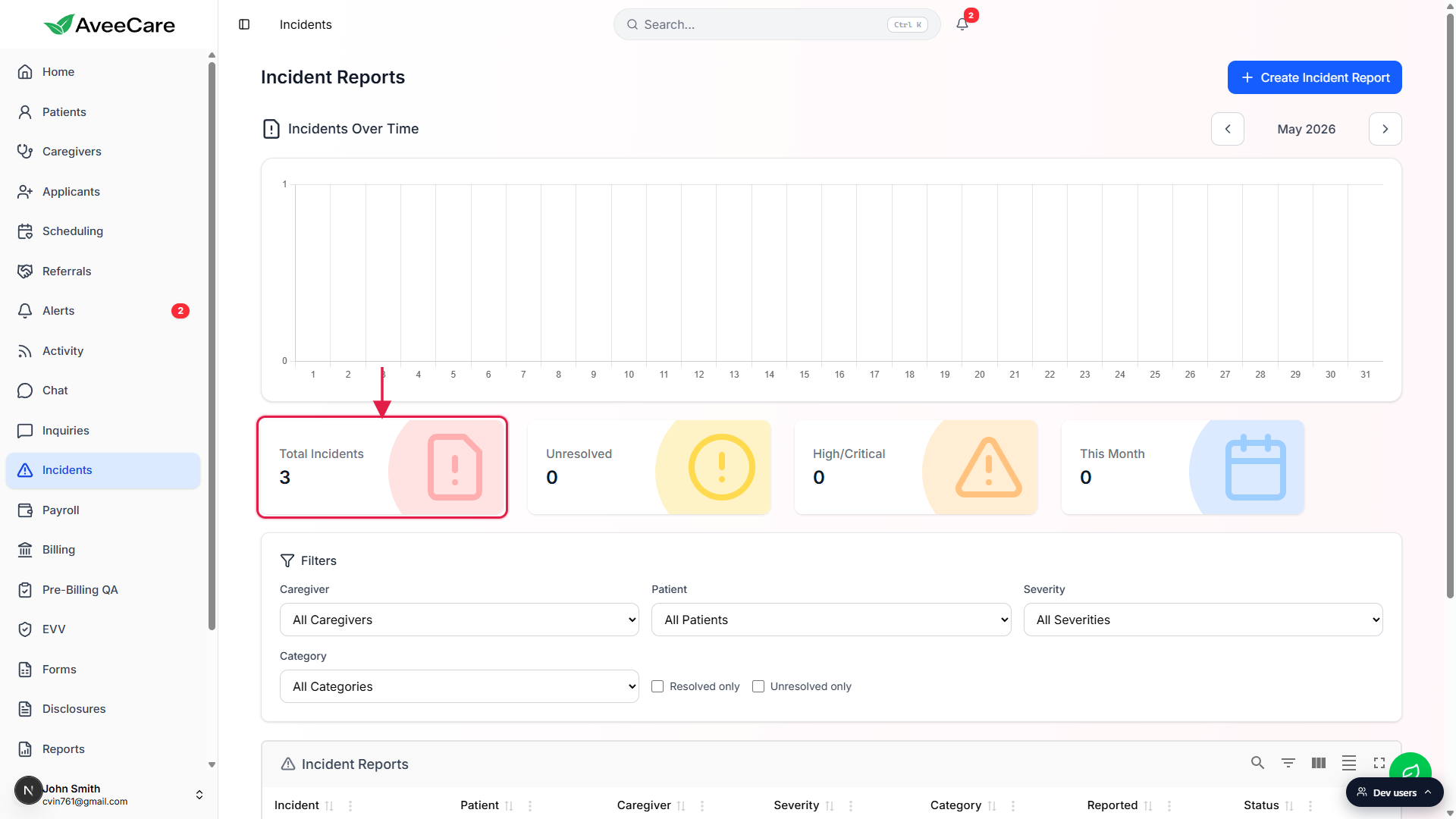
Related
- Create incident report
- Incidents overview
- Resolve incident with notes
- Patient incidents tab
- Caregiver incidents tab