After you submit an 837 claim, the payer eventually sends back an 835 ERA (Electronic Remittance Advice). It's the X12 file that lists which claims were paid, how much, and any adjustment codes for the rest. AveeCare ingests the file from the Billing page, parses every claim, and applies the payments to the matching invoices in one click so you don't have to enter the data manually.
1. Download the 835 ERA file from your payer or clearinghouse
AveeCare doesn't fetch the 835 for you; you download it and upload it here. Most clearinghouses post the file within a few days of the payment; some payers post directly to their portals.
Sign in to your clearinghouse or payer portal.
If you went through Optum (or whoever you configured in Clearinghouse settings), the ERA file appears there once the payer processes your claim. Otherwise, the payer's own portal is where the file lives.Download the file. Accepted extensions: .edi, .835, .txt.
Most clearinghouses hand you the file as .835 or .edi; payer portals sometimes save it as a plain .txt with the X12 wire format inside. Any of those work with the import.
2. Open Billing and click Import 835 ERA
Open Billing from the sidebar.
You land on the Visit Billing worktable. There's no separate ERA tab. The Import 835 ERA button is in the EDI File Export card directly above the table.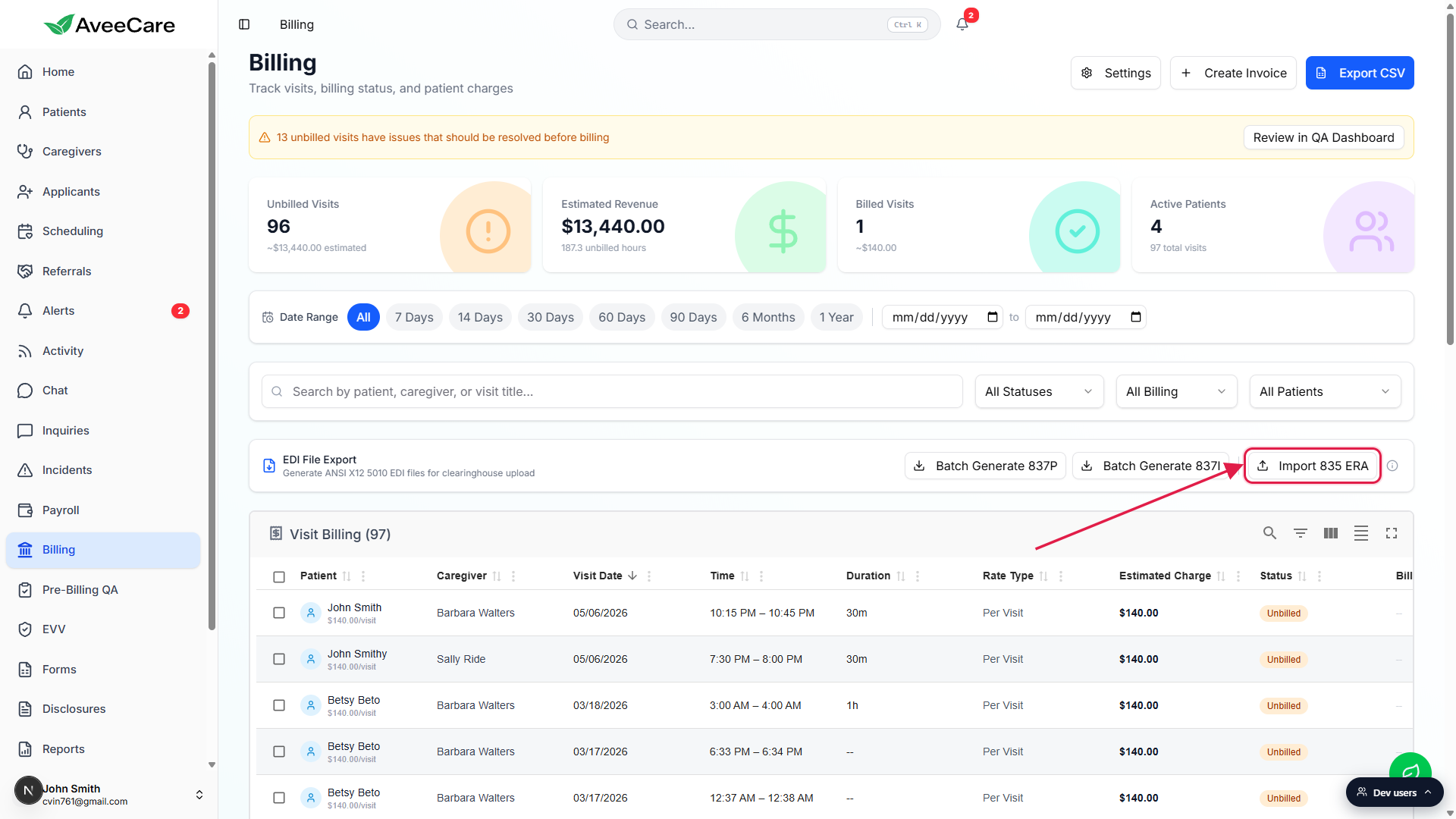
Click Import 835 ERA in the EDI File Export card.
The modal opens. Title: Import 835 ERA File. Description: Upload an X12 835 Electronic Remittance Advice file to apply payer payments to claims. Full reference: ERA files (835).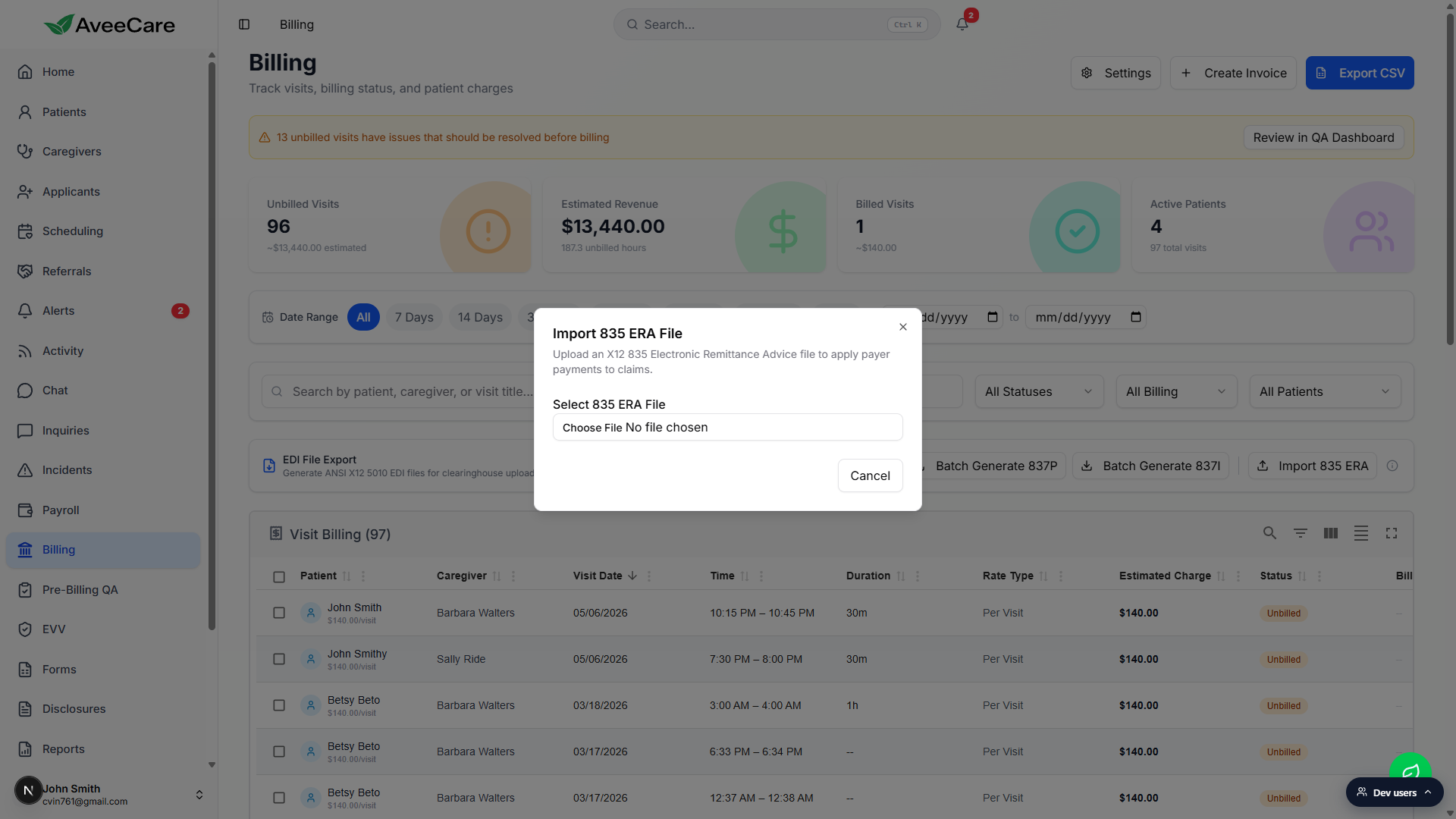
Click Choose File and pick the 835 you just downloaded.
The modal updates to show Selected: filename.835 and a blue Parse ERA File button.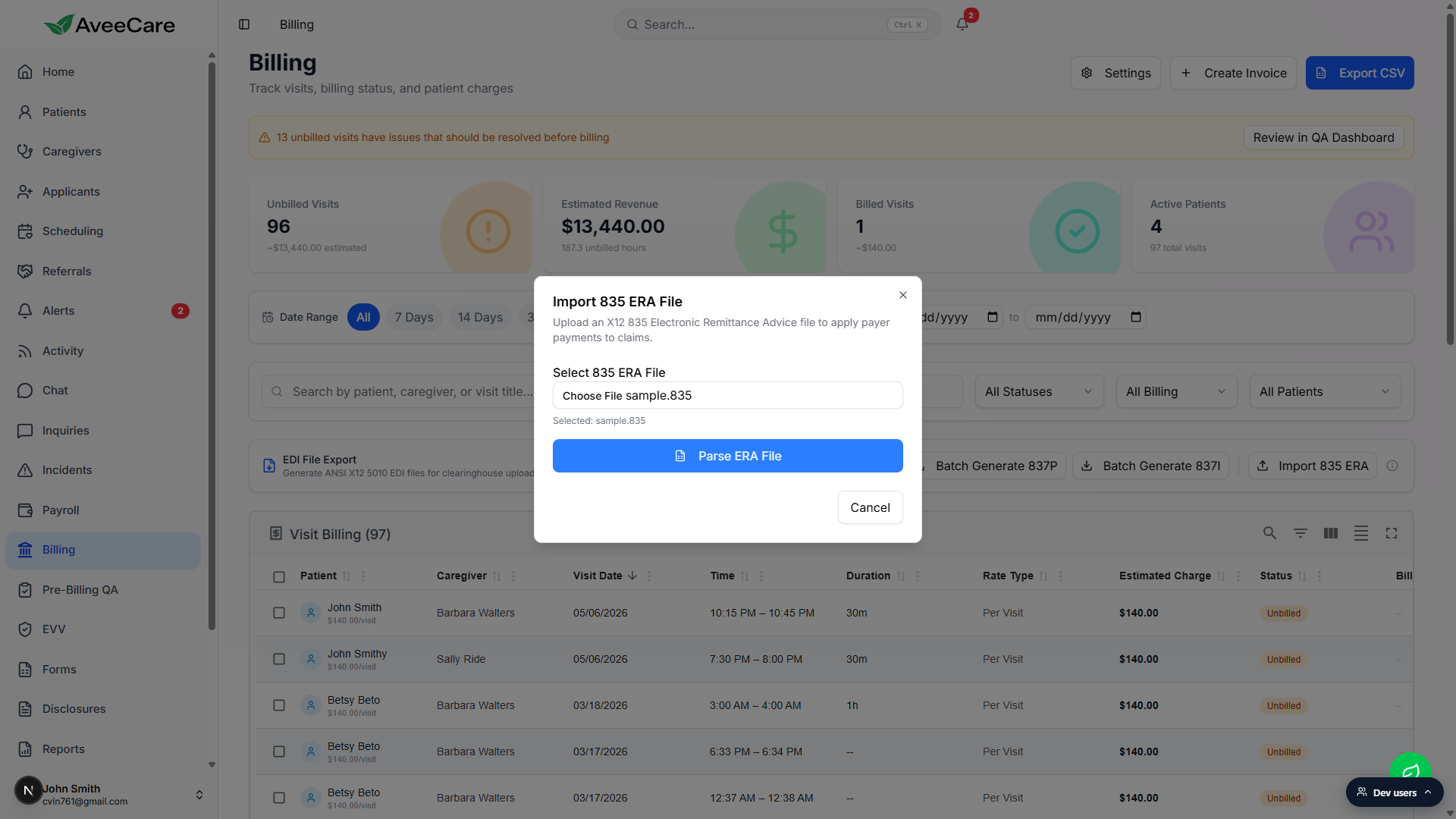
3. Parse the file and review the payment summary
Click Parse ERA File.
AveeCare reads the X12 envelope, validates the ISA and SE segment counts, and pulls out every CLP claim segment. If the file is malformed (wrong segment count, bad delimiters, non-835 transaction), you get a red toast with the specific error. Most parsing failures are bad downloads. Re-pull from your clearinghouse and try again.Read the ERA Parsed Successfully card.
Eight fields: Payer, Payer ID, Payment Date, Payment Method (ACH, check, non-payment), Check / Trace # (your reconciliation key), Total Payment, Claims count, and Patient Responsibility. The Check / Trace # is what you'll match against your bank statement in step 5.Skim the Claim Details list.
Each CLP row shows the patient name, your patient control number (the value AveeCare put on the original 837), the claim status description (Processed as Primary, Denied, Reversal, etc.), and paid vs charged amounts. Denied claims still appear so the apply step can stamp them with the right denial code.
4. Apply the payments to your matched claims
Click Apply N Payment(s).
The button label includes the live count (a file with three CLP segments shows Apply 3 Payment(s)). AveeCare walks every CLP, looks up the matching claim in your billing records using the patient control number, and posts the paid amount against that invoice. Denial codes from CAS segments are attached to the claim record at the same time.Wait for the Payments applied successfully confirmation.
A green confirmation strip appears. The Cancel button changes to Done. Click Done. The Visit Billing table refreshes in the background and the affected rows now show their new claim Status badges (Paid, Denied, Partial).Spot-check one updated invoice on the patient's Billing tab.
Open one of the patients from the ERA and click their Billing tab. The invoice you expected to get paid now shows the payment posted, with the check / trace number attached. Reference: Patient billing tab.
5. Reconcile against your bank deposit
The 835's Total Payment should match the deposit that hit your operating account. Any mismatch points to something the Apply step couldn't do (claims that didn't match a patient control number, manually-handled cases, etc.) and is worth tracking down before close.
Compare Total Payment against your bank statement.
Use the Check / Trace # to find the matching deposit on your bank statement. The numbers should agree exactly. If they don't, the ERA may include claims that weren't in AveeCare (manual claims) or rejected claims that need a separate write-off.For unmatched claims, edit the patient control number on the original claim if needed.
If AveeCare couldn't match a claim because the patient control number didn't line up, open the claim and verify the value. Re-running Apply on the same ERA after fixing the mismatch posts the missing payments.For denied claims, follow up with the payer.
The denial codes from the ERA are now on the claim record. Use them to figure out whether to resubmit, appeal, or write the claim off. The Claims tab reference covers the resubmit and appeal paths.