This guide is for caregivers. It walks through your first day in the AveeCare app: signing in, finding your visits, starting a visit when you arrive and finishing it before you leave. Agency owners can send this page to new caregivers as it is.
Your agency can rename pages and change the steps of a visit, so your app may look a little different from the pictures here. If your agency has turned on Training, it walks you through your agency's own version of the app.
Quick answer
Sign in with the email and temporary password your agency sent you. Open My Visits to see your visits. When you arrive, tap Start Visit. Before you leave, open the visit, tap End Visit and go through each step, then tap Submit Visit.
1. Sign in and take the training
Install AveeCare from the App Store or Google Play, or open the web app in your phone's browser. Sign in with the email address your agency used and the temporary password from your welcome email; you'll set your own password the first time. Install steps are in Mobile app overview.
Tap the menu button, then Training, if your agency offers it.
The training is a short walkthrough on a practice copy of the app with a sample client, so nothing you tap in it is saved. Some agencies ask you to finish it before you can use the app.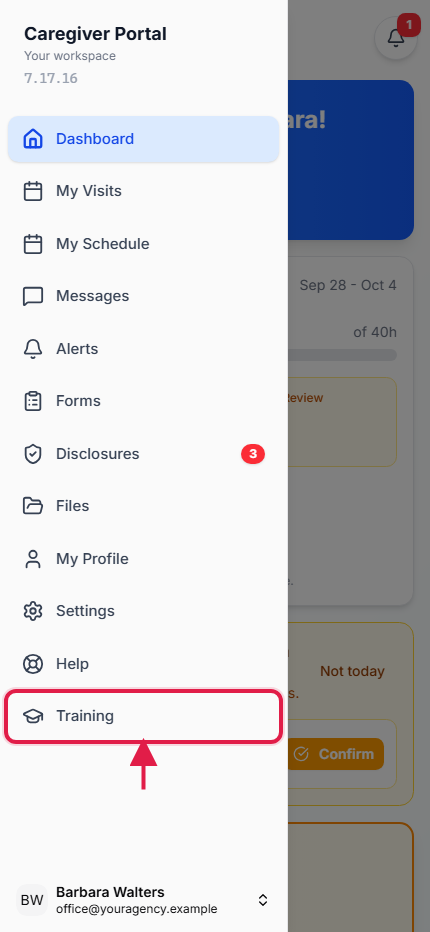
2. See today's visits
Your Dashboard lists today’s schedule.
Each visit shows its time, the client and whether it is scheduled, in progress or completed.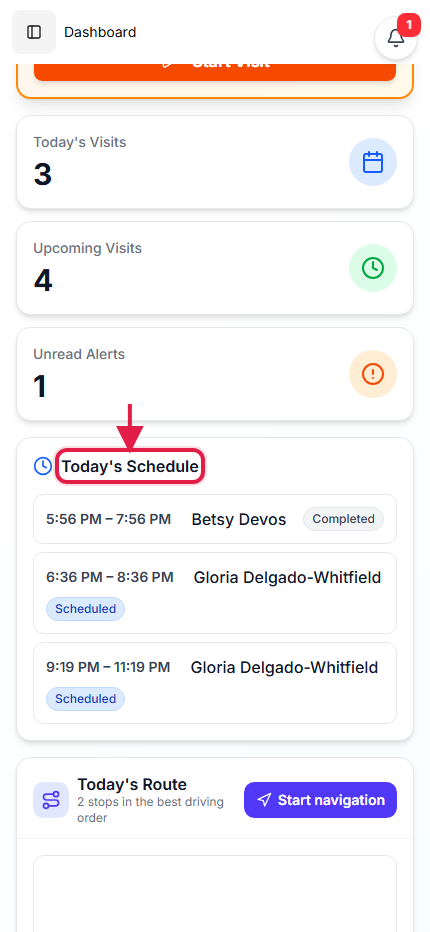
Open My Visits to see every visit.
Tap Accept to tell the office you'll be there, or Decline if you can't. Shortly before a visit starts (your agency sets how early), its card shows Start Visit.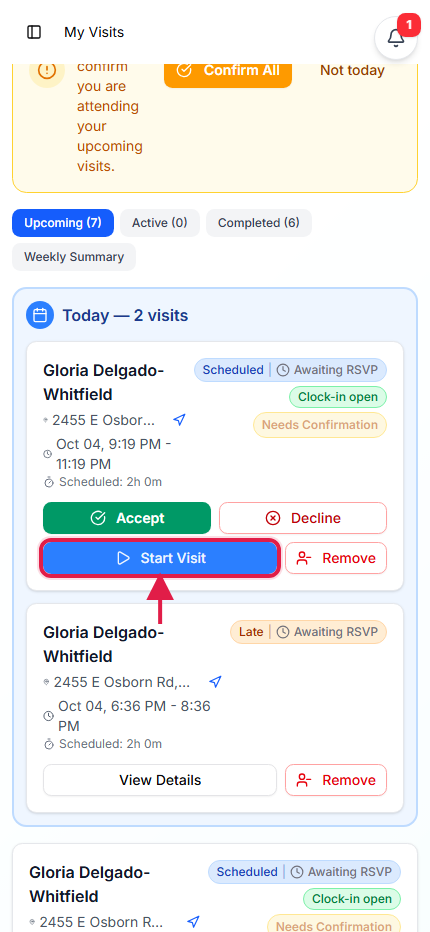
3. Start your visit
Open the visit and tap Start Visit when you arrive.
The visit page also has the client's address, directions, tasks and care plan.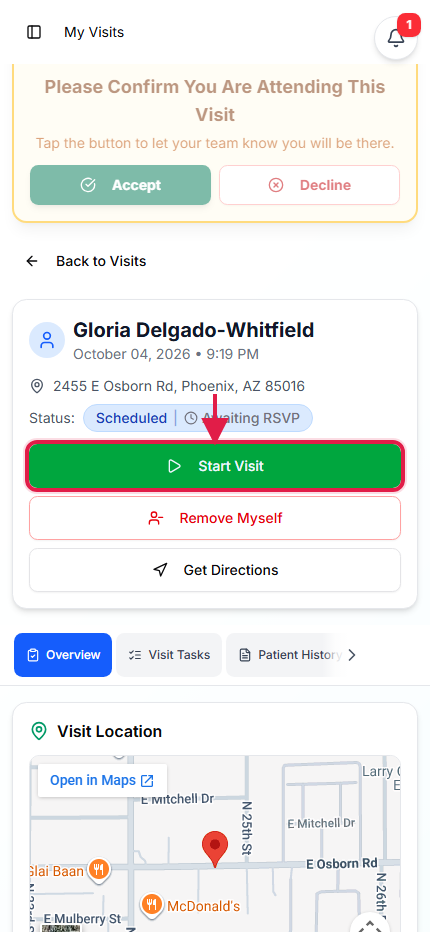
Check the details and tap Start Visit again.
Allow location access when your phone asks: your location is recorded when you start and end the visit, as Electronic Visit Verification (EVV) requires. If your agency set up an arrival checklist, you tick it first.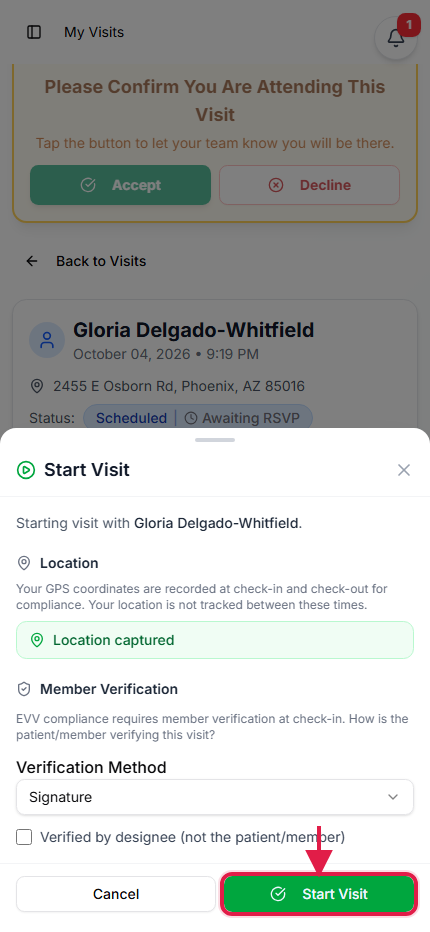
4. End your visit
Before you leave, tap End Visit.
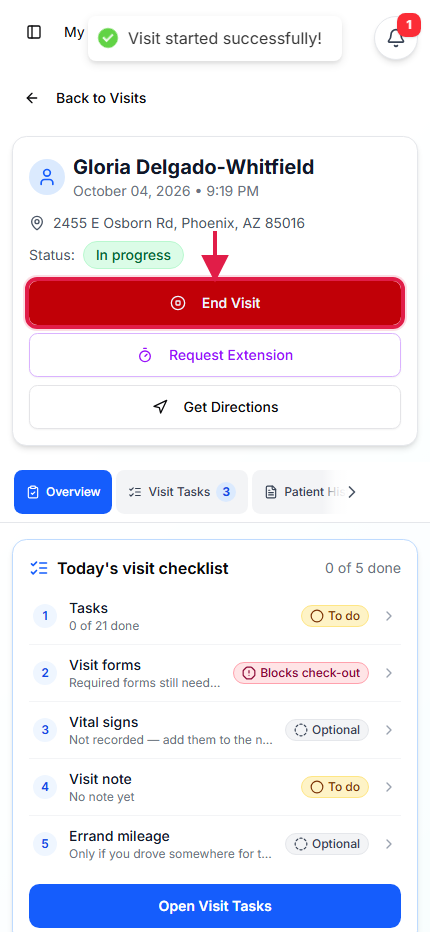
Go through each step, then tap Submit Visit.
The steps are set by your agency. They usually include the tasks you did, any medications, visit forms and signatures. Tap Next after each one. More detail is in EVV checkout wizard.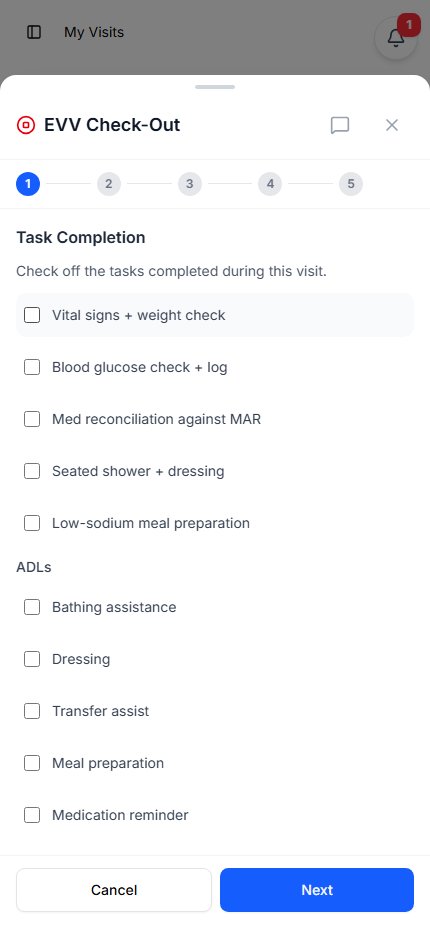
Where to get help
- Messages in the menu reaches your office.
- Help in the menu has guides like this one.
- Training, if your agency offers it, can be taken again any time.
Common pitfalls
- Starting the visit before you arrive. Your location is recorded when you tap Start Visit. Start it at the client's home.
- Leaving without ending the visit. Your hours are counted from Start Visit to End Visit. If you forget, the app reminds you about the open visit next time; tell your office so they can fix the times.
- Turning off location access. Without it the app can't record where the visit happened. Turn it back on in your phone's settings for AveeCare.