New caregivers learn fastest by doing. AveeCare's app training walks each caregiver through your version of the app: your menu, your pages and a whole practice visit done with your arrival checklist and your check-out steps, in your order. It runs on a practice copy with a sample client, so nothing they tap reaches a real visit. When you change the app, the training changes with it.
Quick answer
Open Settings → Caregiver Experience and pick the Training panel. Choose Off, In the menu, In the menu, with a reminder or Required before they start, then click Save now. The Who has taken it table on the same panel shows who has finished. Families get the same choice under Settings → Patient Experience.
For something new caregivers can read on their own, send them Caregiver quick start: your first visit in the app.
1. Choose how training is offered
In the Training panel, pick one of the four settings.
In the menu adds a Training page they open when they like. With a reminder also shows a banner on every page until they finish. Required before they start keeps the app locked until they finish; they can still sign out.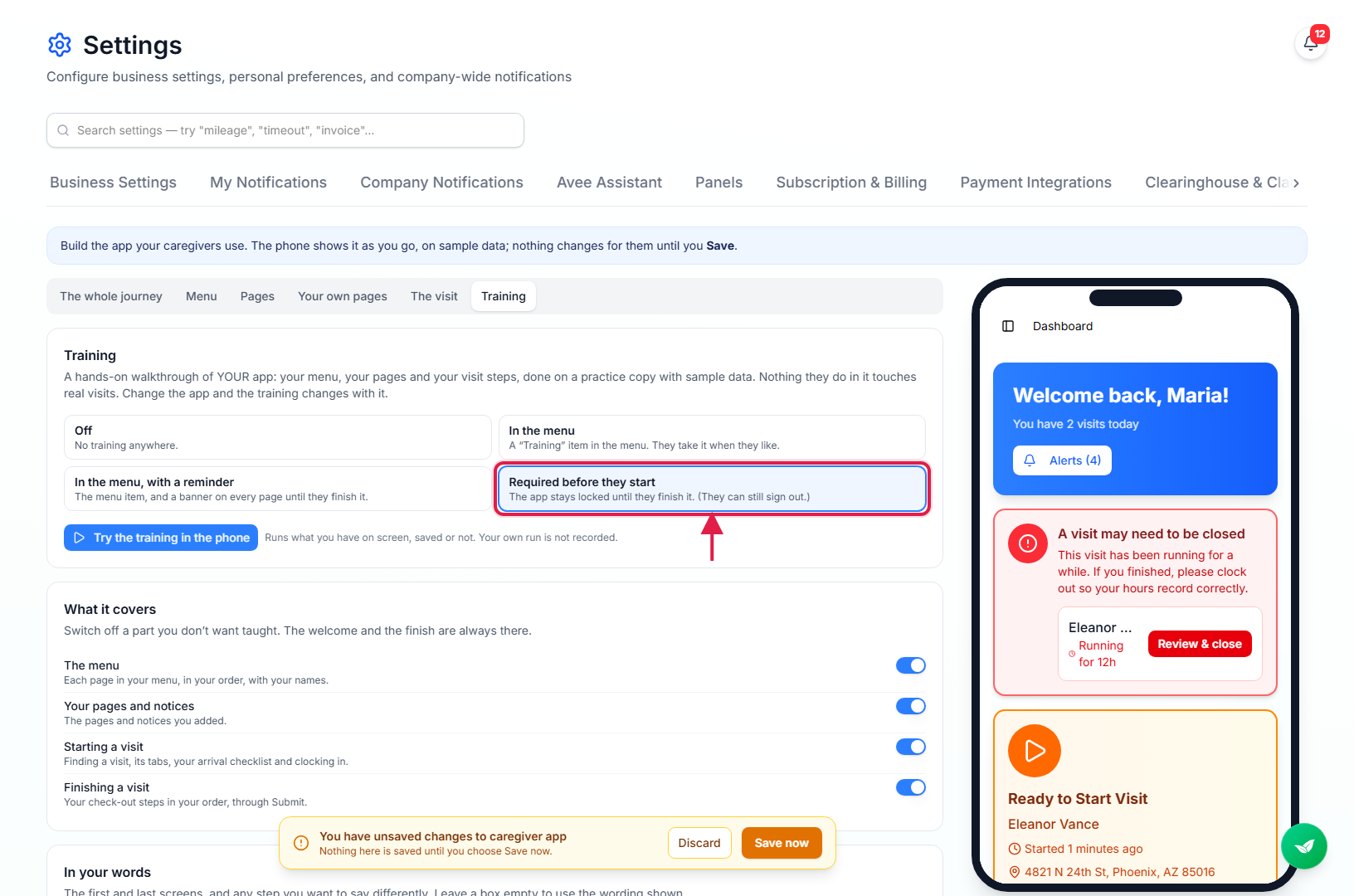
2. Choose what it covers and how it is worded
Under What it covers, switch off any part you don’t want taught.
The parts are the menu, your own pages and notices, starting a visit and finishing a visit. The welcome and the last screen are always there.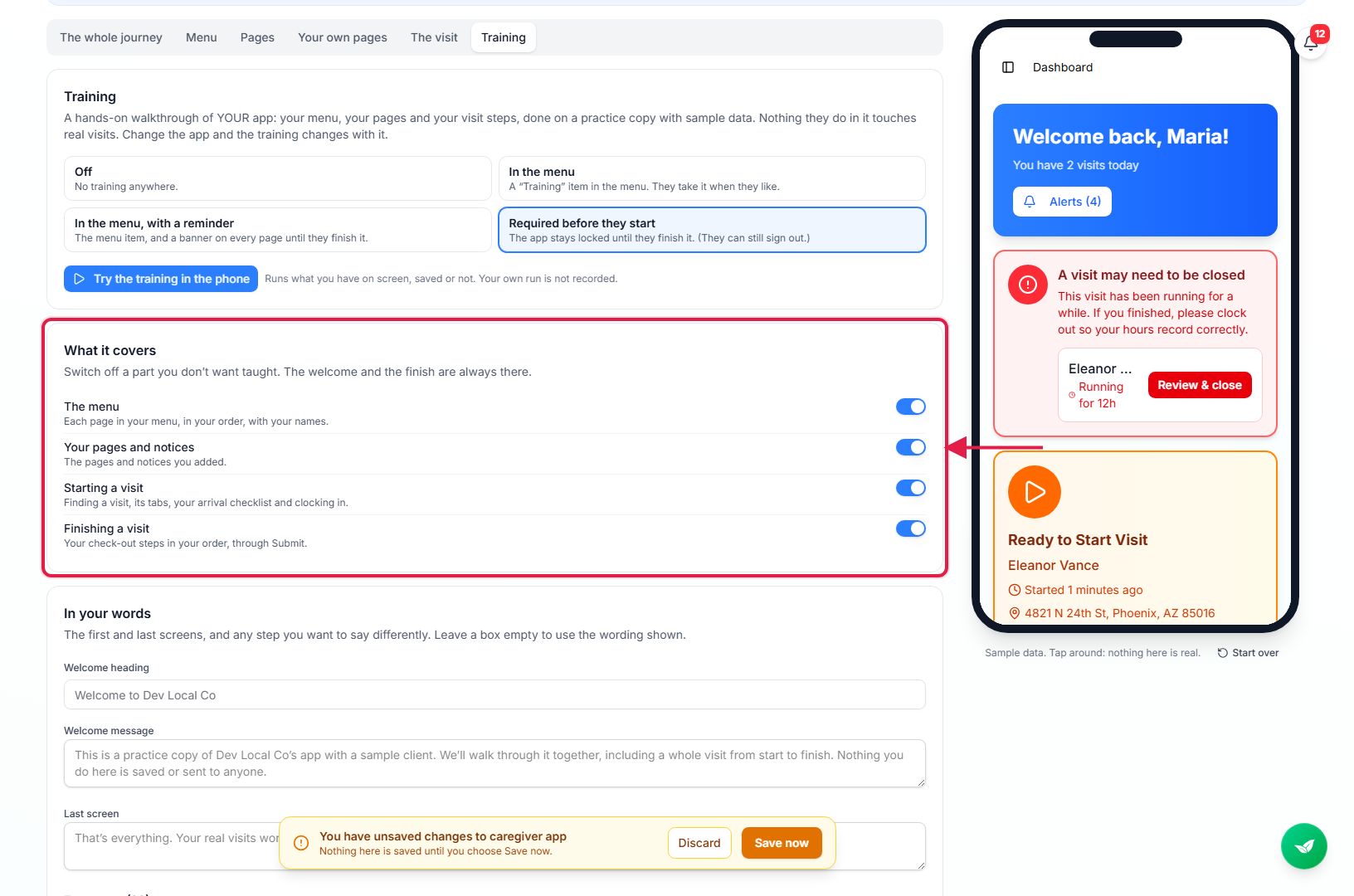
Under In your words, change the welcome, the last screen or any step.
Every step is listed in the order caregivers see it. Click one to read the built-in wording and type your own. Steps marked They do it wait for the caregiver to do the real thing, like clocking in, before they move on.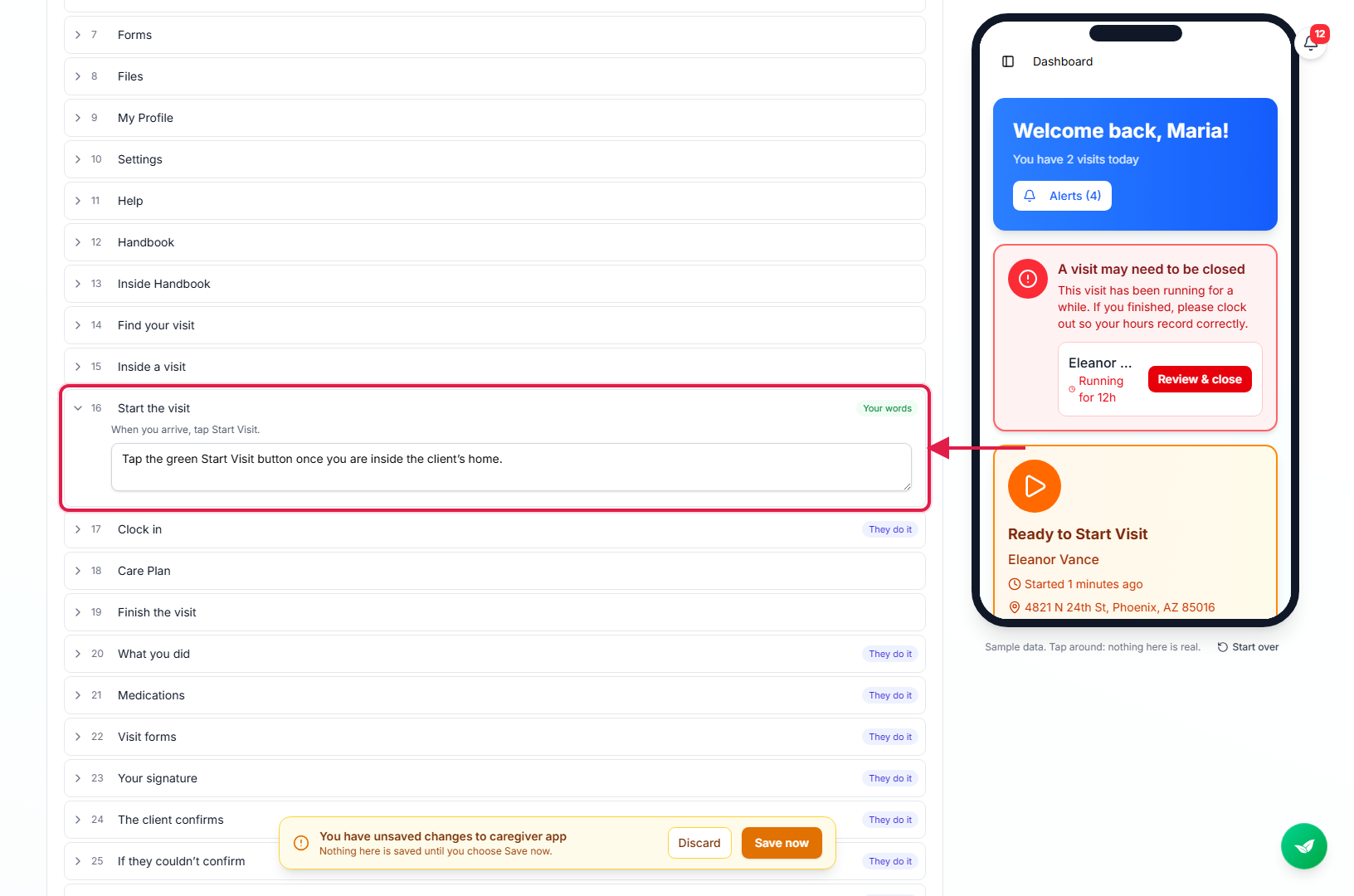
3. Try it yourself in the phone
Click Try the training in the phone.
The training runs in the preview with whatever is on screen, saved or not, so you can check it before caregivers see it. Your own run is not recorded. Click Stop to leave.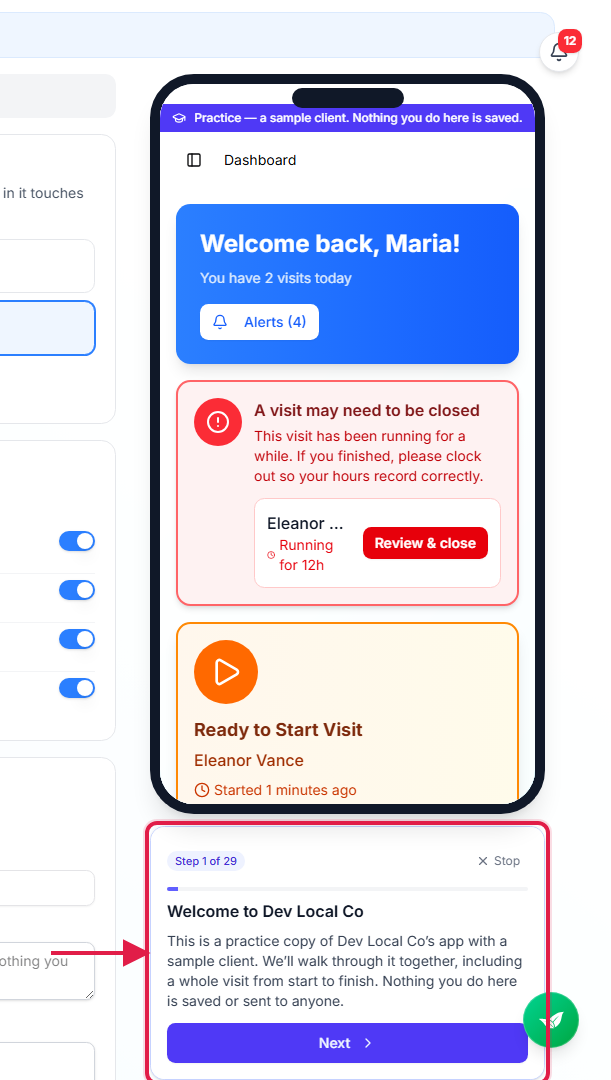
4. See who has finished, and ask for a retake
Check the Who has taken it table, and retake after big changes.
The table lists everyone with a caregiver login, how far they got and when they finished. After you change how visits are done, click Ask everyone to retake it and save. Anyone who finished an older version shows as Needs to retake and is asked to take the new one.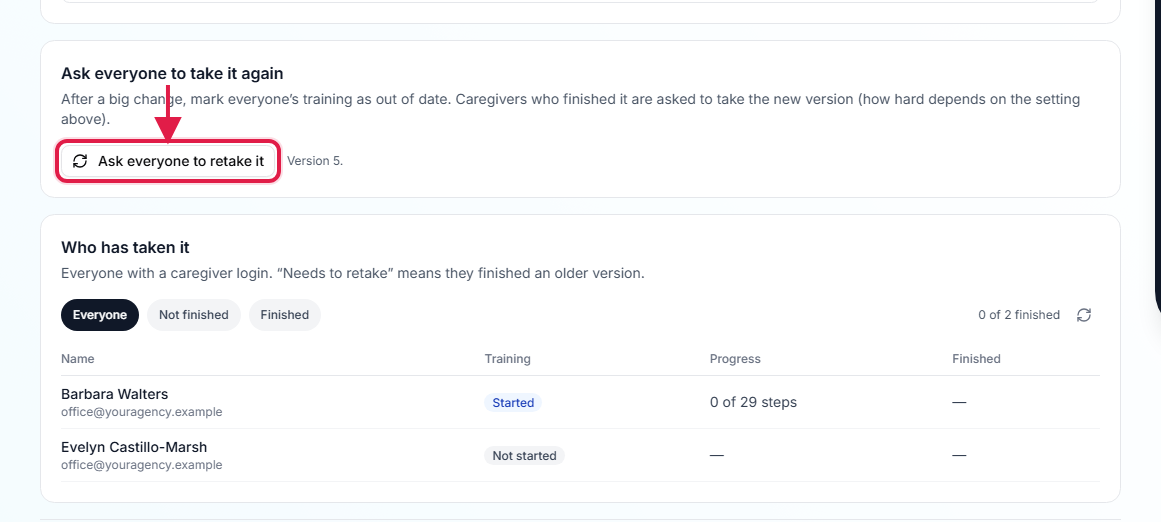
5. What your caregivers see
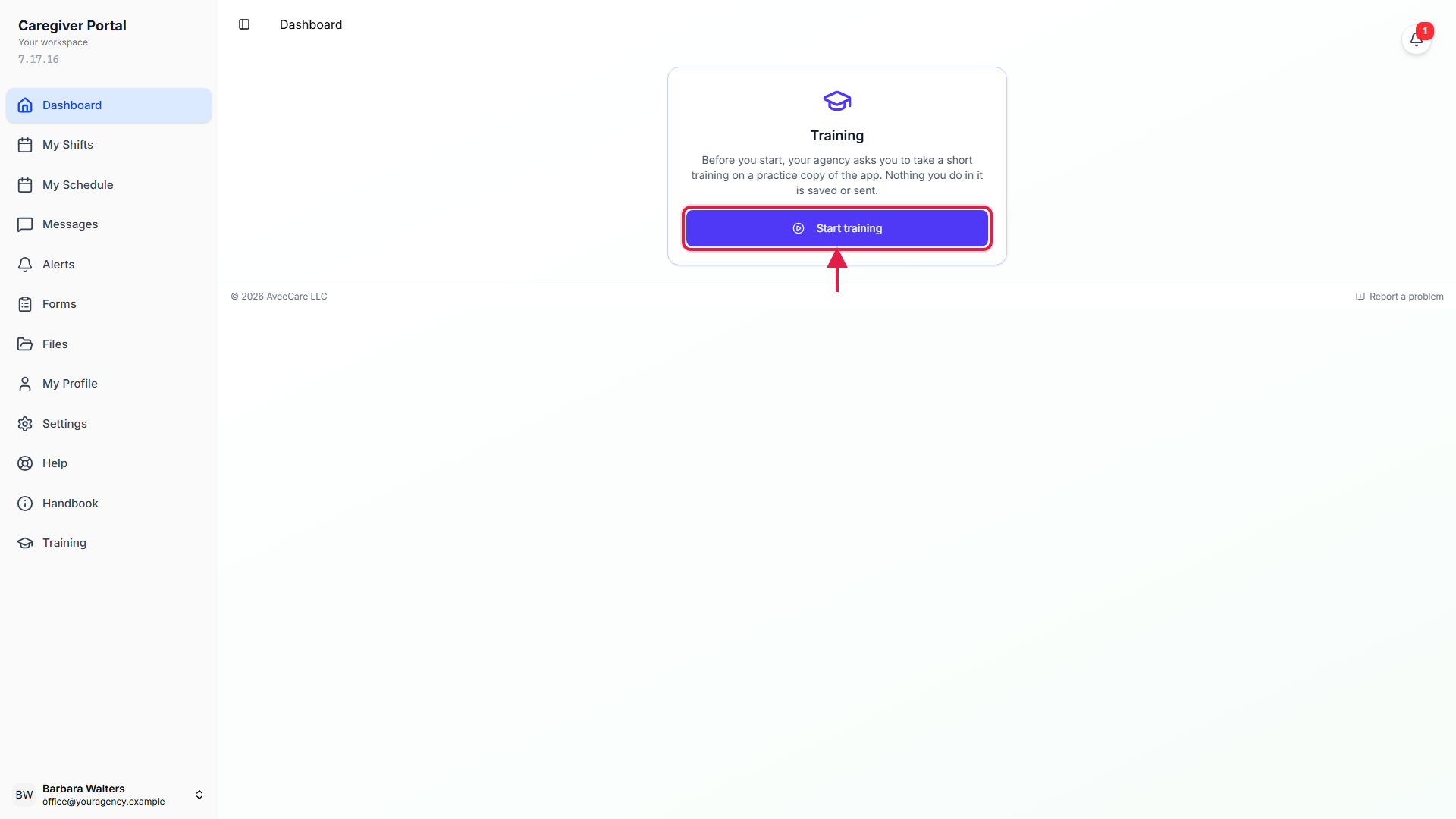
With Required before they start, the app asks them to take it first.
They follow the steps beside a practice copy of your app.
Each step points at the thing to tap. When they finish, the time is saved and shows in your table. They can take it again any time from Training in the menu.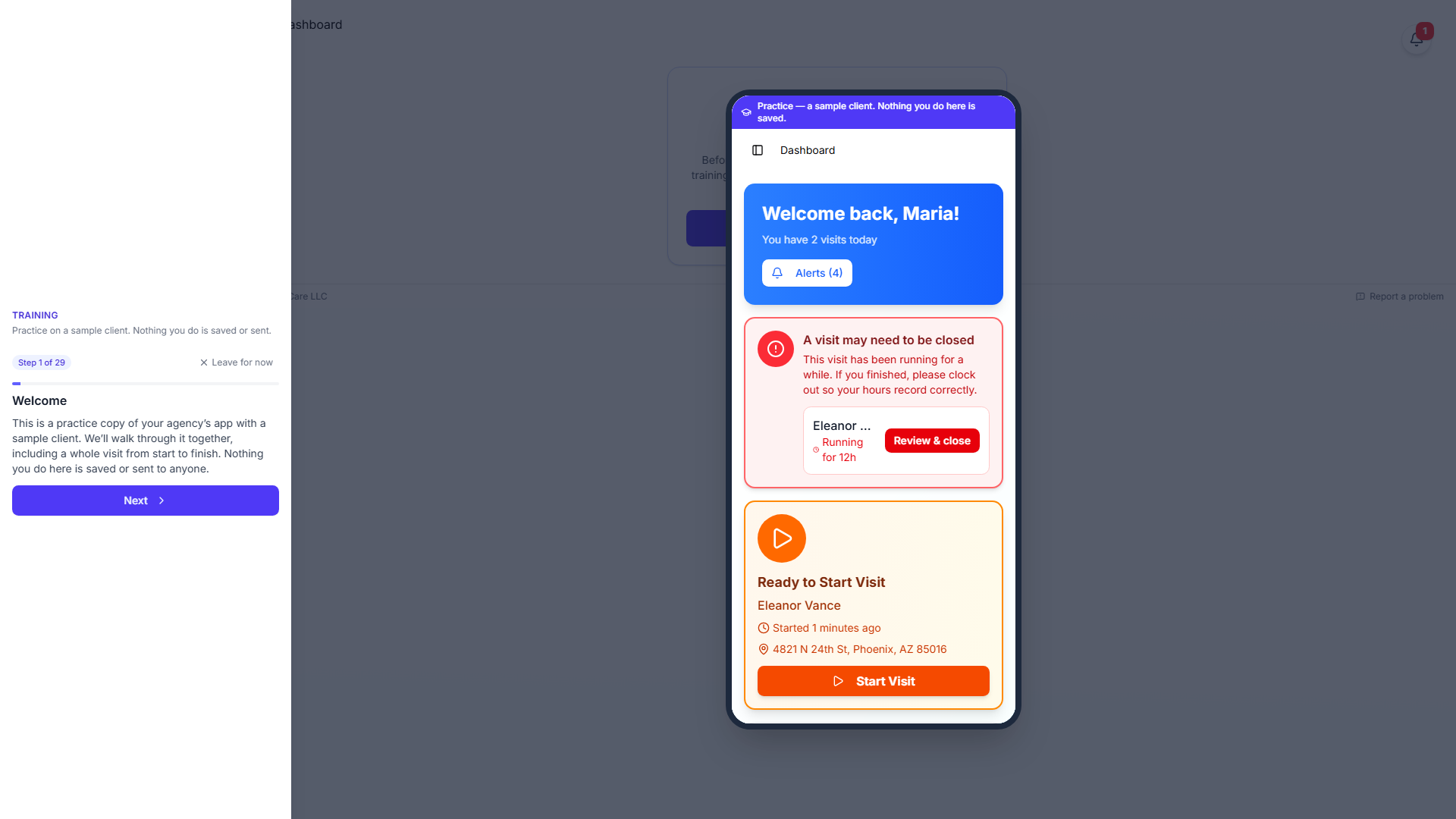
Common pitfalls
- Turning on Required for current staff mid-shift. Required locks the app until they finish, and a full run takes a few minutes. Turn it on between shifts, or use the reminder setting for people already working.
- Forgetting to save. Training settings, like everything on this tab, reach caregivers only after Save now.
- Changing the app but not asking for a retake. The training always teaches the current app, but people who already finished are not asked again until you click Ask everyone to retake it. See Customize the caregiver and family apps.