SMS provider settings is the Twilio credentials block on the Business Settings tab. A Root User pastes the Account SID, Auth Token, and From Number, saves the credentials, then flips the SMS Notifications toggle on. From that point caregivers and admin staff can receive the SMS categories enabled on Company Notifications.
Quick answer
Open Settings, scroll to the SMS Notifications card on the Business Settings tab. Pick Twilio from the SMS Provider dropdown, paste Account SID and Auth Token, type your From Number in E.164 format. Click Save Credentials. Once Twilio verifies (badge flips from Not configured to Connected), the Enable toggle appears. Turn it on and click Save SMS Settings.
Who can edit this
SMS Notifications is Root User only. Regular User accounts do not see the card. The provider list currently shows just Twilio. Other providers are on request. The Auth Token is stored encrypted server-side and is masked in the UI after you save it.
1. Open Settings and scroll to SMS Notifications
Click Settings in the left sidebar.
Settings opens on the Business Settings tab. The SMS Notifications card sits below Visit Monitoring, just above the Save button. The badge next to the heading reads Not configured, Failed, or Connected depending on the tenant's current state.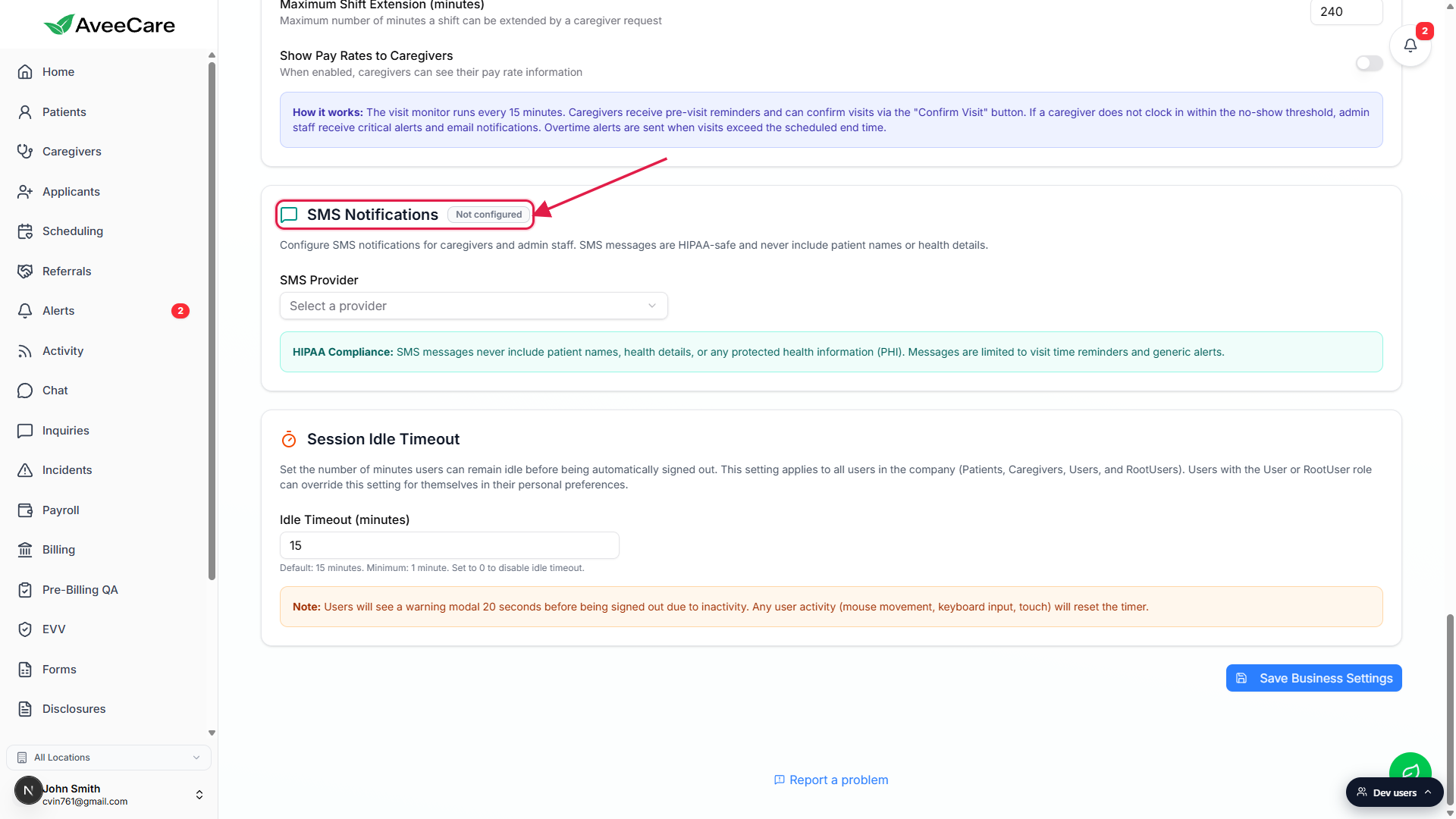
Confirm you see SMS Provider, not just SMS toggles.
If the card you see is titled SMS Notifications to Users with three toggle rows for New Visit Assignments, Visit Reminders, and Urgent Alerts, you are on Company Notifications instead. Company Notifications controls which events fire an SMS. This article is the provider configuration that makes any SMS able to send at all.
2. Pick Twilio from the SMS Provider dropdown
Click the SMS Provider dropdown and select Twilio.
Twilio is the only option shipped today. As soon as you pick it, the credential fields appear below the dropdown. Until you pick a provider the rest of the card stays hidden.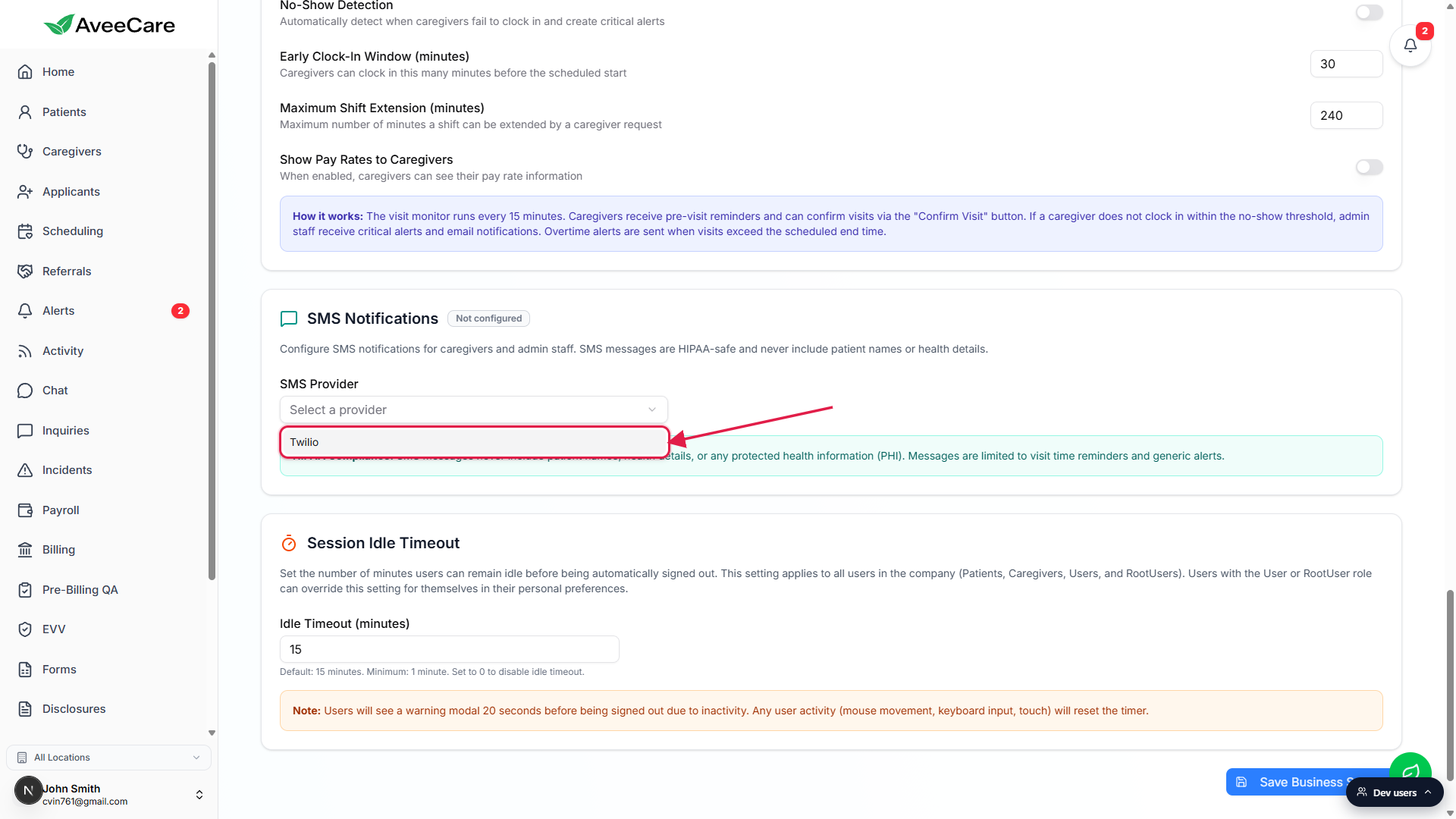
3. Paste Account SID, Auth Token, and From Number
Paste the Account SID from your Twilio console.
It starts with AC and is 34 characters. Paste it into the Account SID field. After a successful save the UI shows a Saved: ****<last 4> hint below the field so you can confirm which SID is live.Paste the Twilio Auth Token.
The Auth Token field is a password input, so the value is masked as you paste. AveeCare encrypts the token at rest; we never display it back. If a token is already on file the placeholder shows dots and you can leave the field empty to keep the existing one.Type the From Number in E.164 format.
The number must start with a plus sign and the country code, no spaces or dashes. The help line under the field shows the format: +15551234567. This is the phone number texts will send from, so it has to be a Twilio number on your account that is SMS-capable.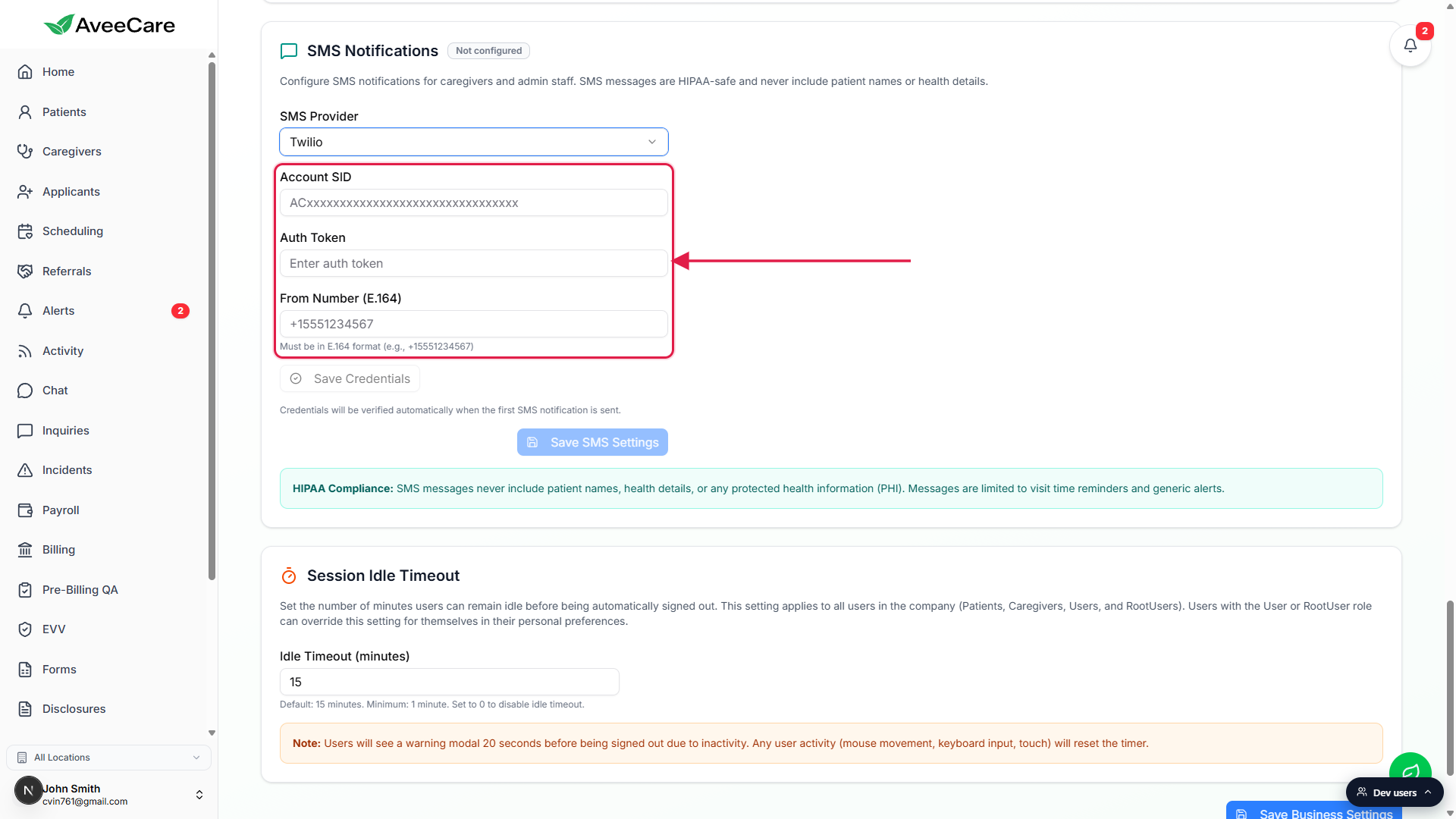
4. Save Credentials, flip the toggle, Save SMS Settings
Click Save Credentials.
The button stays disabled until all three fields have values (or the Auth Token is already on file). The note under the button calls out that AveeCare verifies the credentials automatically the first time an SMS is sent, so you may see the badge stay on Not configured for a moment after saving.After verification, the SMS Notifications toggle appears.
Once Twilio confirms the credentials work (badge flips to Connected), AveeCare reveals a teal-bordered card with the SMS Notifications Enabled / Disabled label and a switch. Off means no SMS sends at all, even if Company Notifications has rows turned on. On means SMS sends through Twilio for the categories that Company Notifications has enabled.Click Save SMS Settings at the bottom-right.
This commits the on/off state for SMS to the tenant. Save Credentials and Save SMS Settings are two separate buttons by design: credentials save first so the verification call has something to authenticate with, the toggle saves second so you only enable SMS once Twilio is reachable.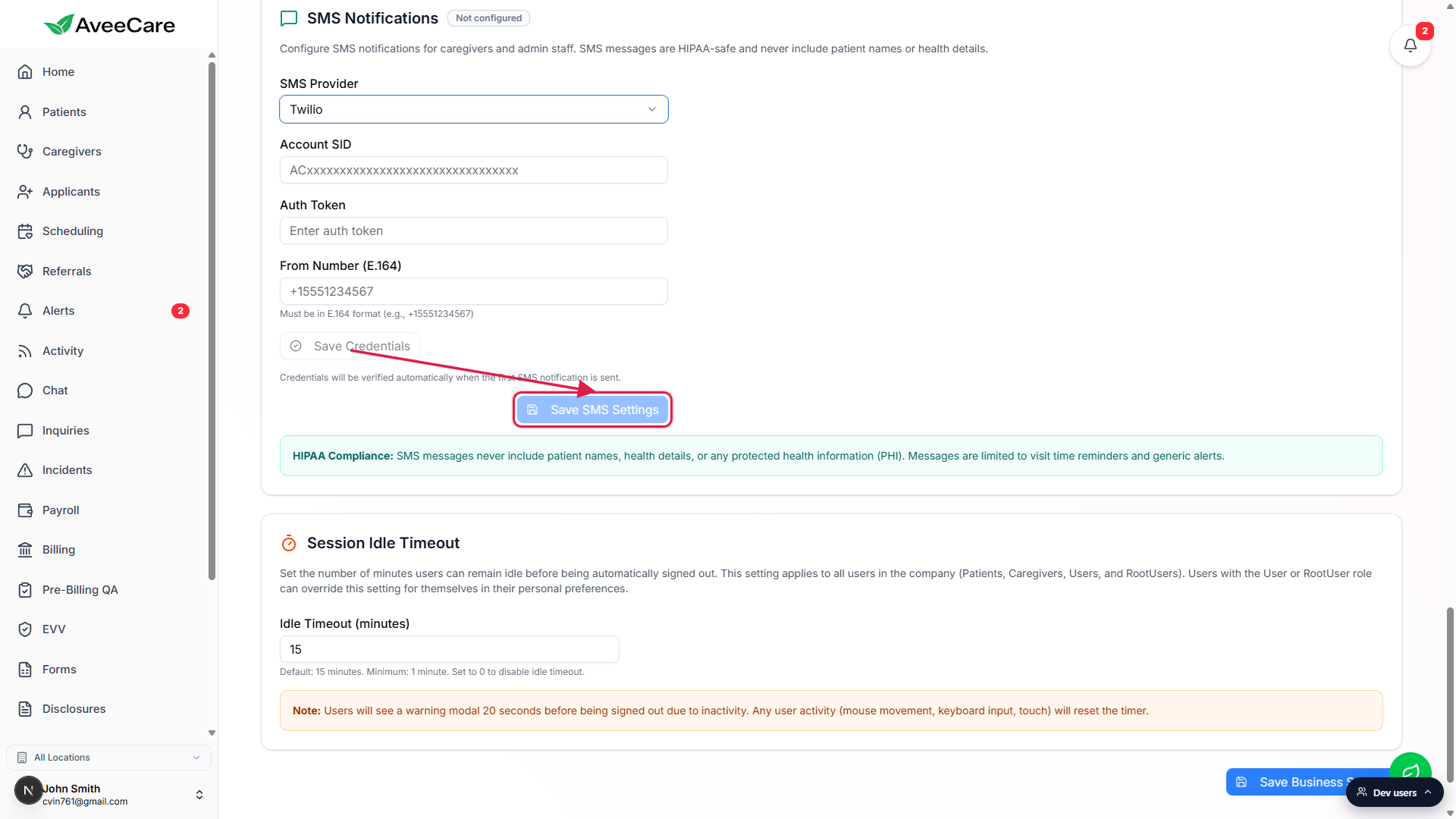
Common pitfalls
- Saving credentials with no From Number. Save Credentials stays disabled until Account SID and From Number are both filled. Twilio rejects sends from numbers it does not own, so the format check protects you from a silent send-failure later.
- Forgetting the E.164 plus sign. The From Number field needs the country code prefix with a leading plus (+15551234567). Numbers like 5551234567 or 1-555-123-4567 fail at send time even though the field accepts them at type time.
- Expecting SMS to send before Save SMS Settings is clicked. Saving credentials is not the same as enabling. The toggle ships off by default after a fresh credential save. Flip it on and click Save SMS Settings or no texts will go out.
- Editing SMS Notifications to Users on Company Notifications and assuming texts will send. Those toggles decide which events fire SMS. If this provider card is blank or disabled, none of those events can actually send a message. Both tabs need to be configured.
- Rotating the token by clearing the field. To rotate the Auth Token, paste the new token into the Auth Token field and click Save Credentials. Leaving it empty keeps the existing token in place, that is the no-op state.