AveeCare does not ship a one-click Bulk Assign button on the Disclosures page. The product distributes disclosures two ways, and this article walks both: flip a disclosure to Enabled so it shows up on every new patient and caregiver intake form, or open one record at a time and add an Add Disclosure Agreement entry.
Quick answer
For everyone going forward, leave the disclosure Enabled on the Disclosures page so it appears on new patient and caregiver intake. For existing patients and caregivers, open each record, switch to the Disclosures tab, click Add Disclosure Agreement, pick the disclosure, and save.
How disclosures actually reach people
There are exactly two paths in the live app:
- Auto on intake. Any disclosure with Enabled on, matching the Applies To audience, shows up on new patient or caregiver intake forms. The new person acknowledges and the agreement is recorded automatically.
- Manual per person. On a patient or caregiver Disclosures tab, click Add Disclosure Agreement, pick the disclosure, set Agreed At and Agreed In, optionally capture a signature, and click Add Agreement. This is the supported path when an existing person needs to re-acknowledge an updated disclosure.
There is no multi-select recipient picker, no batch send action, and no notification fires on agreement creation. If you need to chase 200 existing patients to re-sign a revised HIPAA notice, plan on opening each record or sending the message yourself in Chat.
1. Distribute a disclosure to new intakes with Enabled
Click Disclosures in the left sidebar.
The page lists every disclosure with its Applies To audience, Requires Signature setting, Status (Enabled or Disabled), Updated At, and a Controls column with edit, toggle, and delete icons.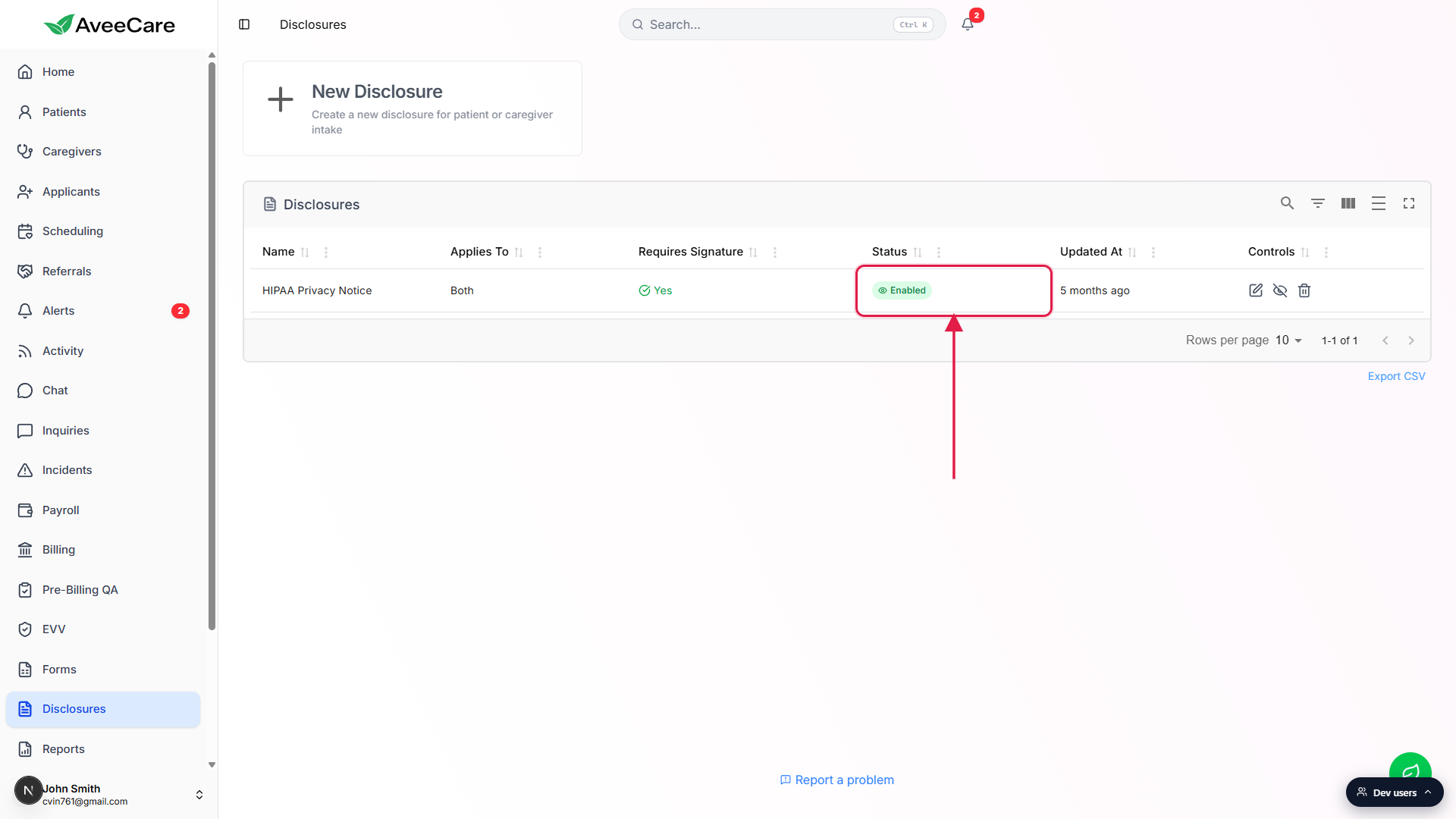
Confirm the row Status reads Enabled.
As long as Status is Enabled and Applies To matches the audience, the disclosure appears on every new patient or caregiver intake from this point on. Disabled disclosures stay in the library but stop appearing on new intake.
2. Toggle Enabled fast from the row Controls
Click the eye-off icon in the Controls column to disable a row.
The middle icon in the Controls column flips between eye-open and eye-off. Click it once and the Status chip toggles from Enabled to Disabled. Click again to re-enable. Use this when you want a disclosure to stop appearing on new intake while you edit the wording, then re-enable when you are ready.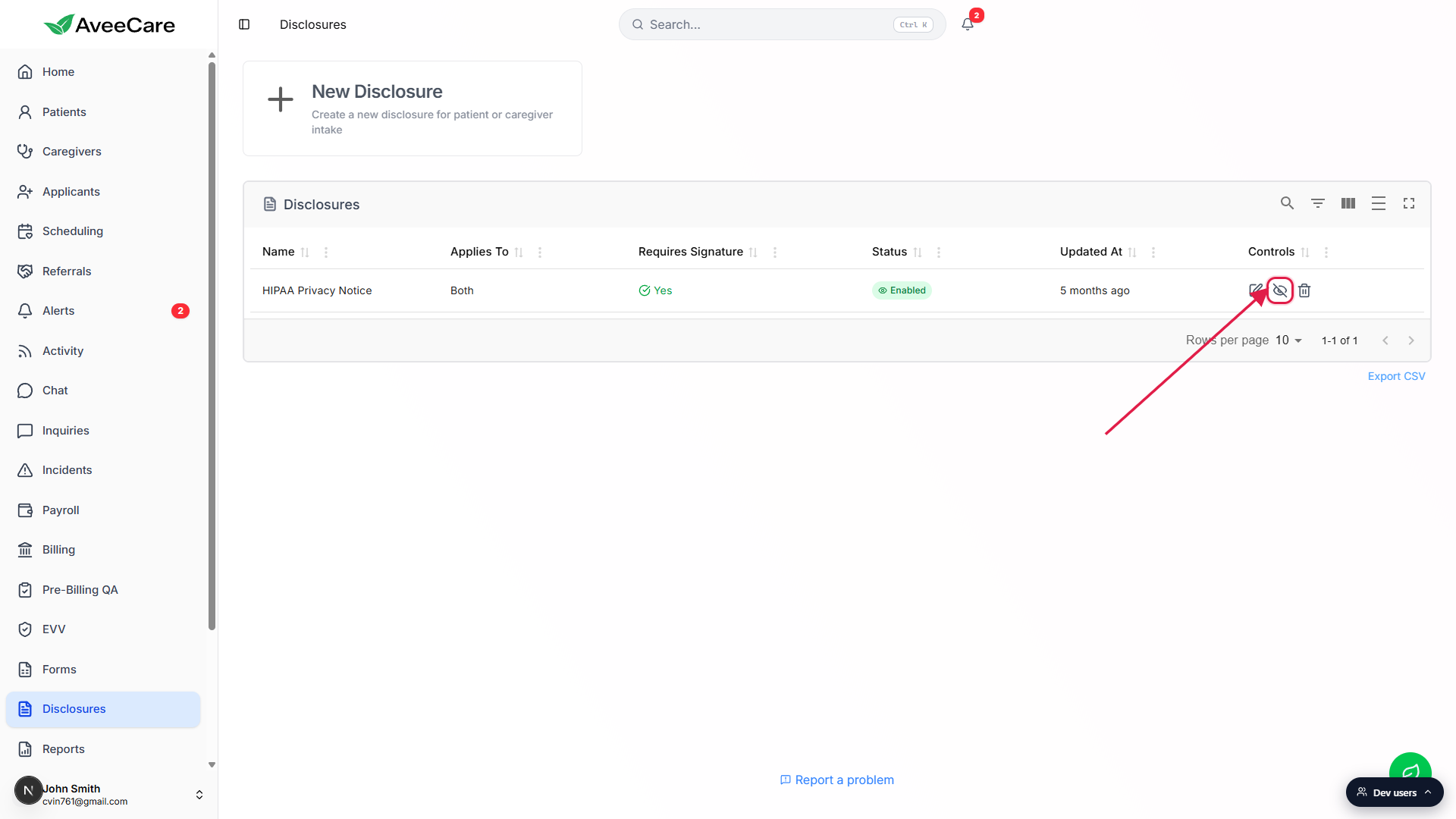
Edit the disclosure to change Applies To if the audience changed.
The pencil icon opens the Edit Disclosure modal. The Applies To dropdown there is the same Patient Only, Caregiver Only, Both Patient and Caregiver choice from the create flow. Changing it controls who sees the disclosure on intake going forward.
3. Add an agreement to an existing patient or caregiver
Open the patient or caregiver record.
Click Patients (or Caregivers) in the sidebar, then click the row. The detail page opens on Overview. The flow is identical for both audiences, just with Patient Disclosure Agreements vs Caregiver Disclosure Agreements as the table title.Switch to the Disclosures tab.
The tab strip across the patient header includes Overview, Appointments, Forms, Files, Disclosures, Billing, ADLs, Care Goals, and more. The Disclosures tab shows every agreement on file, or an empty state with a single centered Add Disclosure Agreement button.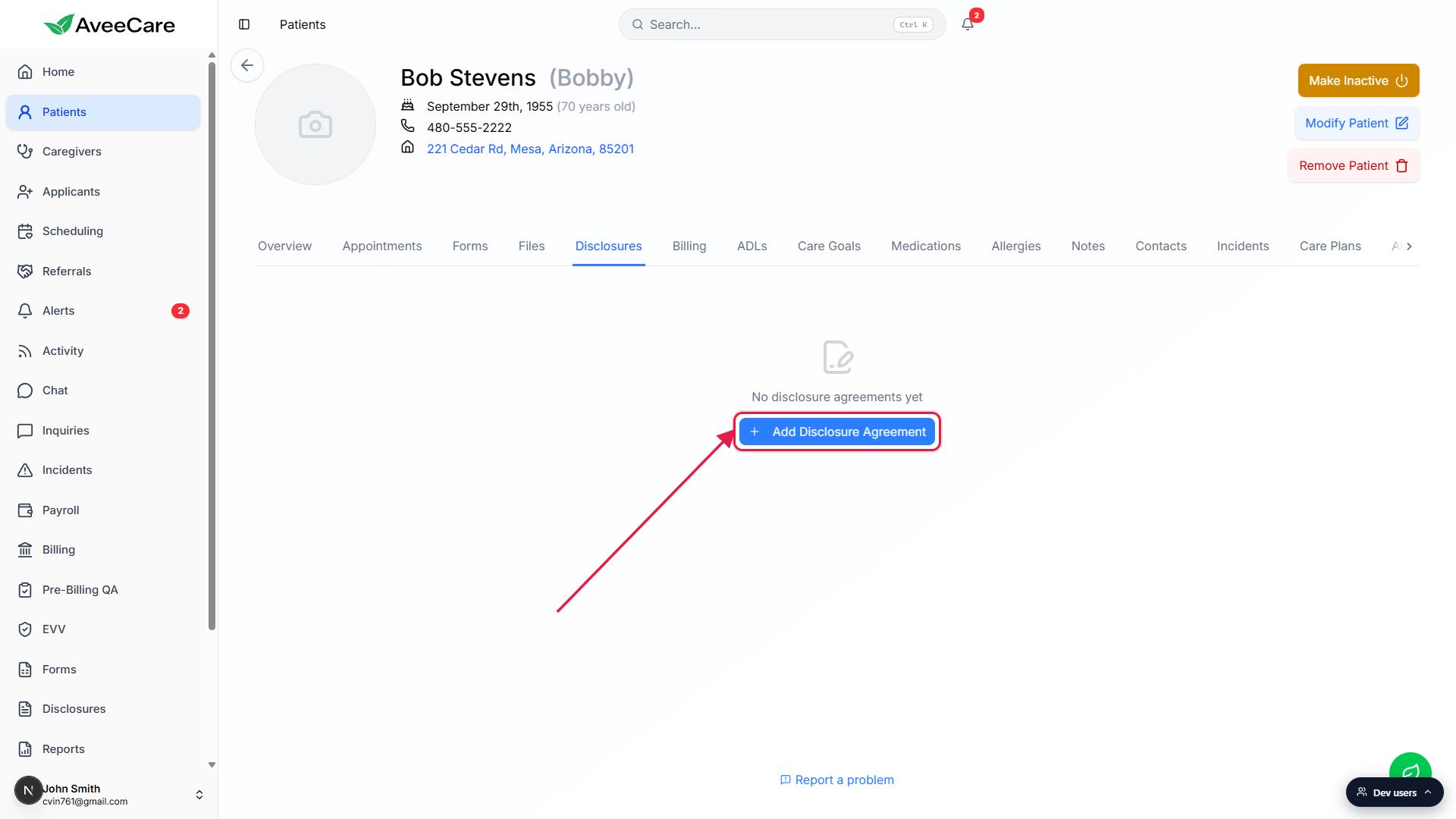
Click Add Disclosure Agreement.
A modal opens with fields for Disclosure, Agreed At, Agreed In (Context), and an optional signature pad. The Disclosure dropdown only lists items whose Applies To matches the record you are on, so a patient record will not show Caregiver Only disclosures and vice versa.
4. Pick the disclosure and save the agreement
Pick the disclosure from the Disclosure dropdown.
The dropdown defaults to Select a disclosure. Open it and choose the disclosure you want to record an acknowledgment for. Agreed At defaults to right now, in your local timezone, but you can backdate it for paper agreements you are recording after the fact.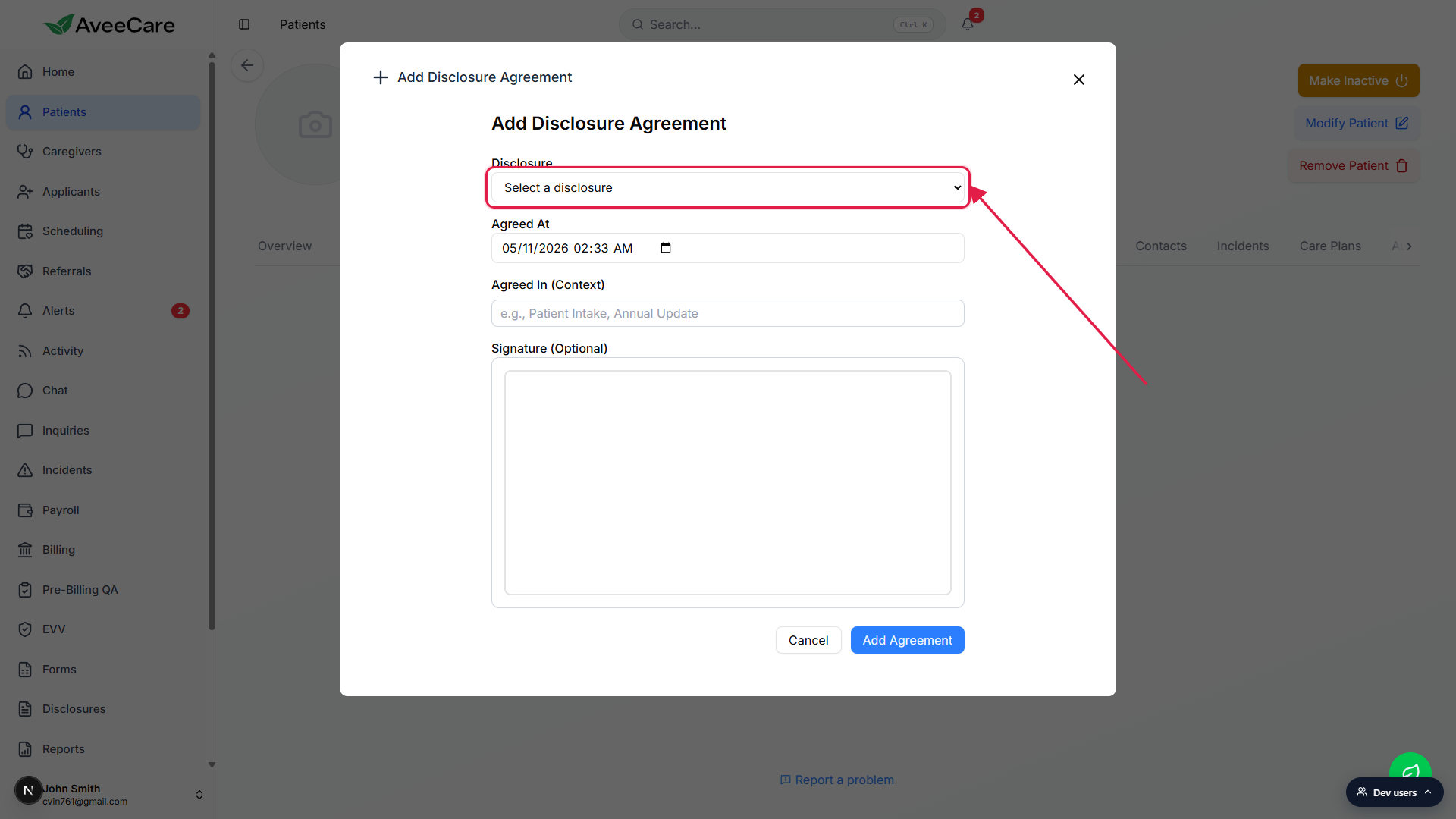
Fill in Agreed In (Context).
Free text. Examples from the placeholder: Patient Intake, Annual Update. Use it to mark where the agreement was collected (in person, over the phone, via portal) so a future auditor can see why a backdated agreement exists.Capture a signature if Require Signature is on for that disclosure.
The signature pad is optional in the modal, but for any disclosure whose template has Require Signature on, your agency should capture one. Draw with the mouse or have the patient sign on a touch device. Clear and re-sign if needed.Click Add Agreement to save.
The new row lands on the Disclosures tab with the disclosure name, agreed date, context, and a Yes/No chip in the Signature column. From there you can view the saved disclosure text, edit the context or signature, or delete the agreement if it was added by mistake. The audit trail for historical acknowledgments stays even if the underlying disclosure template is later deleted.
Common pitfalls
- Expecting a Bulk Assign button. The Disclosures page does not have one. Distribution to new people happens via the Enabled flag on each disclosure. Distribution to existing people happens one record at a time on each Disclosures tab.
- Editing a disclosure does not re-prompt existing people. Changing the content of a Disclosure template only changes what new intakes see. Past agreements are tied to the version the user originally signed and do not flip back to pending. To collect fresh acknowledgments on revised wording, open each existing record and click Add Disclosure Agreement, or send a message asking them to sign next time they are in the portal.
- Disabling a disclosure does not remove past agreements. Flipping Status to Disabled hides the disclosure from new intake but keeps every existing agreement on the patient and caregiver records, so your compliance audit trail is preserved.
- Audience mismatch. If a patient Disclosures tab is missing a disclosure you expected to see, check the Applies To column on the Disclosures page. Caregiver Only disclosures will never appear on a patient record, and Patient Only disclosures will never appear on a caregiver record.
- Bulk via CSV or API. There is no in-product CSV upload or batch endpoint to assign one disclosure to a list of people in one shot. If you need to backfill agreements at scale, contact your AveeCare implementation contact.