Upcoming Patient Birthdays is the smile-icon panel near the bottom of the dashboard. It surfaces every patient with a birthday in the next two weeks, sorted soonest first, so an admin can send a card, schedule a special visit, or call before the day passes. Small touches like this matter to the relationship and they are easy to forget without a reminder surface.
Quick answer
Open Home, scroll past Recent Alerts. The panel titled Upcoming Patient Birthdays lists every patient with a birthday in the next 14 days. Click any row to open the Patients list. Use the toolbar icons on the top right of the panel for search, filter, columns, density, and fullscreen, and the Export CSV link at the bottom right to download the list.
1. Find the panel on the dashboard
Scroll down past the Recent Alerts panel.
The Birthdays panel sits between Recent Alerts and Credential Expirations. The header has a small smile icon next to the title. The widget is admin-only, so caregivers and patients signed in to their own dashboards do not see it.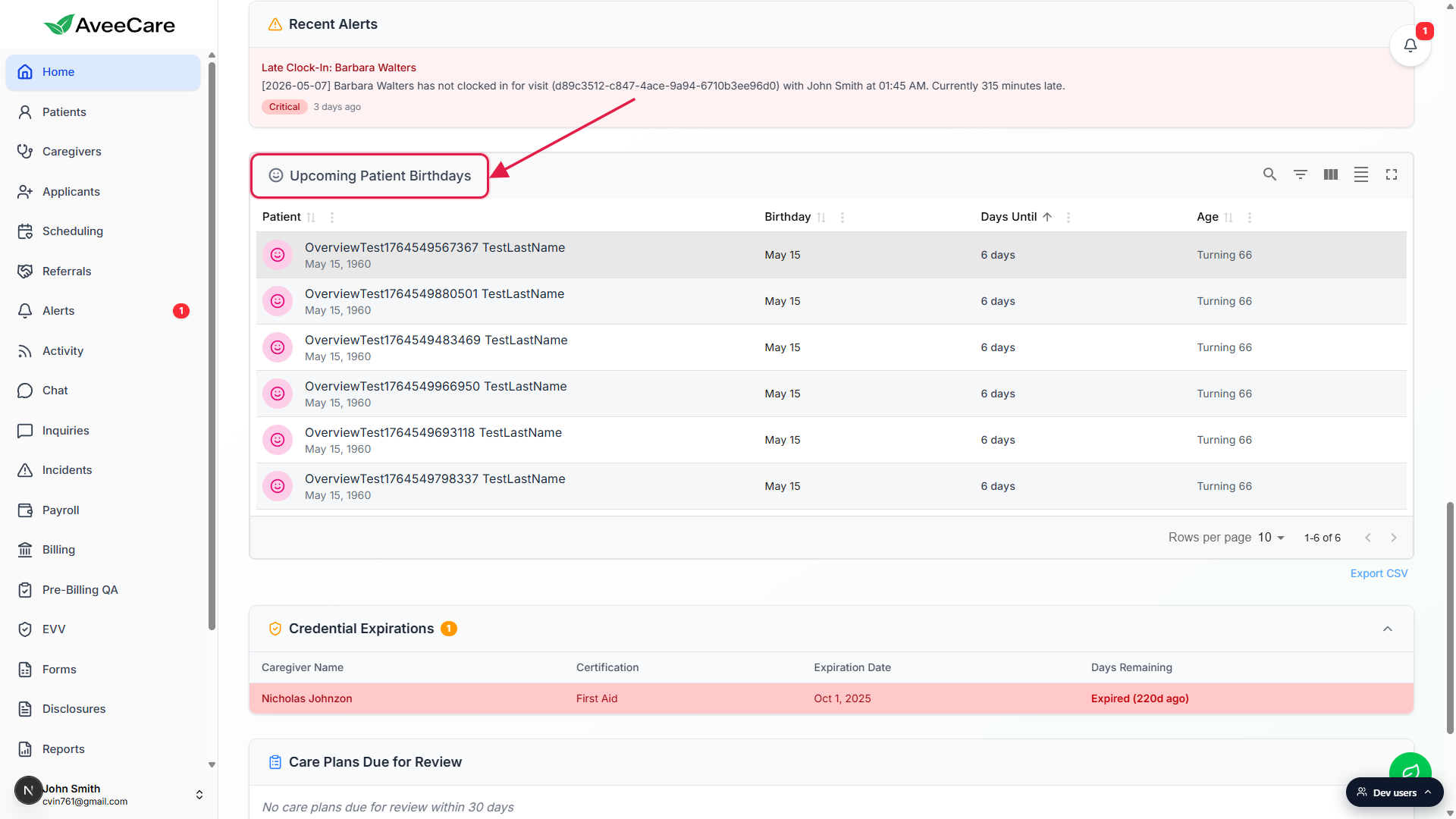
2. Read the columns
Each row shows Patient, Birthday, Days Until, and Age.
Patient shows a pink smile avatar, the patient name, and the full date of birth (Month Day, Year) under it. Birthday is the month and day this year. Days Until is the countdown, with Today! in pink for day-of and Tomorrow in pink for the next day. Age shows what the patient is turning.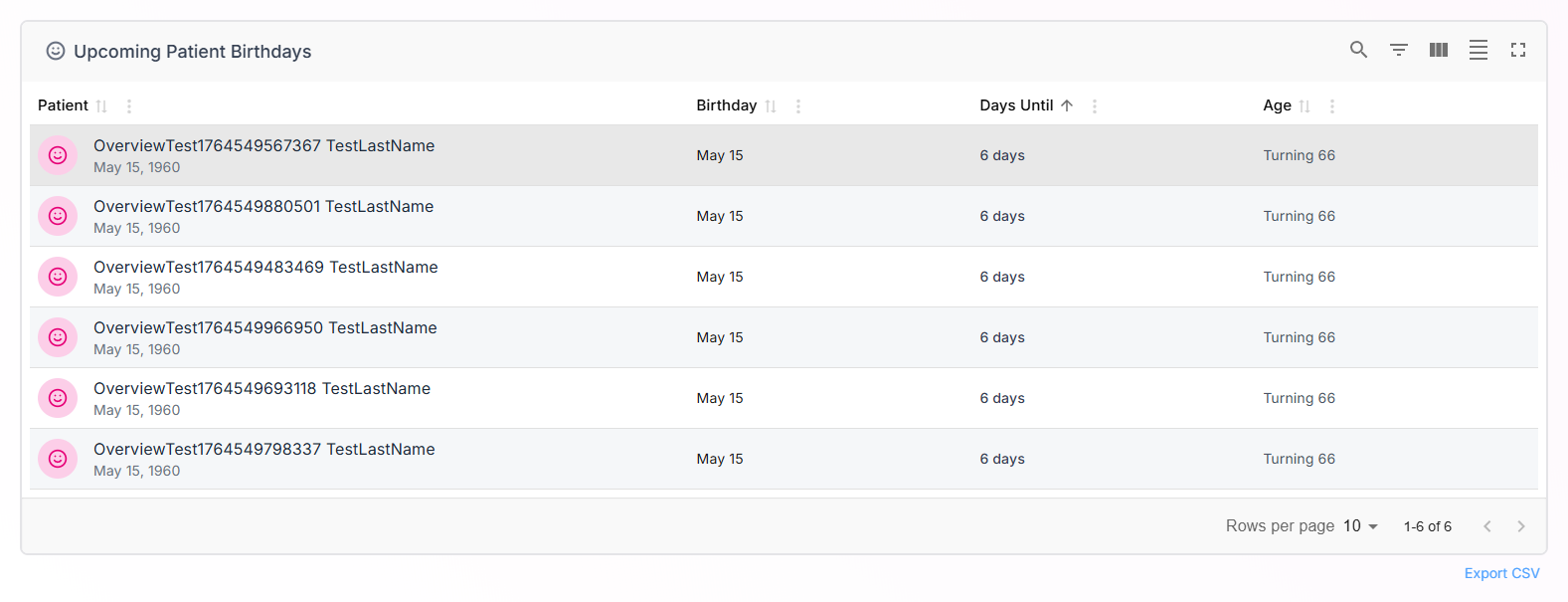
The default sort is Days Until ascending.
Soonest birthday is at the top. Click any column header to resort. The Days Until column shows an upward arrow next to the label to indicate the active sort.
3. Click a row to jump to Patients
Click any row in the panel.
The cursor changes to a pointer when you hover. A row click navigates to the Patients page so you can pull up the patient record, copy an address for a card, or add a Care Plan note before the visit on the birthday.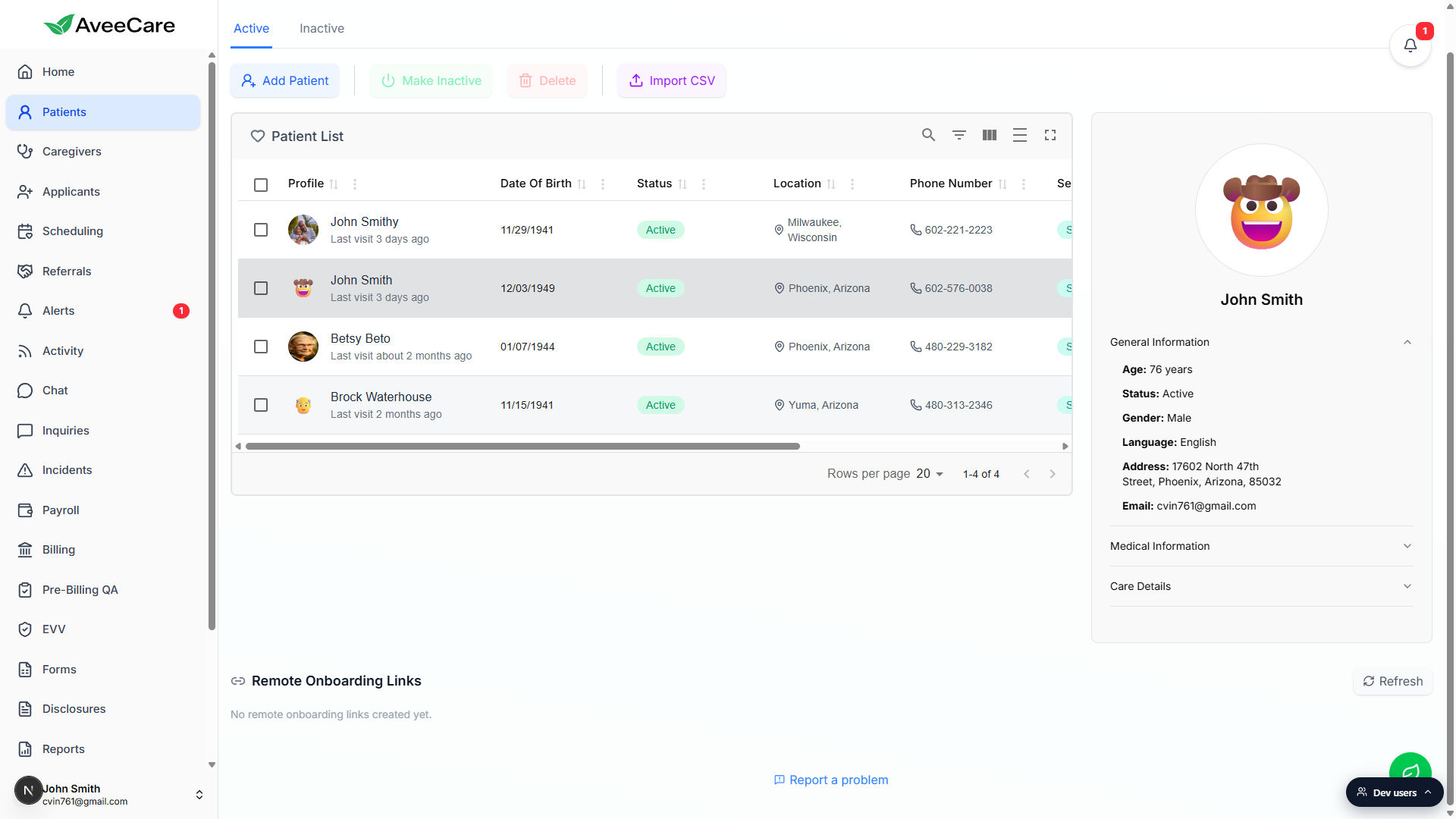
4. Sort, search, or export the list
Use the toolbar icons on the top right of the panel.
Search filters the rows by name. Filters opens per-column filter inputs. Columns lets you hide the Birthday or Age column. Density toggles compact rows. Fullscreen pops the panel out to fill the page.Click Export CSV at the bottom right.
The download is namedupcoming-birthdays-YYYY-MM-DD.csvusing today's date. Useful for handing the list to a front desk staffer who is mailing cards or making the calls.
Common pitfalls
- Caregiver birthdays do not appear here. The dashboard widget specifically lists patient birthdays. Caregiver birthdays do not surface in this panel today.
- Patient missing from the list. The patient probably has no date of birth on file. Add it under their Overview tab and they will show up next time the dashboard loads.
- Window is two weeks, not a month. The panel only includes patients whose birthday falls in the next 14 days. A patient turning 80 in three weeks will not appear yet. Check back closer to the date.
- Row click lands on the Patients list, not the patient profile directly. Today the click navigates to the Patients page where you can find the row and open the profile from there. Direct profile navigation is on the roadmap.
- Mass birthdays on the same date from test data. If you imported placeholder DOBs, you will see them clumped on a single date. Clean up the dummy DOBs to declutter.
Related
Frequently asked questions
upcoming-birthdays-YYYY-MM-DD.csv with today's date.