Once eMAR is set up, doses are recorded in two places: by the caregiver at visit check-out, and by the office on the eMAR page’s Med Pass. Both write to the same record, and the monthly MAR is built from it. If eMAR is not on yet, start with Set up eMAR and add medications.
Quick answer
Open eMAR. On Med Pass, press Record next to a dose, choose the outcome and save. Use Record PRN for as-needed doses. At month end open MAR Grid, pick the client and month, and press Download MAR (PDF).
1. Work today’s med pass
Open Med Pass to see today’s scheduled doses.
Doses past their time show as Overdue; doses already recorded show under Recorded today. Filter to one client if you are working a single home.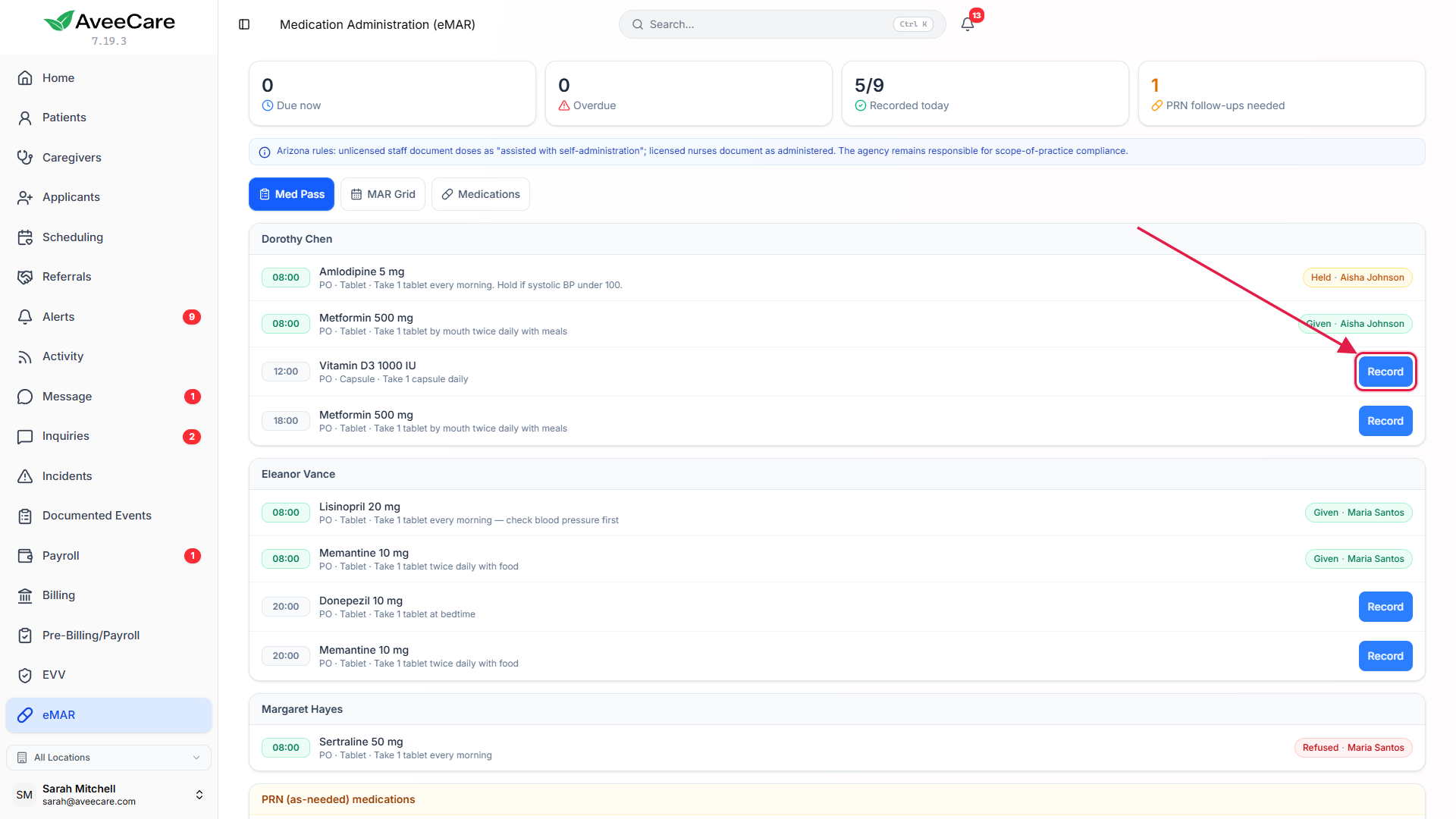
Press Record, choose Given, add a note if you need one, and press Record.
The wording of a given dose follows your state and the recorder’s license type, for example administered or assisted with self-administration. Your name, credential and the time are added by AveeCare, not typed.Caregivers record the same doses at check-out.
The visit check-out has a Medications step listing the doses due during the visit. If the office completes the visit on the caregiver’s behalf, that step is skipped, so record those doses here.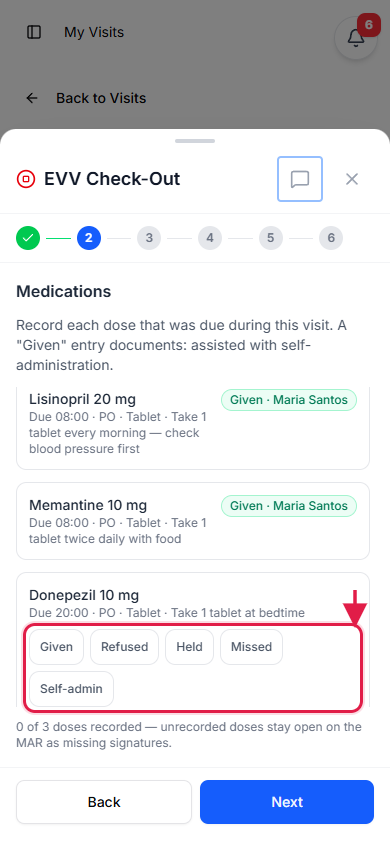
2. Record a refused, held or missed dose
Choose Refused, Held or Missed as the outcome and pick a reason.
Reasons include Patient refused, Held per prescriber, NPO / clinical hold, Medication unavailable and Patient unavailable. The office gets an alert straight away for any of these.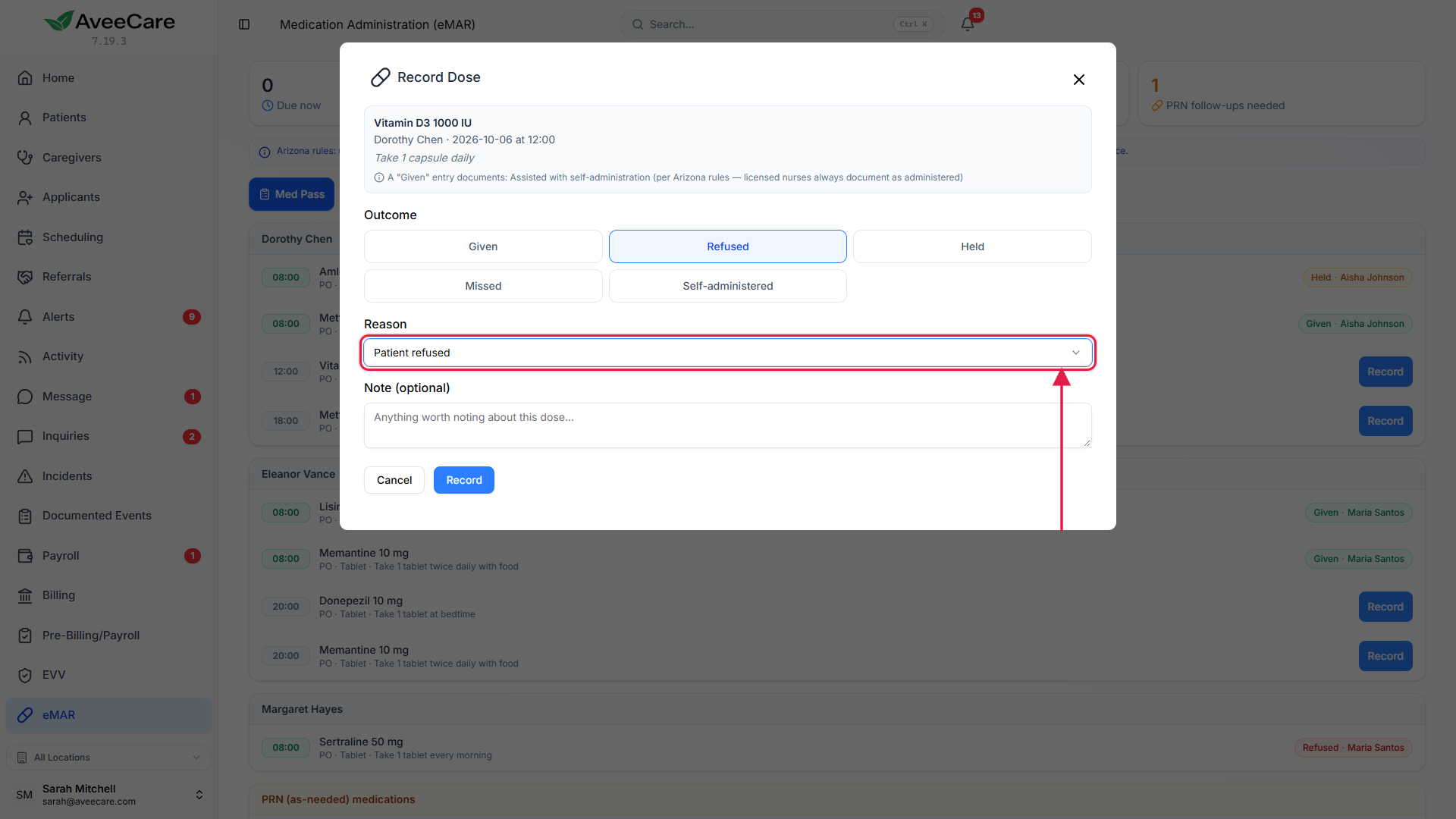
Choose Self-administered when the client took it themselves.
If your documentation mode is Reminders only, this is how a dose the client took is recorded. A dose recorded as Given in that mode is refused with a message saying so.
3. Give a PRN dose and follow it up
Press Record PRN under the client’s as-needed medications.
Say why it is being given, for example “Headache, pain 6/10”. AveeCare refuses the dose if it is sooner than the minimum hours between doses or over the daily maximum, and says which.Record the follow-up when it is flagged.
A given PRN dose shows Follow-up needed. Open it, answer Was it effective?, add a note and press Record Follow-up. If nobody does within about two hours, the person who gave it is alerted, or the office if that person cannot be.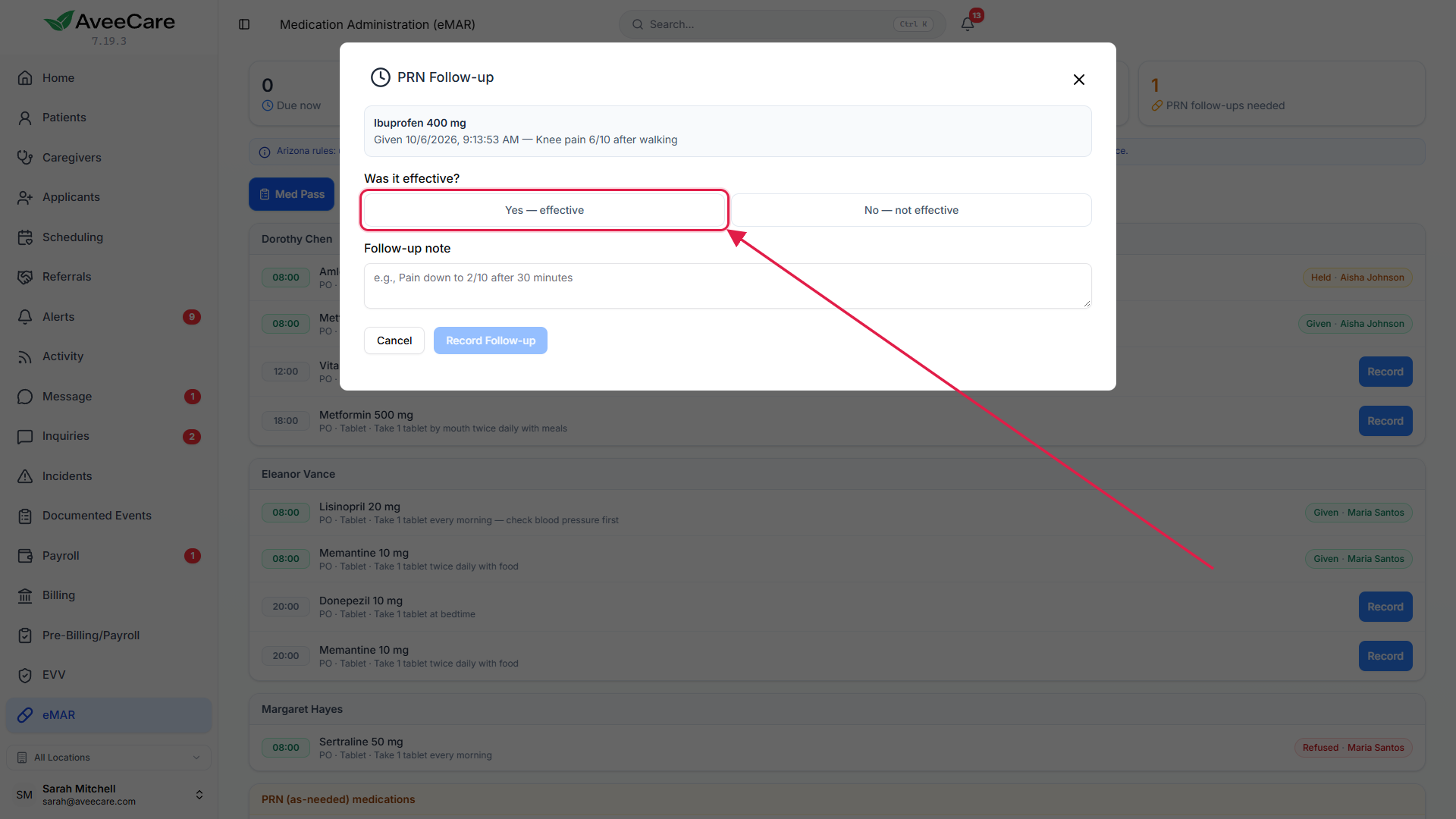
4. Witness a controlled medication
Type the witness’s full name when the Record Dose window asks for it.
Schedule II medications, and any medication set to require a witness, cannot be recorded as given without one. Where your state reserves controlled medications for nurses, unlicensed staff are told so and the dose is not saved.
5. Correct an entry
Open the recorded dose and choose to amend it.
Pick the corrected outcome and write why, for example “Recorded the wrong outcome; patient actually refused”. The reason is required and becomes part of the record.Press Save Amendment.
The correction is saved as a new entry and the original is kept, marked as amended, in the history. Only the newest entry in a history can be amended. Caregivers can amend only entries they recorded.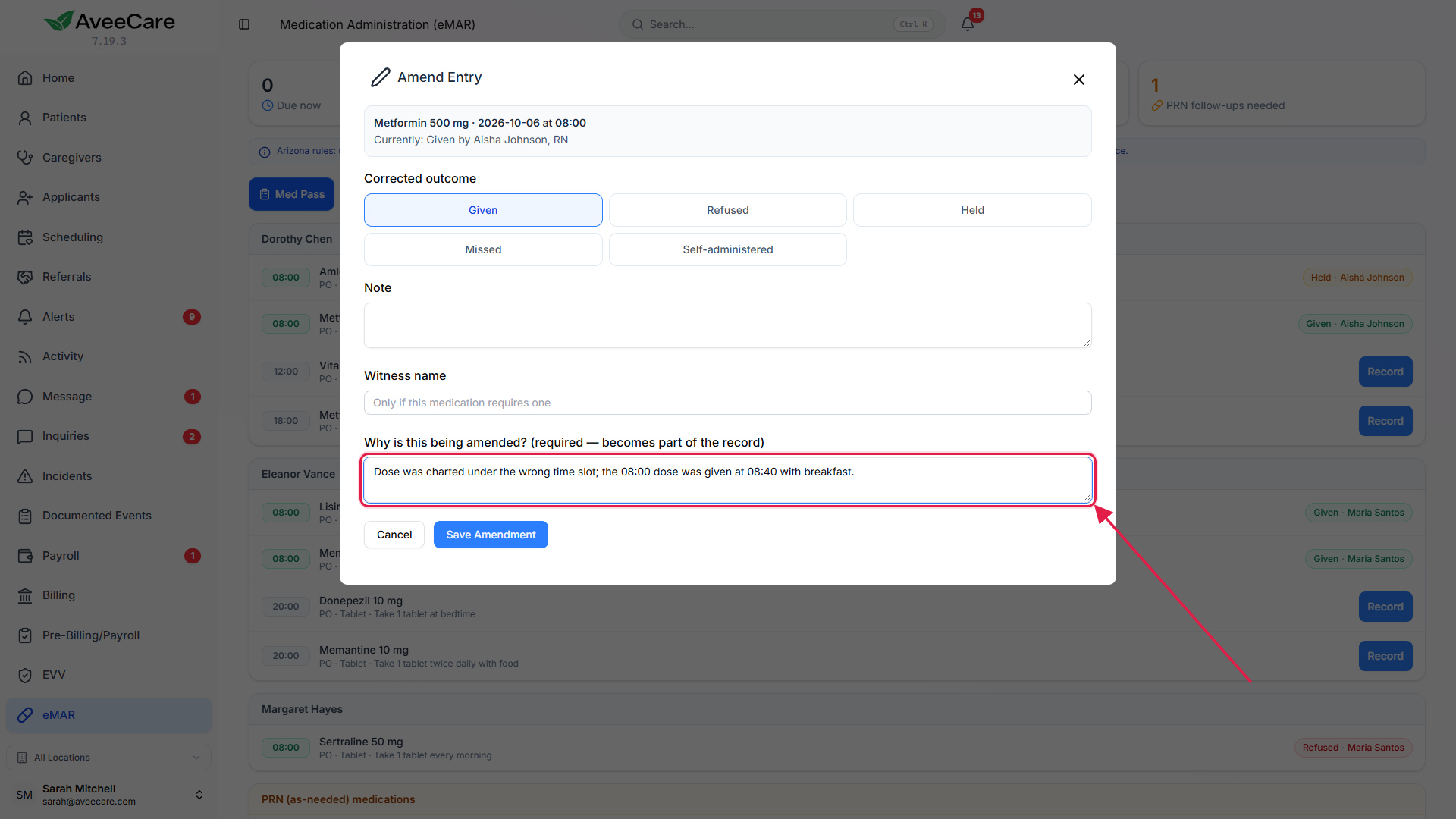
6. Download the monthly MAR
Open MAR Grid, pick the client and use the arrows to choose the month.
Each square holds the initials of the person who recorded that dose, or a letter for an exception: R refused, H held, M missed, S self-administered. Amended entries carry an asterisk.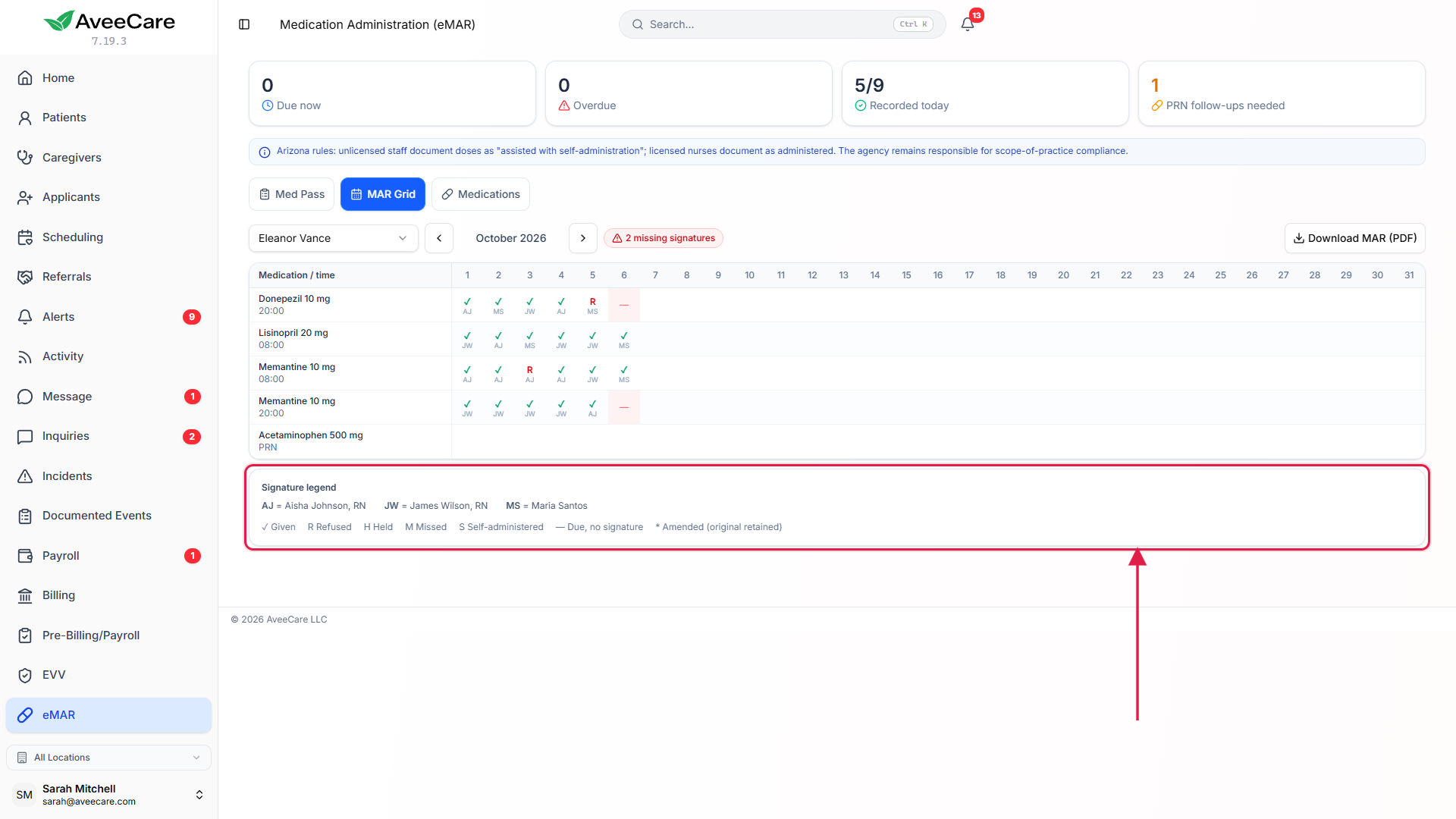
Press Download MAR (PDF).
The PDF is landscape and has the same grid, a PRN log, a controlled-substance log and a signature legend. It is built from the same entries as the screen, so the two always agree. A blank square is a dose nobody recorded.
Common pitfalls
- Completing a visit on the caregiver’s behalf and assuming the doses are in. They are not. Record them on the med pass.
- Recording a second entry to fix the first. AveeCare refuses a duplicate dose. Amend the original instead.
- Leaving PRN follow-ups. They stay flagged and alert the person who gave the dose.
- Expecting a blank square to fill itself. The MAR shows what was recorded. A dose nobody recorded stays blank and raised a missed-dose alert at the time.