Pediatric home care, without the second job.
Turn on the pediatric setup and AveeCare adds what agencies caring for children need on top of authorizations that build the schedule: school-day and non-school-day hours, siblings on one shift, a child’s school as a location, and a doctors directory.
Pediatric mode is opt-in, and you can switch back.
The pediatric screens only appear once you turn on the pediatric setup in Settings. Switching back to general home care hides them again and deletes nothing: codes, fields, forms and everything recorded on them stay exactly where they are.
What the pediatric setup adds
Authorizations that schedule
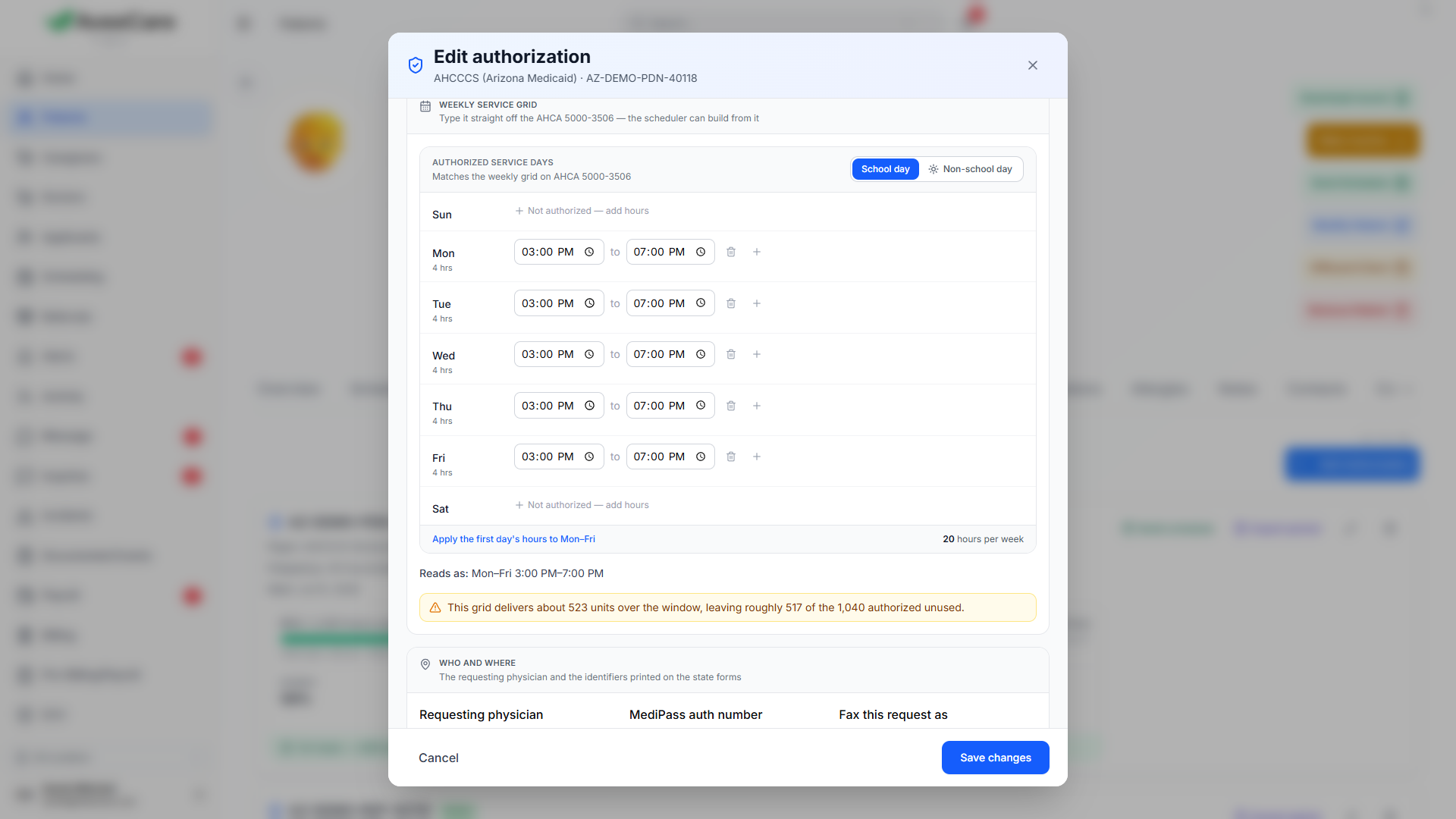
Put the weekly grid on the authorization the way it reads on the form, with school-day and non-school-day hours, and build the schedule from it.
Two children, one shift
A shared shift covers siblings cared for together: one caregiver, one clock-in, and each child keeps their own visit record and is billed to their own plan.
Where the child is
A Locations tab on the client holds the child’s school or therapy clinic alongside their home address.
A doctors directory
Keep the physicians you work with in one list, with NPI checked as you type, and pick a client’s primary care and referring provider from it.
Authorizations
The approved hours, kept honest by the schedule
An authorization is a record of its own. It knows how many units the payer approved, how many are used, what it pays for and when it ends. Enter the weekly hours as they appear on the form, including separate school-day and non-school-day hours, and build the schedule straight from it.
Every visit built that way is tied back to the authorization it draws from, so the hours cannot quietly run past what was approved, and you are warned before they run out. An authorization period can be sent out as one audit packet.
Shared shifts
Siblings in one home, without double-booking the caregiver
When one caregiver cares for two children in the same home at the same time, mark the visit as a shared shift. The caregiver clocks in once and is paid once for the hours they worked.
Each child keeps a whole visit of their own, with their own authorization, notes, tasks and claim. The shared clock, place and signatures are the evidence that both children were seen in the same setting at the same time.
Doctors
Who to call, on the chart
Open a client, press Modify Patient, and set their Primary Care Provider and Referring Provider. Start typing to search your Doctors list, or add a new doctor right there and fill in their NPI and address later.
Both appear on the client’s Overview with the practice phone number, so whoever picks up the chart next knows who to call.
Let the software keep track of the hours
Turn on the pediatric setup, put the authorization in once, and let the schedule and the claims follow from it.