Bulk Import
Import visits from ICS/iCalendar files with drag-and-drop ease. Map events to caregivers and patients, track progress, and handle errors gracefully.
Try Scheduling in DemoImporting from ICS/iCalendar Files
Migrating from another scheduling system? Export your existing schedule as an ICS (iCalendar) file and import it directly into AveeCare. This standard format is supported by Google Calendar, Outlook, Apple Calendar, and most scheduling software.
Supported data fields
- Event title (mapped to visit type or description)
- Start and end date/time
- Recurring event rules (RRULE)
- Event description and notes
- Location data (if available)
- Attendees (mapped to caregivers)
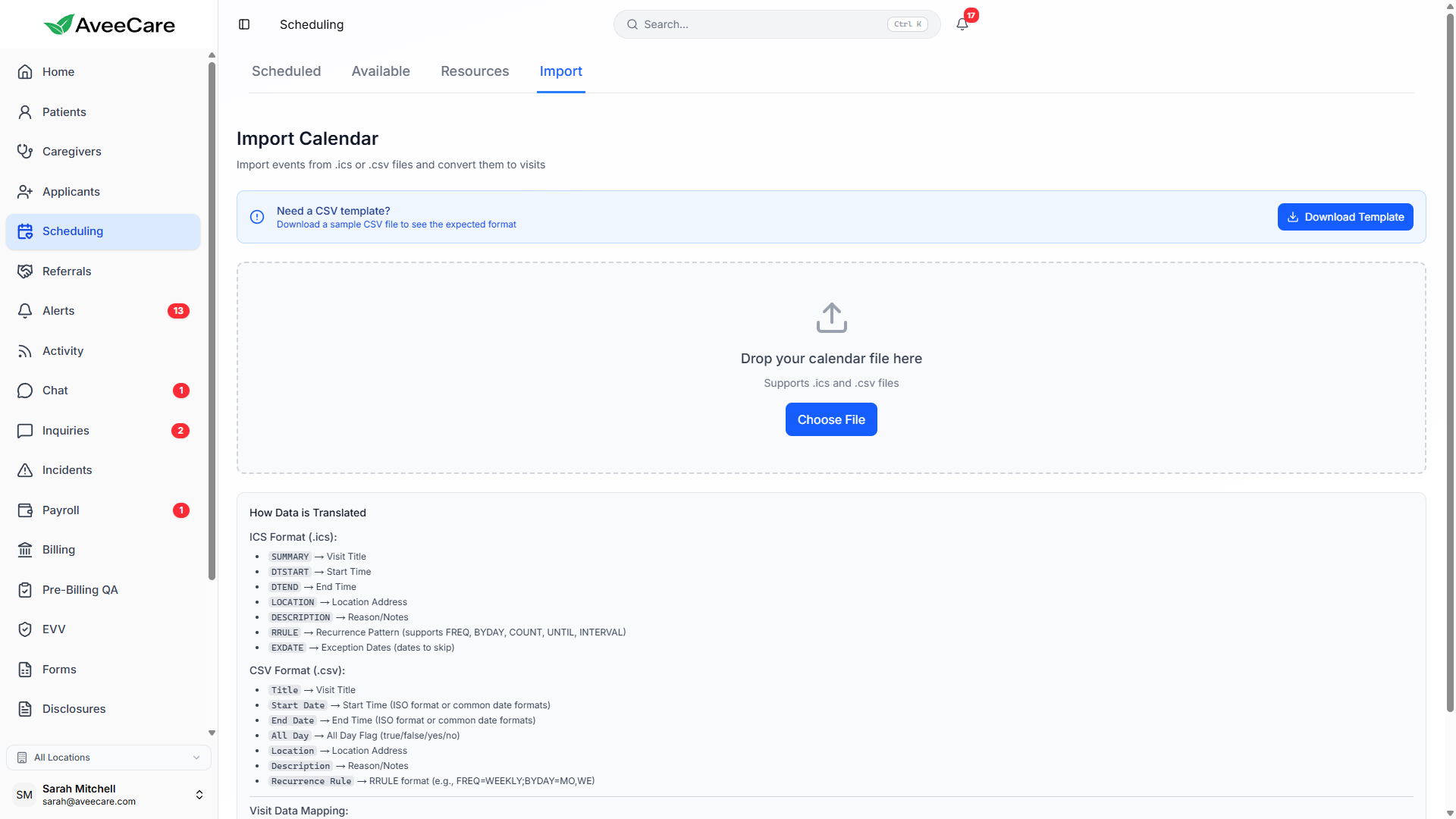
Drag-and-Drop File Upload
Uploading is as simple as dragging your ICS file onto the import area. AveeCare validates the file format, parses the events, and shows you a preview before importing.
Drop or Browse
Drag your .ics file onto the upload zone or click to browse your files. Supports single files and multiple file upload.
File Validation
AveeCare validates the file format and structure before parsing. Invalid files are rejected with a clear error message explaining the issue.
Preview Events
After parsing, see a full list of events that will be imported. Review dates, times, and details before confirming the import.
Mapping Events to Caregivers & Patients
After parsing your ICS file, AveeCare helps you map each event to the correct caregiver and patient in your system. Smart matching suggests assignments based on names found in the event data.
Mapping features
- Auto-match event attendees to existing caregivers by name
- Manual assignment dropdown for unmatched events
- Map event titles or descriptions to patient names
- Bulk assign a default caregiver or patient for all unmapped events
- Skip events you don't want to import
- Save mapping rules for future imports from the same source
Caregiver: Sarah M. | Patient: Martha Johnson
Caregiver: John K. | Patient: Robert Davis
Caregiver: Unassigned | Patient: Unassigned
Import Progress Tracking
For large imports, AveeCare shows you real-time progress so you know exactly where things stand. No guessing, no waiting in the dark.
138
Imported
4
Warnings
0
Failed
Error Handling & Invalid Entries
Not every event in an ICS file will map cleanly. AveeCare handles errors gracefully so one bad entry doesn't stop the entire import.
What gets skipped
- Events with missing start or end times
- Events with invalid date formats
- Duplicate events already in your calendar
- Events outside your configured date range
- All-day events (unless explicitly included)
Error reporting
- Detailed error log available after import completes
- Each skipped entry shows the reason it was excluded
- Download error log as CSV for review
- Successfully imported events are not affected by errors
- Option to retry failed entries after fixing the source data
Resource Scheduler View
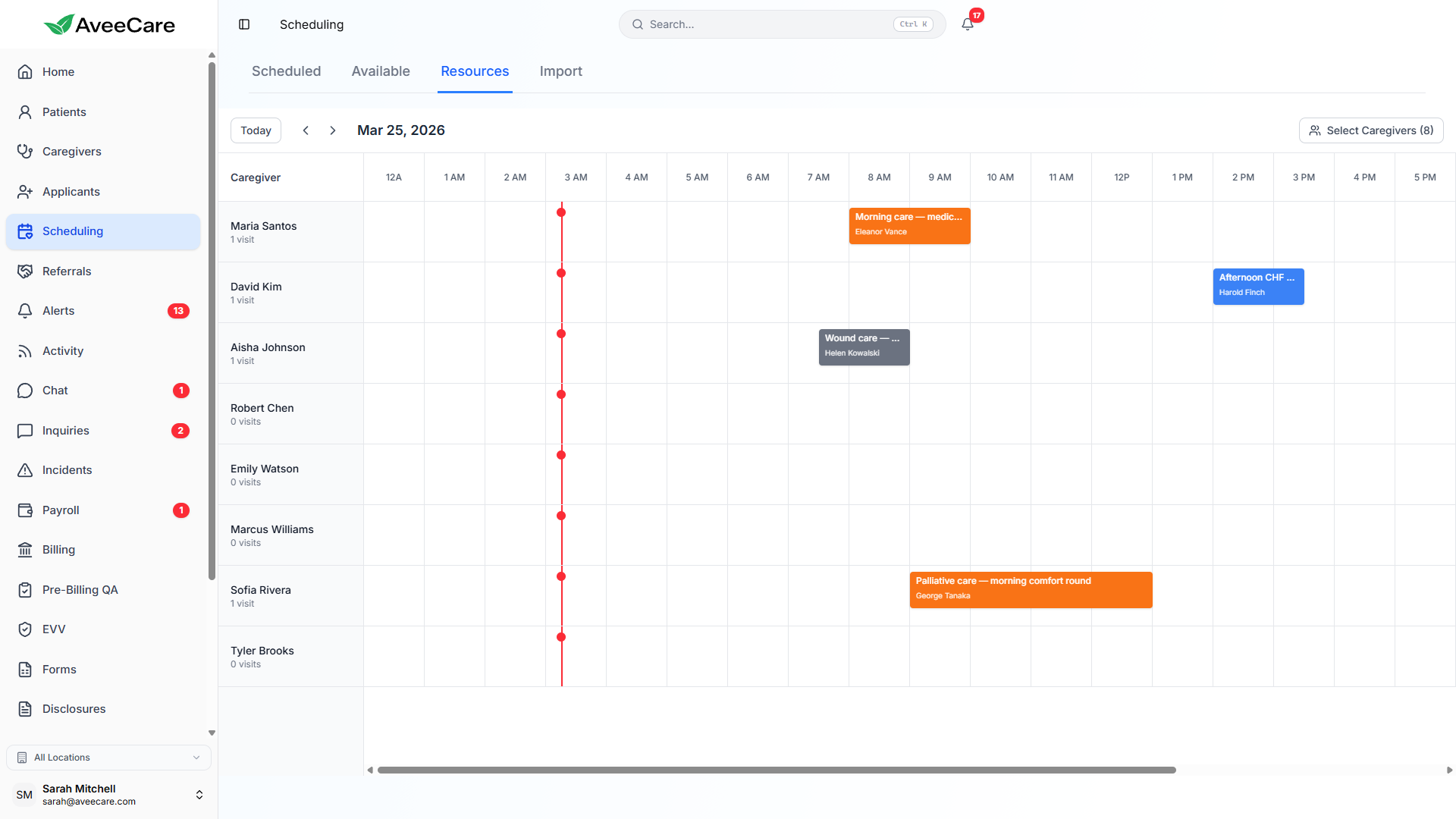
After a bulk import, use the Resource Scheduler view to see all caregivers and their assigned visits side-by-side. This Gantt-style view makes it easy to verify the import results and spot any gaps or overlaps.
Resource view features
- Horizontal timeline showing each caregiver's full day
- Color-coded visit blocks by status or visit type
- Drag-and-drop to reassign visits between caregivers
- Zoom in/out to see hourly or full-day views
- Filter by team, department, or certification
- Quickly identify unassigned or double-booked time slots
All scheduling features included at $6/client/month.
No add-on fees, no per-visit charges, no long-term contracts.