Pipeline
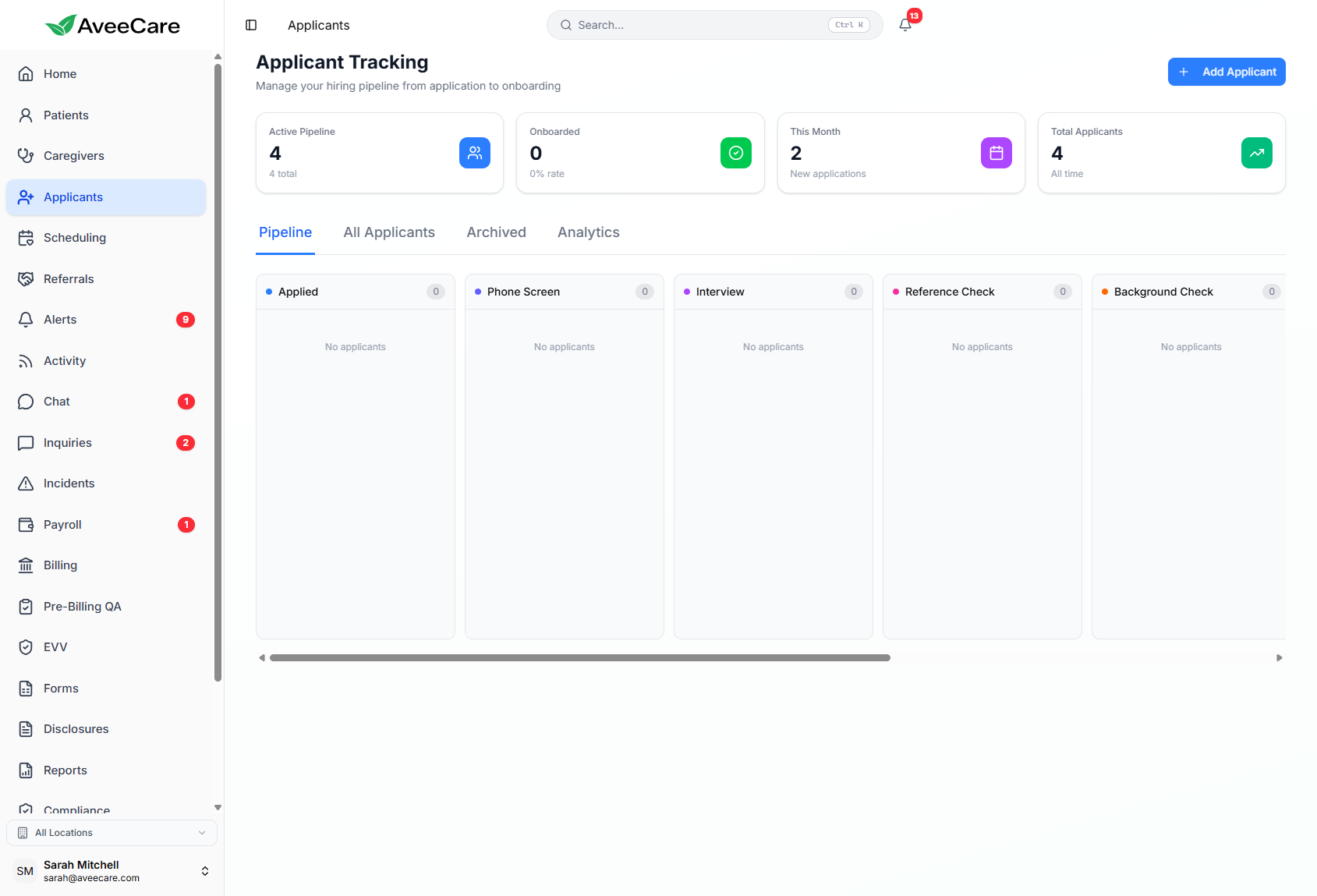
A Kanban-style visual pipeline that lets you see every applicant's stage at a glance. Drag and drop candidates between stages, search and filter, and perform bulk operations to keep your hiring moving.
Try Recruitment in DemoVisual Kanban Pipeline
Your hiring pipeline is displayed as a Kanban board with columns for each stage. Each applicant appears as a card that you can move between stages as they progress through your hiring process. See at a glance how many candidates are in each stage.
- Column-based layout with one column per pipeline stage
- Applicant cards show name, application date, and key details
- Counts in each column header show pipeline volume
- Color-coded stages for instant visual scanning
- Collapse or expand columns to focus on active stages
Pipeline Stages
AveeCare's recruitment pipeline includes 6 stages that cover the full hiring lifecycle. Each stage has specific actions and requirements to keep your process consistent.
Initial contact or application received. The applicant has entered your pipeline but hasn't been screened yet.
Applicant has been screened and is scheduled for or has completed an interview with your team.
Interview passed. Background check has been initiated and is awaiting results.
Background check cleared. An employment offer has been extended to the applicant.
Offer accepted. The applicant is ready to be converted to an active caregiver.
Applicant was not hired, withdrew, or was placed on hold. Records are preserved for future reference.
Drag-and-Drop Between Stages
Move applicants between pipeline stages by simply dragging their card from one column to another. Stage transitions are logged automatically in the applicant's activity timeline.
- Click and drag any applicant card to a new stage column
- Stage change is saved instantly — no confirmation needed
- Activity timeline records the stage change with timestamp
- Stage-specific requirements are surfaced when moving applicants forward
- Move applicants backward if additional review is needed
Search & Filter Applicants
Quickly find specific applicants across your pipeline using search and filters. Narrow results by stage, application date, location, or any other criteria to focus on the candidates that matter most.
Search
- Search by applicant name, email, or phone number
- Results update in real-time as you type
- Search across all pipeline stages simultaneously
Filters
- Filter by pipeline stage, date range, or source
- Combine multiple filters for precise results
- Save frequently used filter combinations
Bulk Operations & Stage Actions
Select multiple applicants and perform actions in bulk — move them to a new stage, archive them, or export their data. Each stage also has specific actions you can perform on individual applicants.
- Select multiple applicants with checkbox selection
- Bulk move selected applicants to a different stage
- Bulk archive applicants who are no longer in consideration
- Export selected applicant data for external processing
- Stage-specific actions (e.g., initiate background check, send offer)
All recruitment features included at $6/client/month.
No add-on fees, no per-applicant charges, no long-term contracts.