Set your rates. Fine-tune everything.
Configure billing rate types, patient-level overrides, tax settings, invoice preferences, and auto-billing rules — all from one place.
Rate Types
Four flexible rate structures cover every billing scenario your agency encounters.
Hourly
Charge per hour of service. Most common for personal care and companion care. The system multiplies hours by the configured rate automatically when generating invoices.
Per Visit
Flat charge per visit regardless of duration. Common for specific service types like assessments or supervisory visits where time spent varies but the charge stays the same.
Flat
Fixed charge not tied to individual visits. Use this for monthly retainers, service packages, or bundled pricing where the charge is the same regardless of visit count.
Custom
User-defined rate structure for unique billing needs. Build your own formula or pricing logic when the standard rate types do not fit your agency's billing model.
Managing Rates
Add, edit, and delete billing rates from one centralized list. Each rate includes all the details your invoicing system needs to calculate charges automatically.
Every rate you create includes the following fields:
- Rate name
- Description
- Rate type (hourly, per visit, flat, custom)
- Amount
- Service category
- Active / inactive toggle
- Default toggle (mark one as company-wide default)
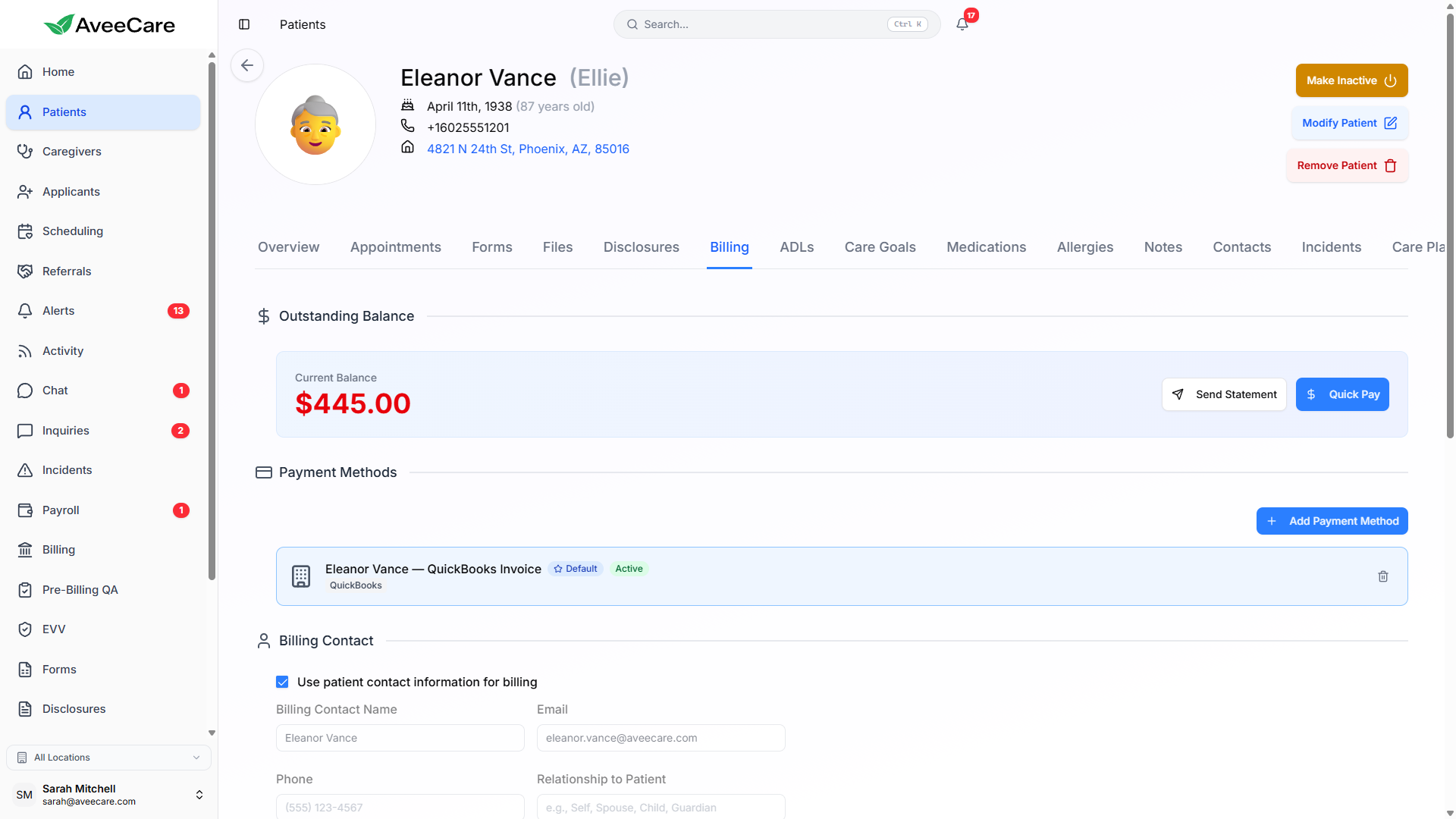
Mark one rate as the company-wide default. This rate is automatically applied to new patients and visits unless a patient-specific override is configured.

Patient-Specific Overrides
Override the company-wide default rate for individual patients. Set in each patient's billing tab, overrides let you handle unique situations without changing your global configuration.
Different service levels
Patients receiving specialized or premium care can be billed at a higher rate without affecting other clients.
Negotiated rates
Honor custom pricing agreements with individual patients or their families directly in the billing system.
Insurance-specific rates
When a payer reimburses at a contractual rate, set that amount on the patient so invoices match the expected payment.
Tax Configuration
Set your agency's tax preferences once and let the system handle the rest.
Default Tax Rate
Set a default tax percentage that is automatically applied to every generated invoice.
Tax-Exempt Toggle
Agencies that do not charge tax can toggle the exemption on to remove tax from all invoices globally.
Invoice Application
Tax is applied to all invoices unless the agency-wide exemption is enabled. No per-invoice toggling required.
Invoice Settings
Customize how your invoices look and behave. Set numbering conventions, payment terms, and overdue thresholds to match your agency's workflow.
Invoice Number Prefix
Customize the prefix prepended to every invoice number. The default is INV- but you can change it to match your existing numbering system.
Payment Terms
Choose the default payment terms applied to new invoices:
Overdue Warning Days
Configure the number of days after the due date before an invoice is flagged as overdue. This triggers visual indicators in your dashboard and optional email reminders.
Auto-Bill Settings
Eliminate manual invoice creation for recurring patients. When auto-billing is enabled, completed visits automatically generate and charge invoices using the patient's stored payment method.
Per-Patient Toggle
Enable or disable auto-billing on each patient individually. Some patients may prefer manual invoicing while others benefit from automatic charging.
Default Payment Provider
Assign a default payment provider per patient (Stripe, Square, PayPal, or QuickBooks). Auto-billed invoices charge through the assigned provider automatically.
Automatic Invoice Flow
When enabled, completed visits automatically generate an invoice, charge the stored payment method, and update the invoice status — no manual steps required.
Billing Provider Configuration
Connect your payment providers in Settings to start collecting payments. AveeCare supports Stripe, Square, PayPal, and QuickBooks.
Stripe
Credit cards, ACH, and more
Square
In-person and online payments
PayPal
Digital wallet payments
QuickBooks
Accounting and payment sync
Test Mode vs Live Mode
Each provider connection supports a test mode so you can verify your integration before processing real payments.
Connection Testing
After connecting a provider, run a built-in connection test to confirm that credentials and permissions are correctly configured.
Full Details
For complete payment processing documentation, visit the Payment Processing page.
Ready to simplify your billing setup?
Configure your rates, connect your payment providers, and start billing — all in under 10 minutes. No contracts, no hidden fees.