Invoice Management
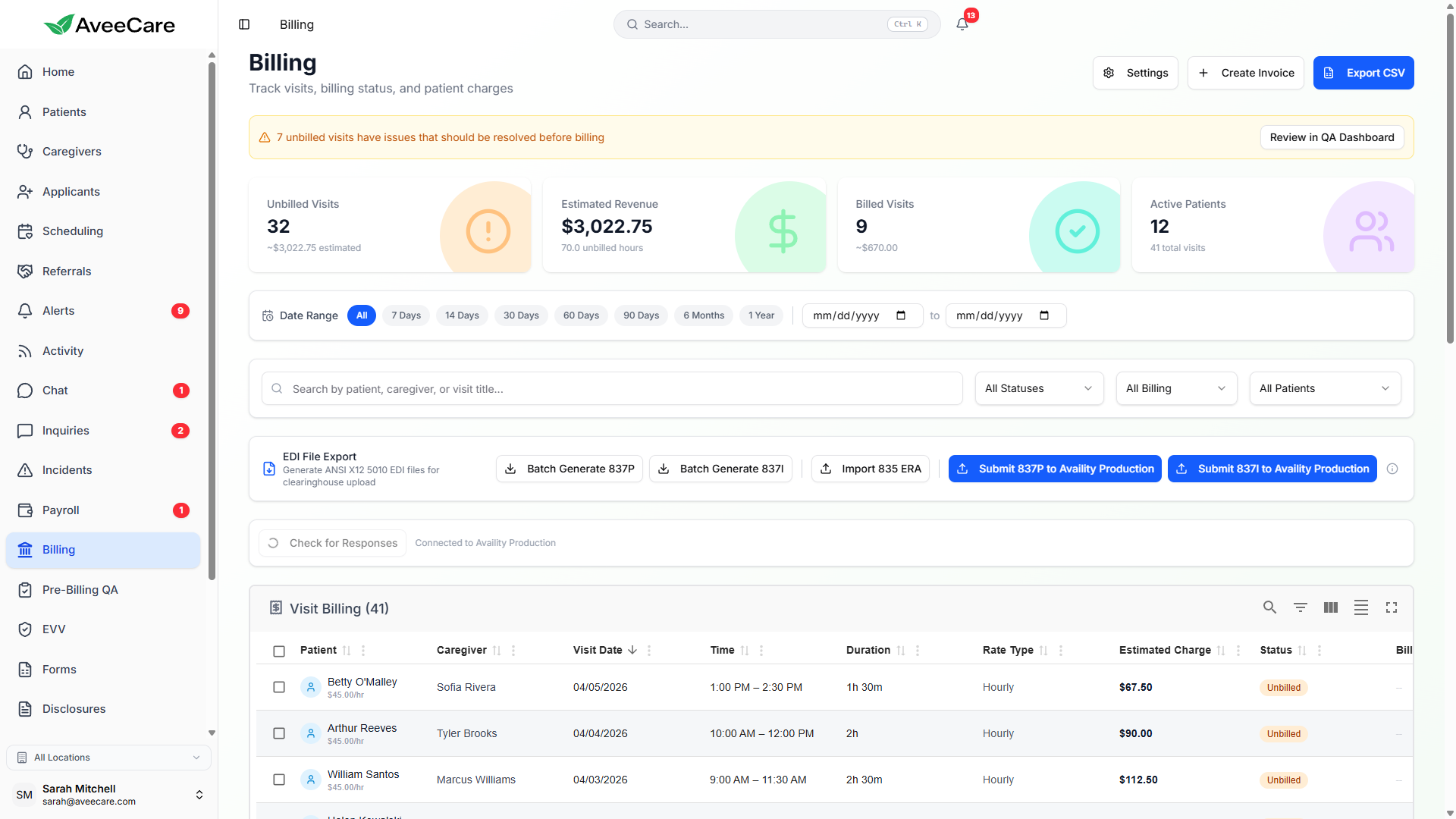
Create, send, and track invoices for every home care visit. From manual one-off invoices to fully automated billing from completed visits, AveeCare gives you complete control over your revenue cycle.
Try Billing in DemoCreating Invoices
To create an invoice, click the "Create Invoice" button in the Billing section. You can create invoices manually for any patient, or let auto-billing handle it for you (more on that below).
What you can configure
- Select a patient (optional for miscellaneous invoices)
- Add line items with description, quantity, and unit price
- Choose a billing provider (Stripe, Square, PayPal, etc.)
- Set a due date and payment terms
- Add internal notes or patient-visible notes
How line items work
Each line item has a description, quantity, and unit price. The total for each line is auto-calculated (quantity x price), and the grand total updates in real time as you add or remove items.
Invoice Statuses
AveeCare tracks 9 distinct invoice statuses so you always know exactly where every invoice stands. Each status is color-coded across the platform for quick visual scanning.
Created but not yet sent to the patient or billing contact.
Sent and awaiting payment from the recipient.
A payment attempt is currently being processed.
Fully paid. No remaining balance.
A partial payment was received. Remaining balance is tracked.
Past the due date with no payment received.
Cancelled by the agency. No payment expected.
Payment was returned to the payer.
A payment attempt failed (e.g., declined card).
Auto-Billing
Auto-billing eliminates manual invoice creation for recurring visits. When a caregiver completes and clocks out of a visit, AveeCare automatically generates an invoice and charges the patient's stored payment method.
How to set it up
- Enable auto-billing per patient in their Billing tab
- Assign a default payment provider for the patient
- Store the patient's payment method (card, ACH, etc.)
- Completed visits will automatically generate and charge invoices
Sending & Reminders
Once an invoice is ready, send it directly to the patient or their designated billing contact via email. AveeCare also helps you follow up on overdue invoices without manual effort.
Email Invoices
Send invoices via email to patients or their billing contacts. The email includes a summary and a link to view the full invoice.
Payment Reminders
Send payment reminders for overdue invoices with a single click. Reminders include the invoice amount and a link to pay.
Overdue Warnings
Configure how many days after the due date an invoice is flagged as overdue. The default is 7 days, adjustable in your billing settings.
Partial Payments & Refunds
Not every payment comes in full. AveeCare handles the real-world complexity of partial payments and refunds so your books stay accurate.
Partial Payments
- Accept any payment amount against an outstanding invoice
- System automatically tracks the remaining balance
- Invoice status updates to "Partially Paid" with balance shown
- Multiple partial payments can be applied to a single invoice
Refunds
- Process full or partial refunds from any paid invoice
- Refund reason is tracked for audit and reporting purposes
- Refunds flow back through the original payment provider
- Invoice status updates to "Refunded" automatically
Export
Need your billing data outside of AveeCare? Export filtered invoices and payment data to CSV for use with external accounting software, tax preparation, or compliance reporting.
What the export includes
- Invoice numbers, dates, and due dates
- Patient name and billing contact details
- Line item descriptions and amounts
- Payment status and amount paid
- Visit details linked to each invoice
- Payment provider and transaction IDs
All billing features included at $6/client/month.
No add-on fees, no per-invoice charges, no long-term contracts.